User Manual#
Scope
This manual is written for the Orion web application as implemented in this repository. It covers the main user experience, search and investigation workflows, live lookup tools, graph views, tenant workflows, and administrative screens. Some features appear only for specific licenses, tenants, or roles.
About This Guide#
Orion is an investigation and monitoring platform that combines indexed intelligence, live lookups, graph exploration, tenant workflows, and platform administration in one interface. Users typically work in one of four ways:
Search indexed data from the main dashboard.
Run a targeted lookup or scan against a domain, file, email, IP, username, or other entity.
Open a report view to inspect metadata, evidence, and relationships.
Manage tenant, user, alert, and platform settings based on role permissions.
This document is organized around those tasks.
Access and Entry Points#
Login#
The standard entry point is the login screen. Depending on deployment settings, users may also encounter:
account onboarding
welcome or notification screens
password reset flows
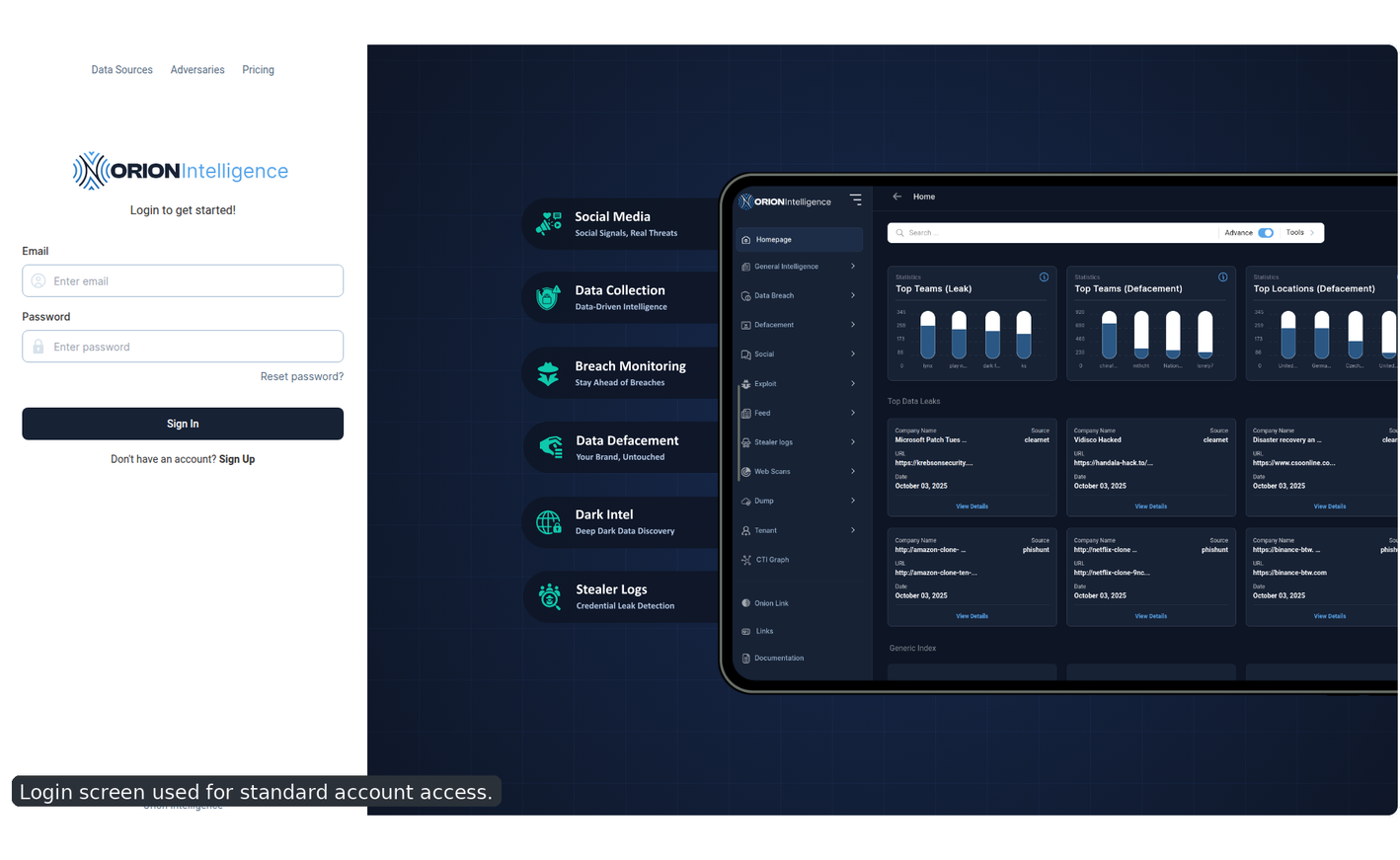
Login screen used for standard account access.#
Role-aware experience
The sidebar, available modules, and some actions are controlled by role, tenant state, and license assignment. Two users in the same deployment may not see the same menu.
Password Reset#
The reset flow supports two stages:
requesting a reset link by email
submitting a new password using a tokenized reset link
The new-password form includes password-strength guidance and confirmation validation.
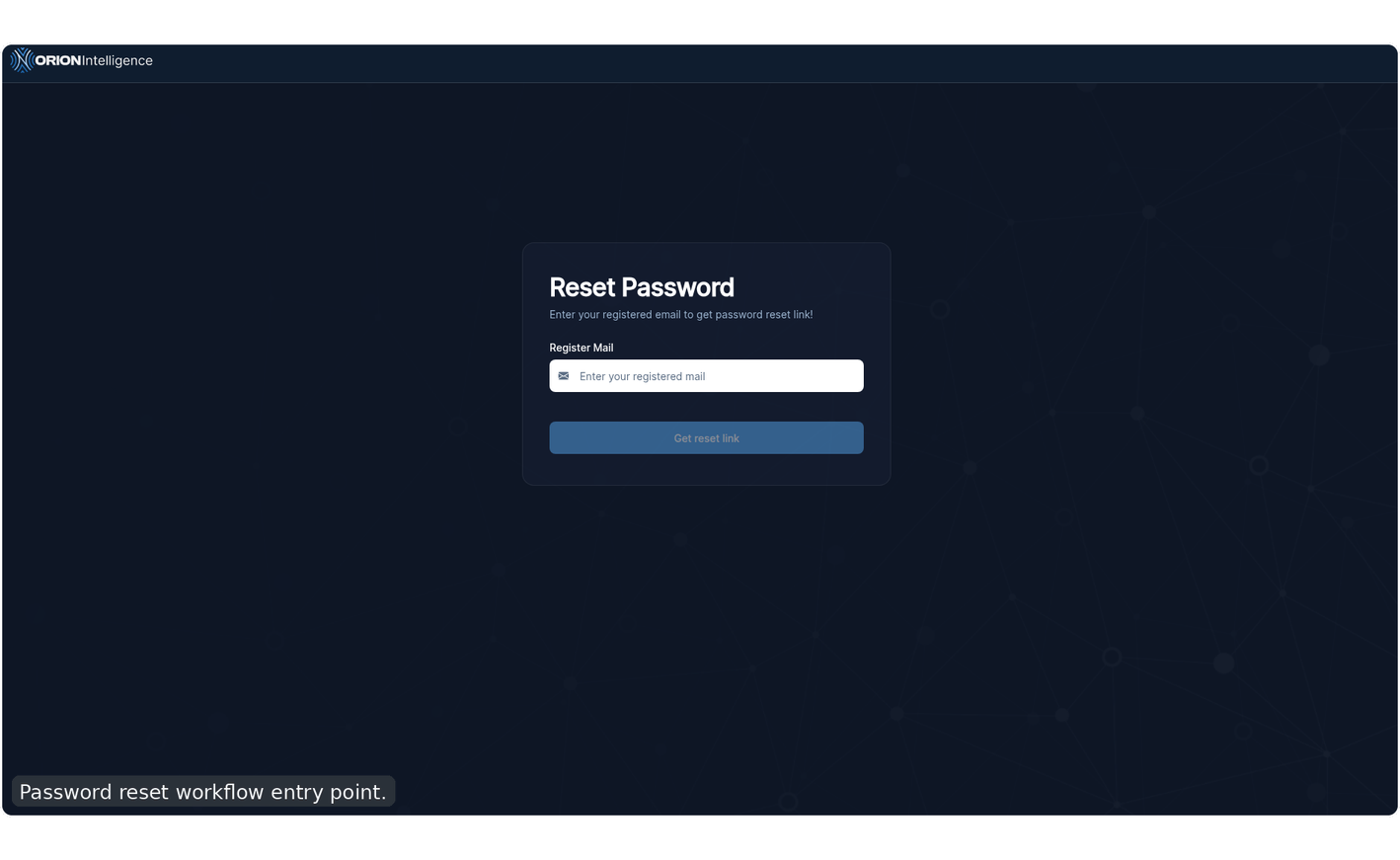
Password reset workflow entry point.#
Tenant Onboarding#
New tenant users may be routed through a multi-step onboarding flow before using the main dashboard. The onboarding wizard includes:
company information
IOC setup
confirmation
During onboarding, users can define monitored IOC values by category before entering the main application.
The tested tenant flow confirms that onboarding is part of a larger tenant lifecycle rather than a standalone form. Covered user-visible behavior includes:
tenant signup and verification email delivery
admin-side tenant review and verification changes
enterprise-license assignment before first tenant login
onboarding wizard completion
IOC seeding during onboarding
tenant sub-user creation immediately after onboarding
Main Application Layout#
After authentication, Orion opens inside the dashboard workspace.
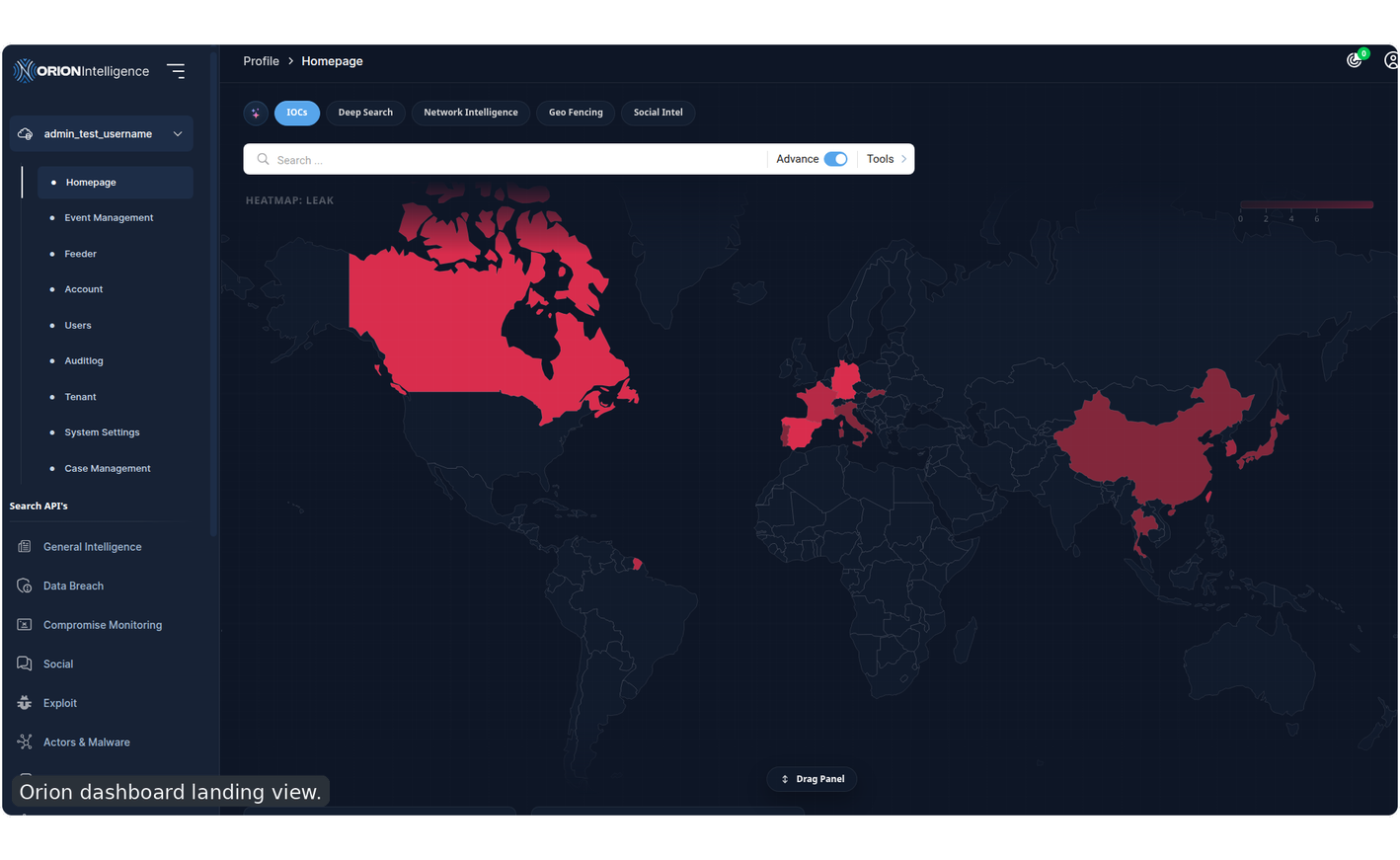
Orion dashboard landing view.#
The main UI is centered around four areas:
the left sidebar for navigation
the global search and module toolbar
the result or report workspace
slide-out or inline filter panels
Left Sidebar#
The left sidebar is the primary navigation system. It groups features by investigation area and by operational purpose.
Expanded sidebar with major modules and support links.#
The sidebar can include:
user profile and account pages
indexed search modules
live scan and API modules
graph tools
support links such as
Onion Link,Links, andDocumentation
Global Search Area#
Most data-driven modules share the same search pattern:
a search box
optional advanced filtering
optional search tools
an optional right-side filter drawer
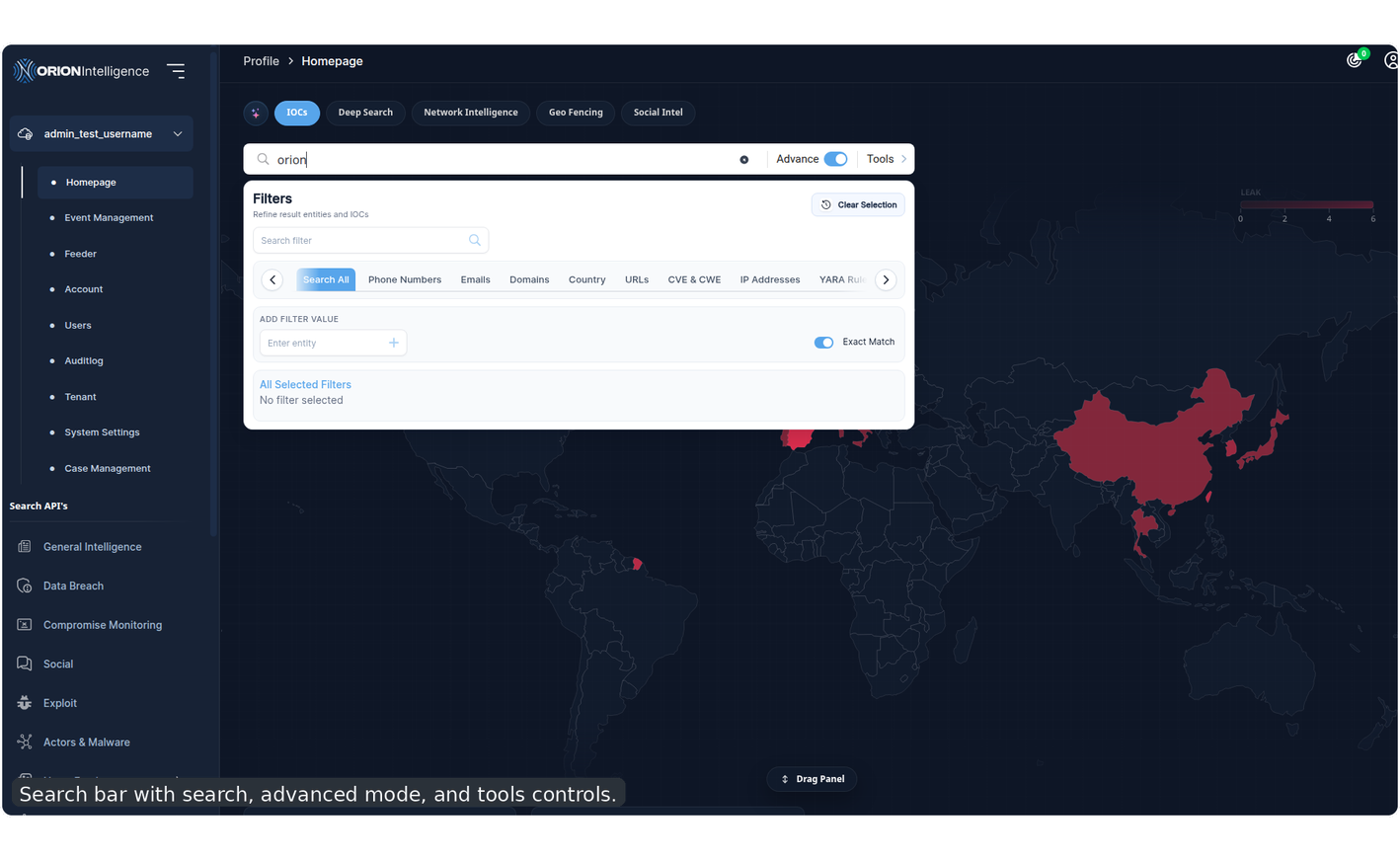
Search bar with search, advanced mode, and tools controls.#
Result Workspace#
The result area changes by module, but commonly includes:
a result count
cards or row-based entries
analytics summaries
filters
pagination
empty, loading, and no-result states
Global Search Workflow#
The search bar is the main entry point for indexed investigation.
Basic Search#
In standard mode, users can enter a free-text query and submit it immediately. Orion then loads results for the current module or route context.
Advanced Search Toggle#
The Advance toggle enables the filter overlay below the search bar. When enabled, Orion exposes indexed filter controls that let users narrow the query more precisely.
Tools Menu#
The Tools section provides search behavior controls and, in some contexts, sorting options.
Search entry area with search mode and tools controls.#
Available search modes in the main result workflow include:
Match SemanticMatch any term (OR)Match individual terms (AND)Match full query
These modes affect how broadly or narrowly Orion interprets the query.
Search Filters#
When advanced mode is enabled, users can add indexed filters to refine the result set.
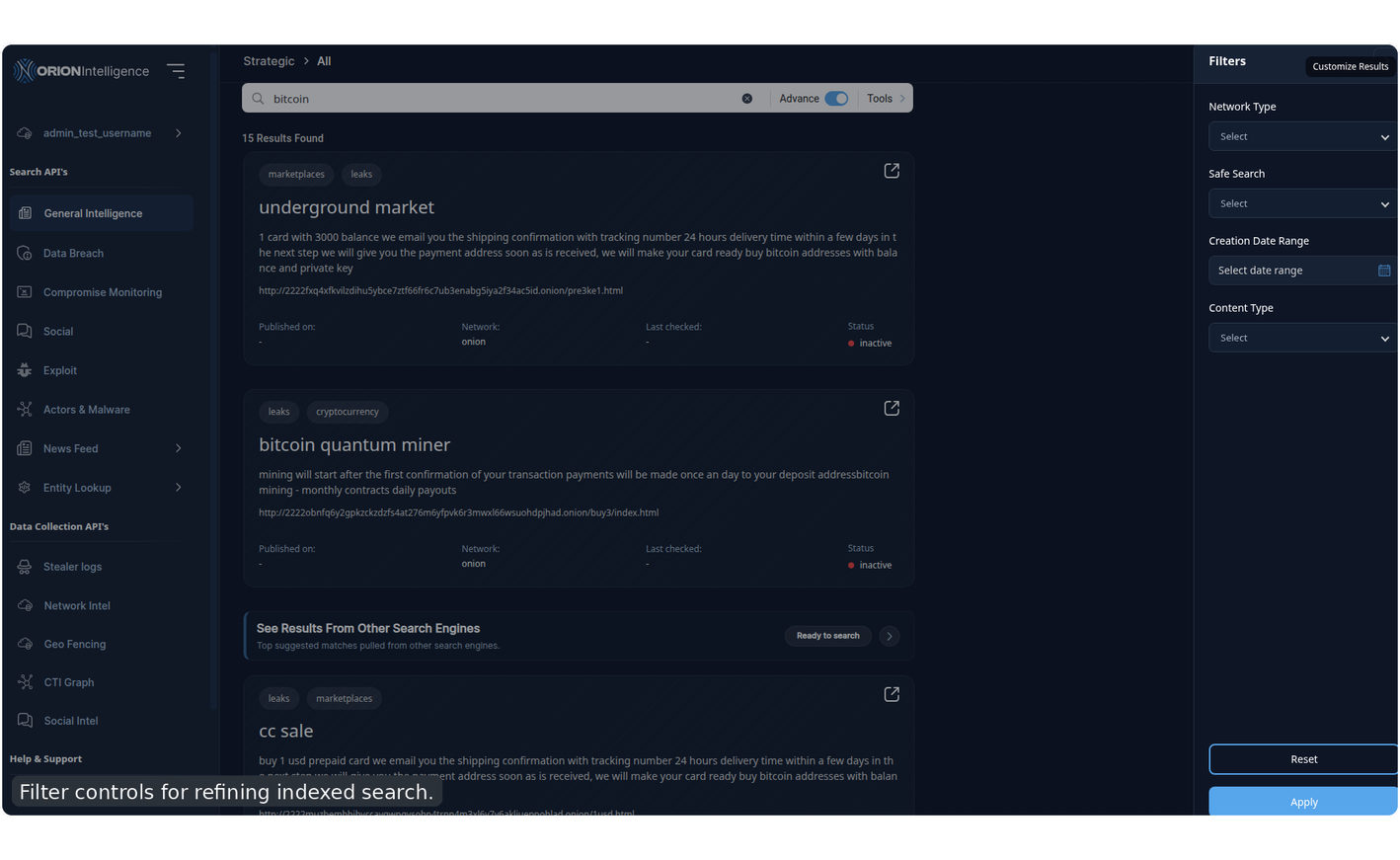
Filter controls for refining indexed search.#
Across the application, filter panels typically support:
dropdown selection
text input
date range input
apply
reset
Selected Filter Bar#
When entity filters, sidebar filters, or non-default search tools are active, Orion can display a selected-filter bar showing what is currently affecting the result set.
Homepage#
The homepage is the default overview for many users and acts as a search-first dashboard.
The homepage typically includes:
the global search entry point
high-level summaries
statistics or insight cards
general and leaked index summaries
For some privileged roles, the homepage also includes a draggable insight panel layered over the main search experience. Other users may instead see a simplified search-first landing view or a tenant-home style alert summary, depending on license assignment and whether the account belongs to a default tenant.
Homepage Summary Areas#
General Index: broad indexed content gathered across supported sources.Leaked Index: sensitive, exposed, or higher-priority findings.Recent or featured results: direct pivots into current records.Insight blocks: charts and counts used for quick triage.
Homepage overview with summary panels and search-first layout.#
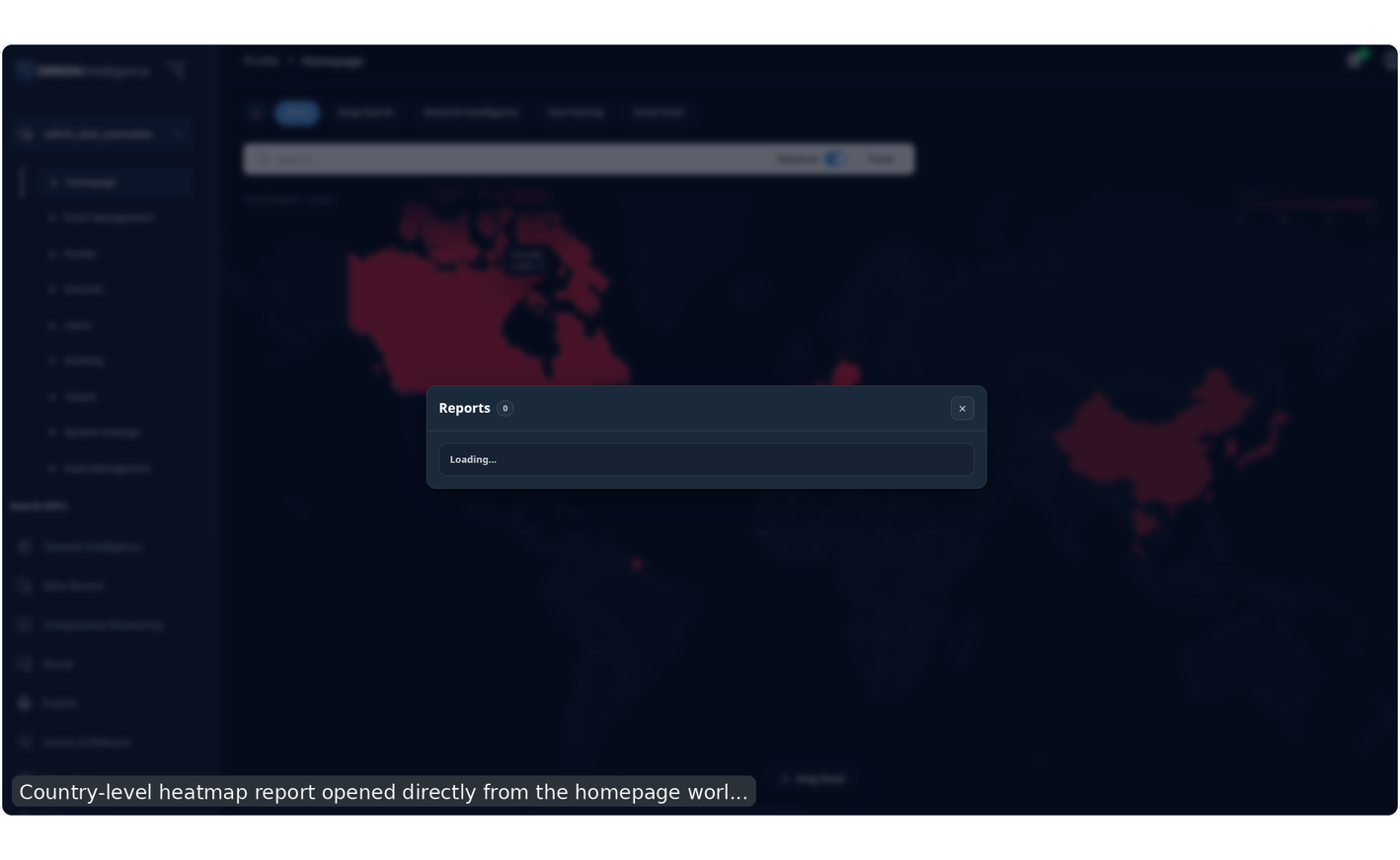
Country-level heatmap report opened directly from the homepage world map.#
The tested homepage workflow also includes:
hovering countries to reveal tooltip state
opening country-level report panels from the heatmap
closing the report by close control and by overlay
keeping homepage search and heatmap pivots available in the same workspace
Analytics and Result Insights#
Orion exposes analytics alongside search results to help analysts understand the composition of the returned dataset.
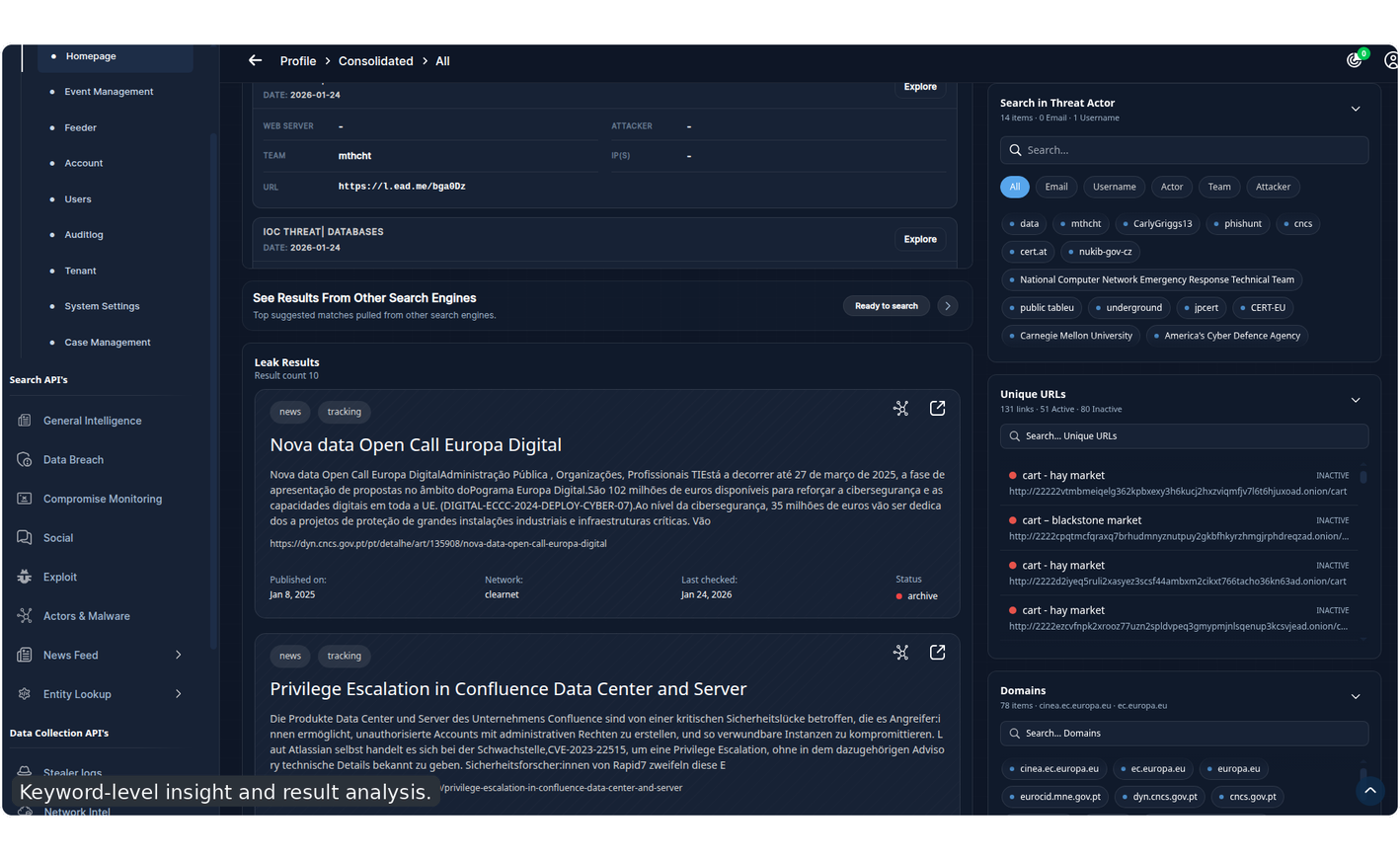
Keyword-level insight and result analysis.#
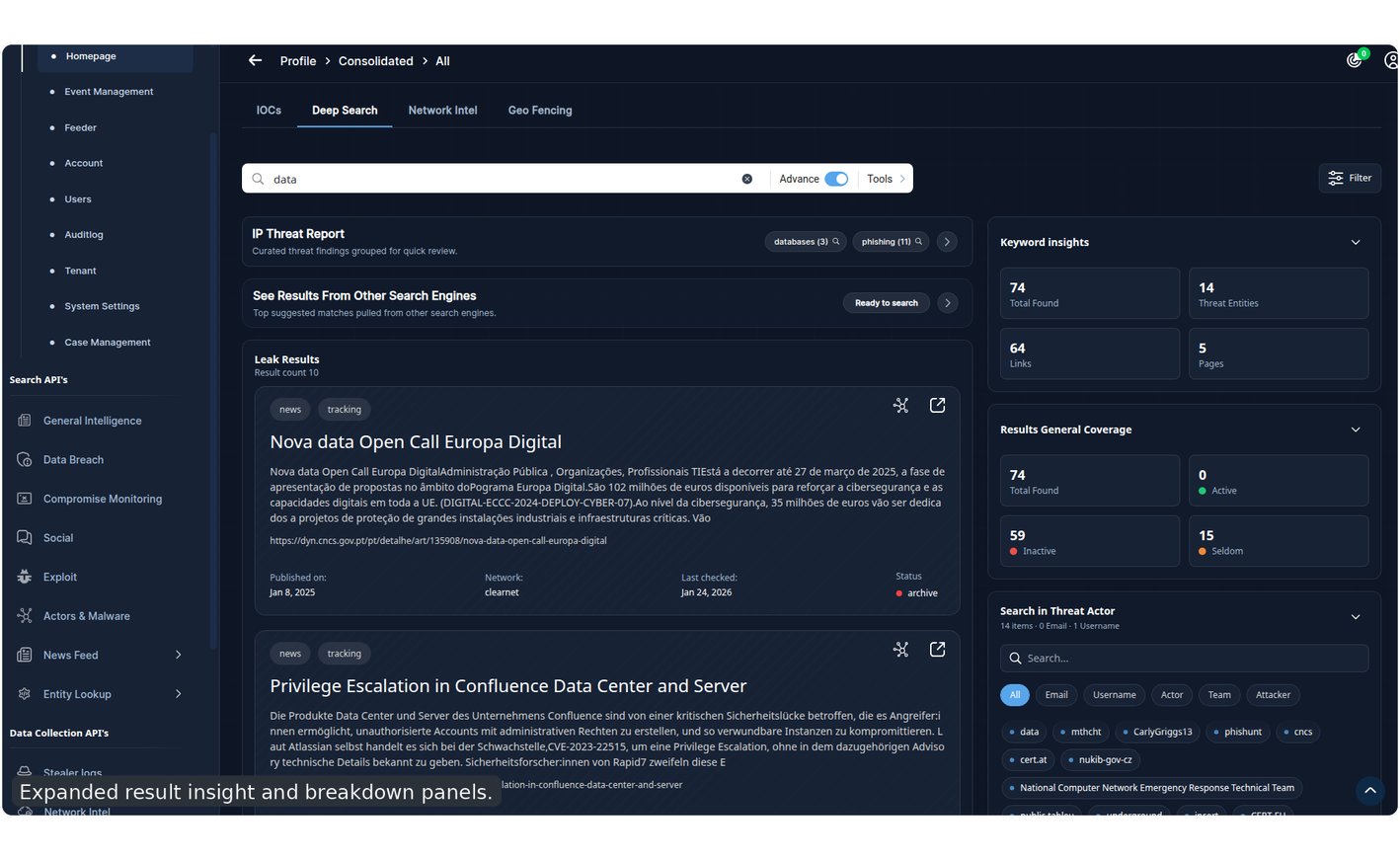
Expanded result insight and breakdown panels.#
Depending on module and query, analytics can summarize:
keyword frequency
category distribution
result volume
network or source distribution
URL and title breakdowns
Indexed Investigation Modules#
Consolidated#
The consolidated view is Orion’s combined investigation workspace. It is designed for users who want one query to drive multiple result channels instead of searching each module separately.
The consolidated route can expose three major tabs:
IOCsDeep SearchNetwork Intel
Depending on the query and license state, this view can combine:
grouped indexed results
stealer-log matches for qualifying queries such as emails or URLs
embedded network or scan-style pivots
Use consolidated search for first-pass triage when you want breadth before moving into a dedicated module.
Combined result workflow used for broad first-pass triage.#
General Intelligence#
General Intelligence is the primary broad-spectrum indexed search area. Use it when you want to search topics, entities, or keywords across multiple kinds of sources.
Subcategories:
AllGeneralForumsNewsStolenDrugsHackingMarketplacesCryptocurrencyLeaks
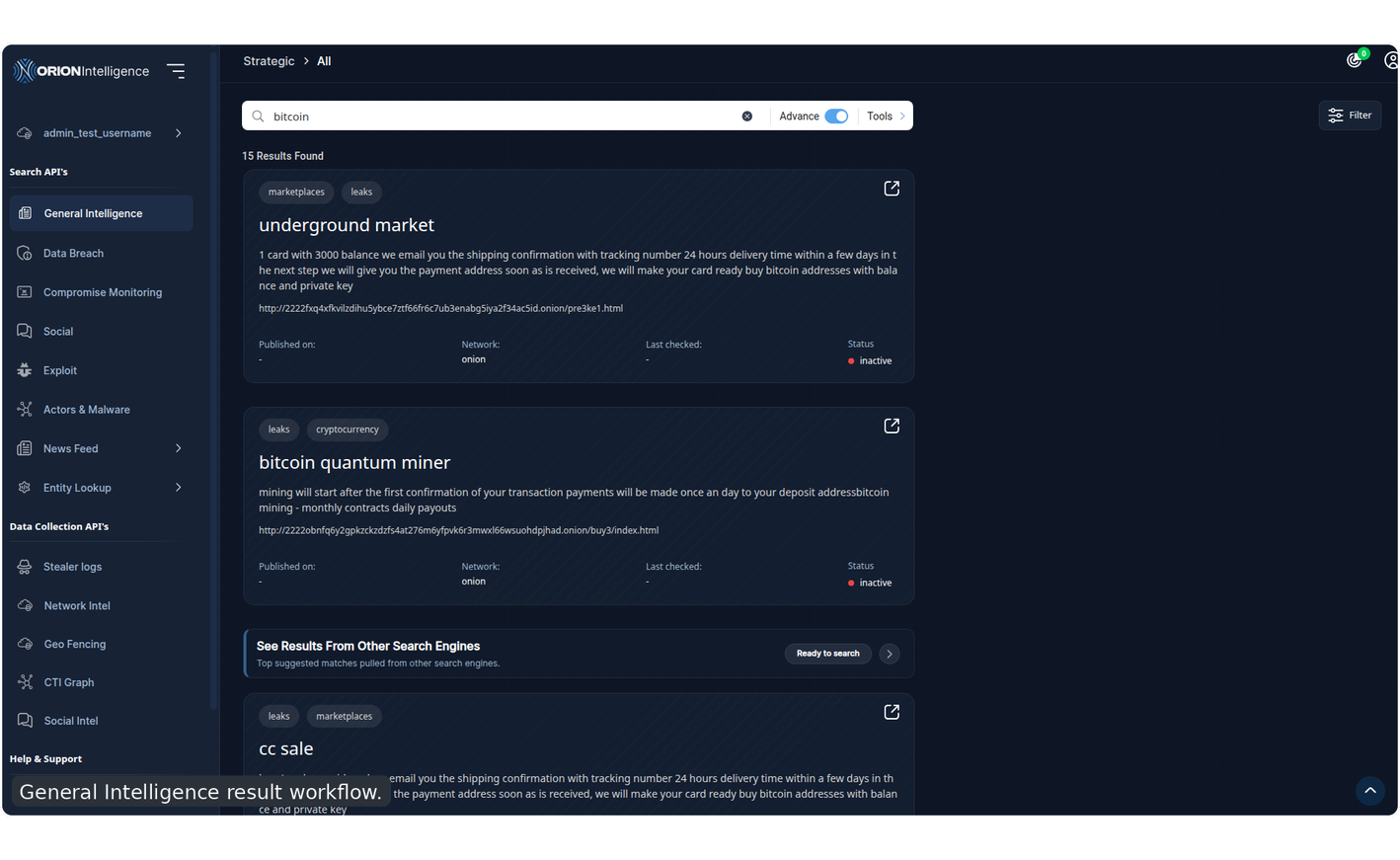
General Intelligence result workflow.#
Typical use cases:
surveying discussions around a topic
reviewing leak mentions
exploring dark-web marketplace activity
scanning mixed-source intelligence for a keyword
Data Breach#
The Data Breach module is used for known breach data and identity exposure checks.
Subcategories:
AllDatabasesTracking
Use Databases when you want structured breach records. Use Tracking when checking whether a specific email or identity appears in known breach data.
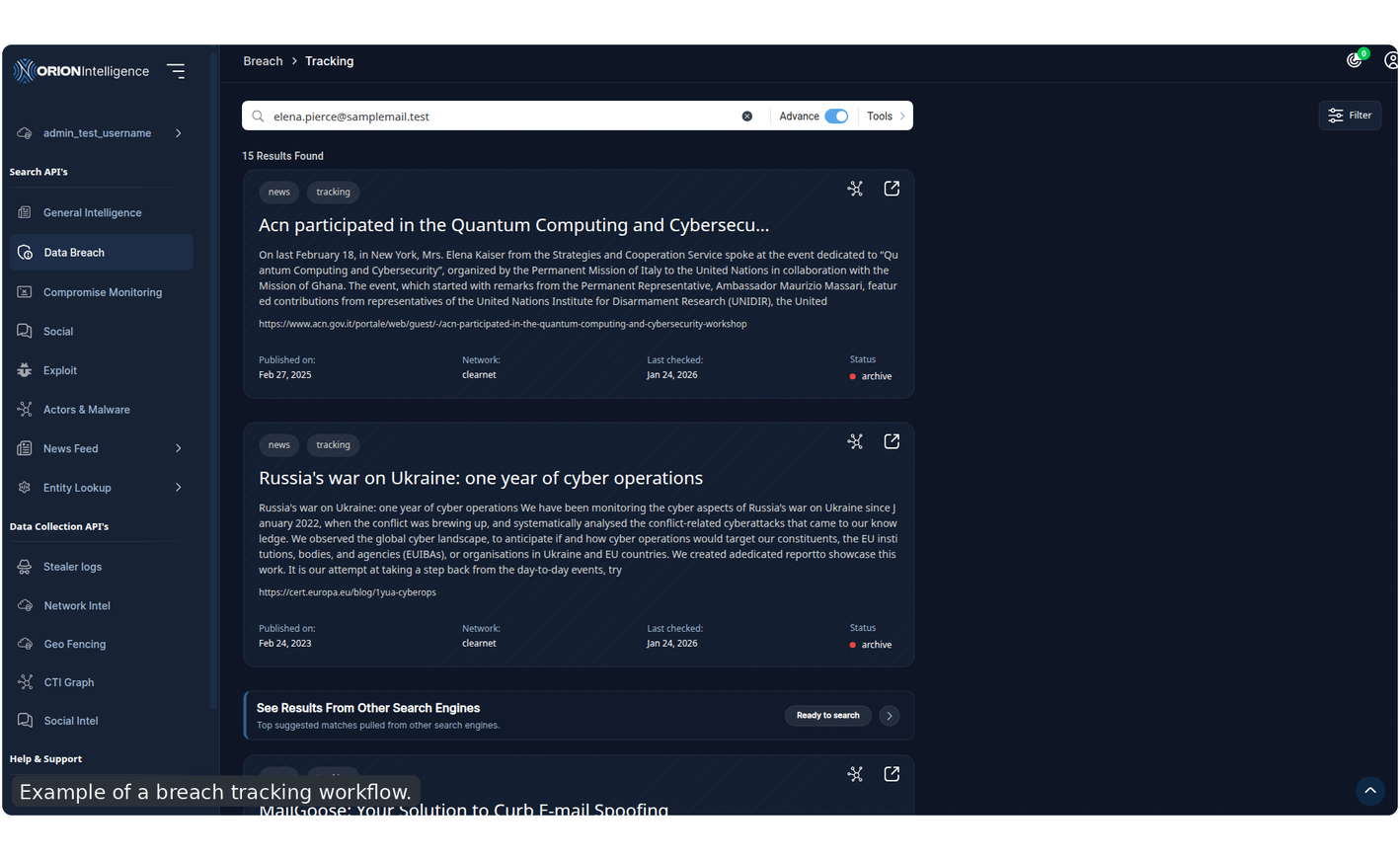
Example of a breach tracking workflow.#
Defacement#
Defacement tracks websites that were altered, hijacked, cloned, or otherwise compromised.
Subcategories:
AllHackedPhishingDatabases
The detail view commonly exposes:
target URL
date saved
attacker or defacer
team name
server or IOC context
breach or source reference
IP and location
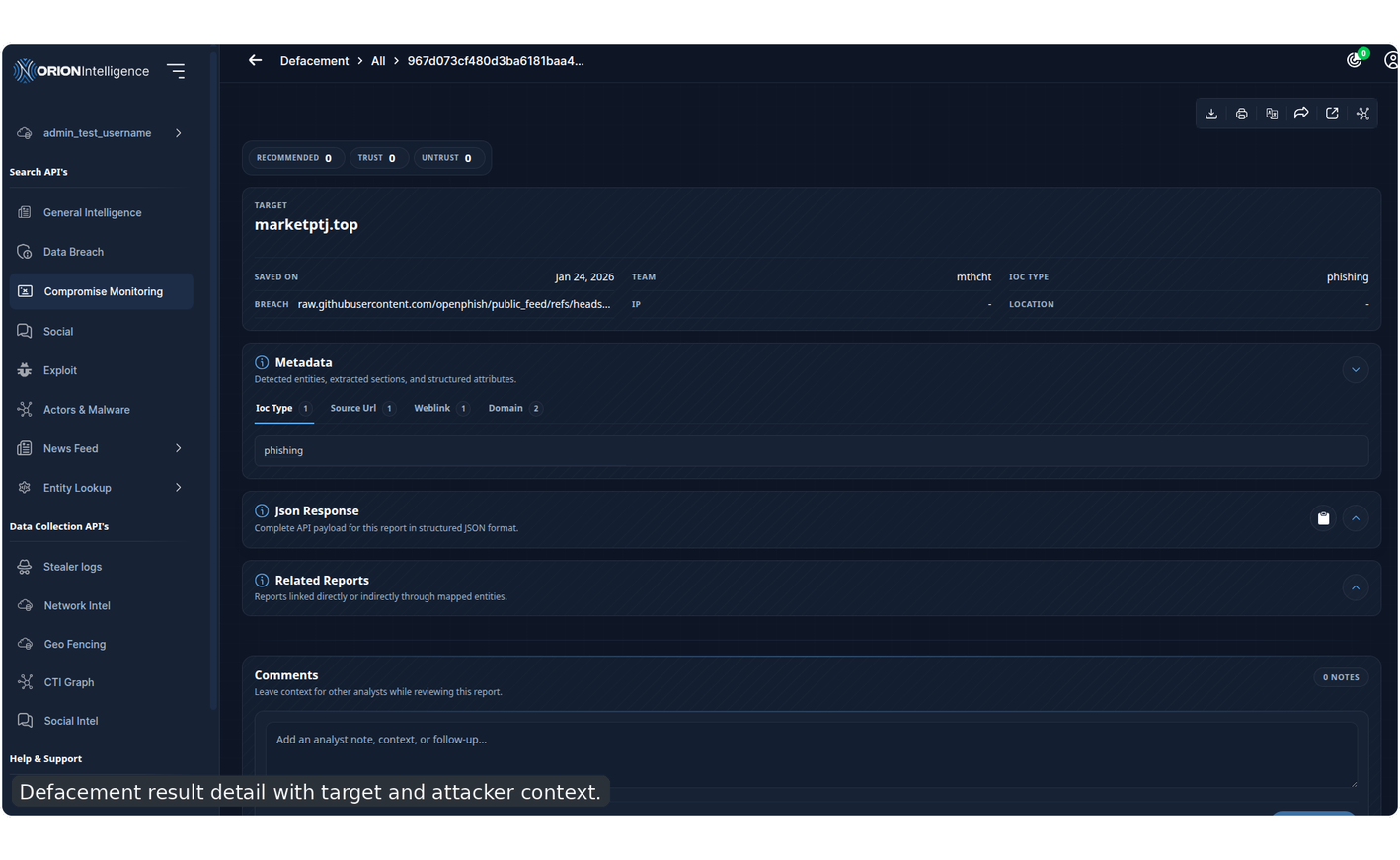
Defacement result detail with target and attacker context.#
Exploit#
Exploit focuses on vulnerability and exploit-related intelligence.
Key views:
CVEToolsZeroDay
This module is useful when starting from:
a known vulnerability ID
a product or platform with public exploit coverage
a threat report mentioning exploit tooling
The E2E workflow covers all tested exploit entry points:
AllCVEToolsZeroDay
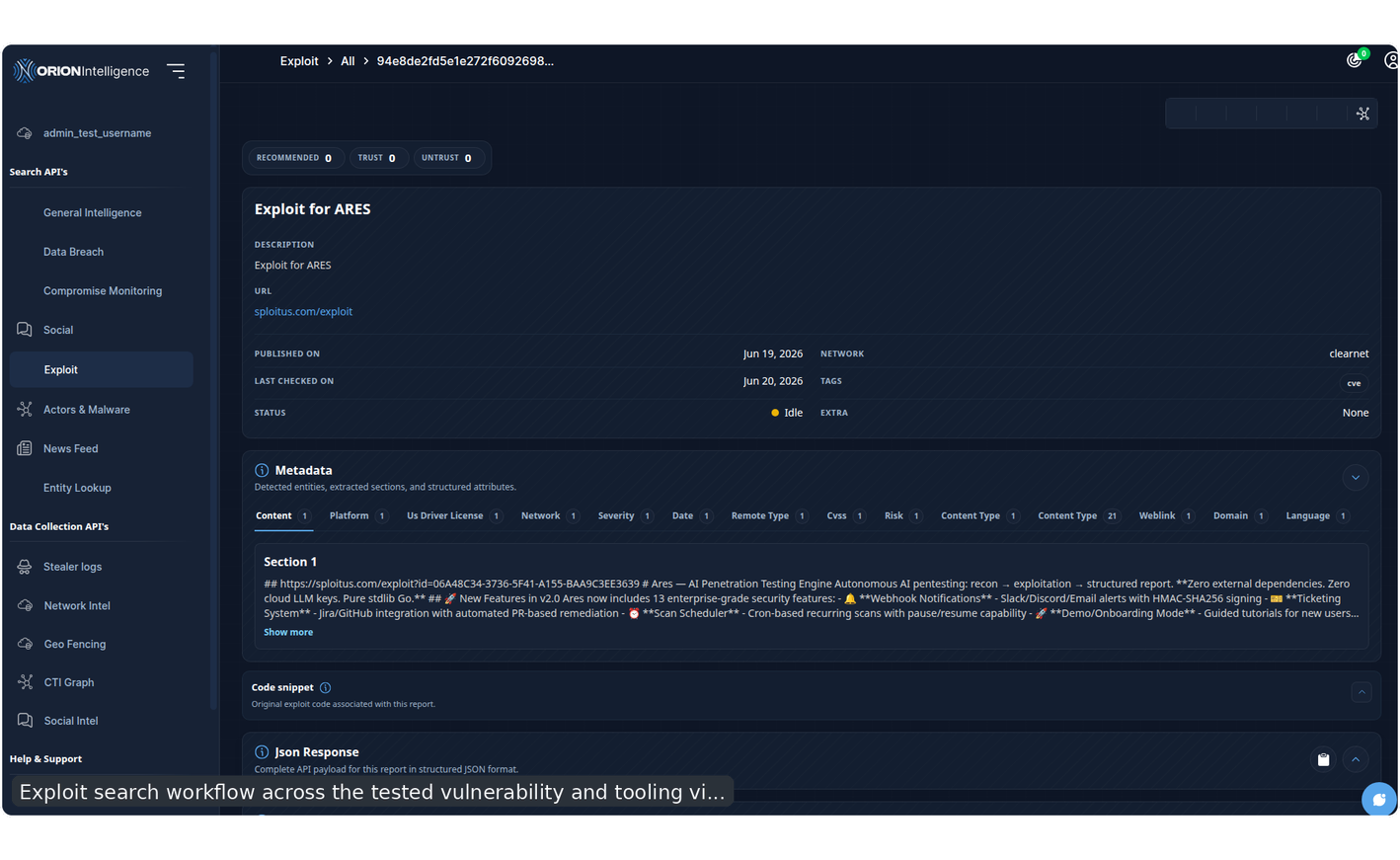
Exploit search workflow across the tested vulnerability and tooling views.#
Feed#
Feed is the stream-oriented intelligence area for news-style content and current reporting. It is useful for users who want a curated readout without first building a structured query.
The tested feed workflow covers:
opening the
Newsfeed viewsubmitting a live query
opening a report
reviewing JSON-backed detail inside the report
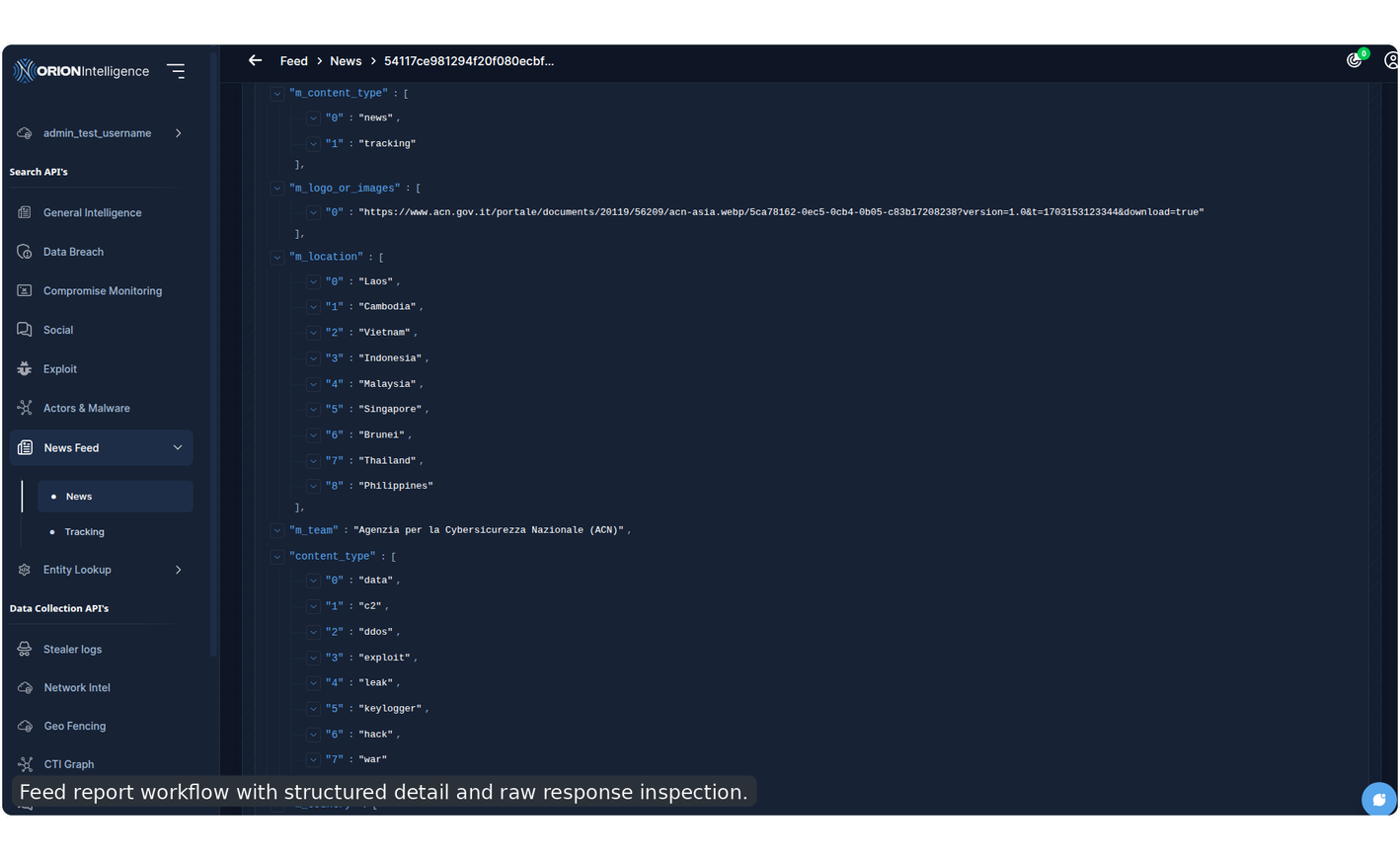
Feed report workflow with structured detail and raw response inspection.#
Help and Support#
The profile menu exposes a support workflow that is part of the tested navigation model.
Covered user-visible behavior includes:
opening help and support from the profile menu
filling email, subject, and message fields
submitting the support request
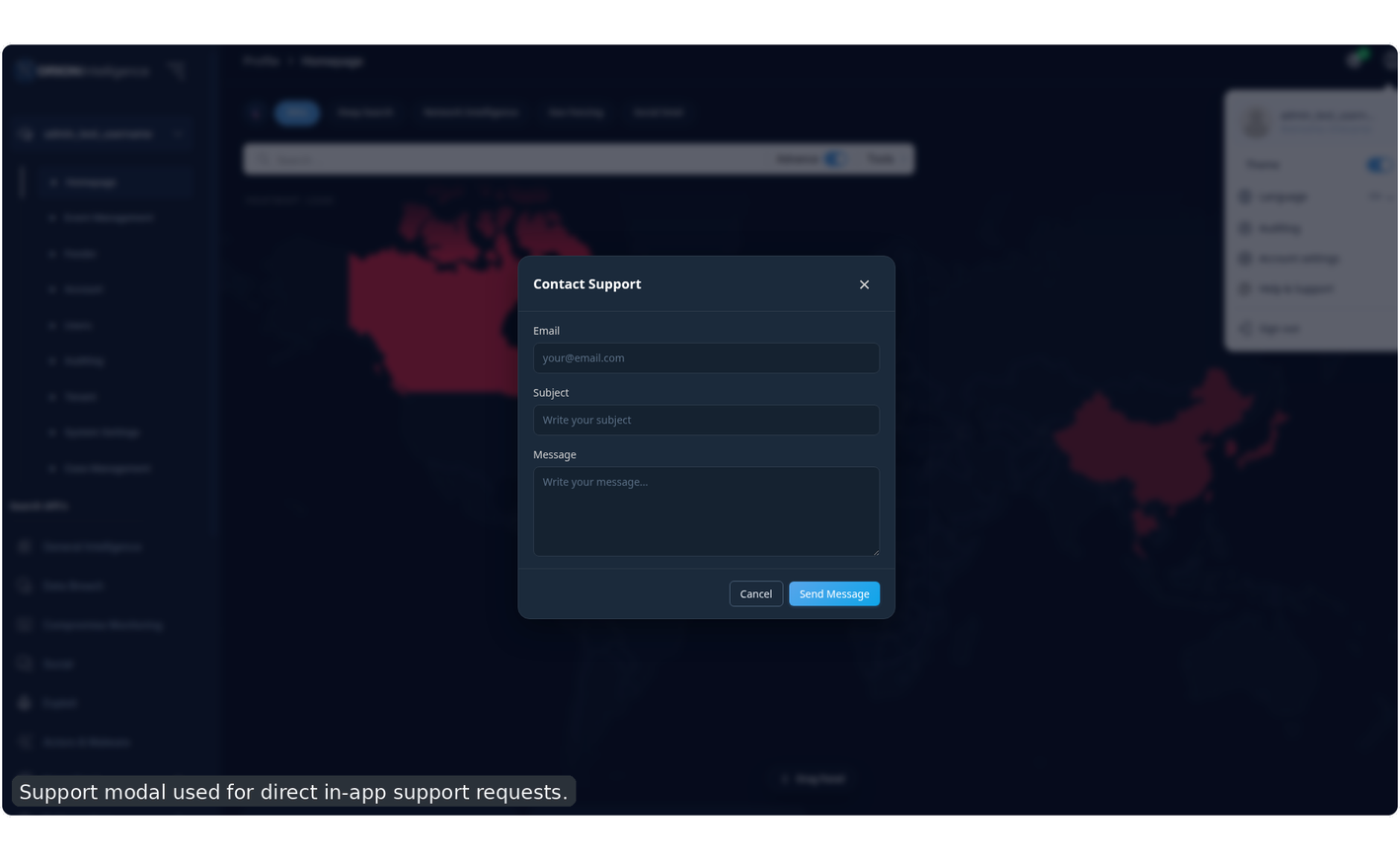
Support modal used for direct in-app support requests.#
Dump#
Dump exposes indexed dump and listing material gathered from monitored sources such as channels, leak-sharing locations, and relevant websites. Use filters to narrow by source, type, or origin.
The dump page also provides a dedicated search field for leak URLs, making it more direct than the broader keyword-first search used in other modules.
Common usage patterns include:
browsing leak or dump listings with page-level filters
pivoting directly from a known leak URL
reviewing channel-style or site-style dump references without opening a broader module first
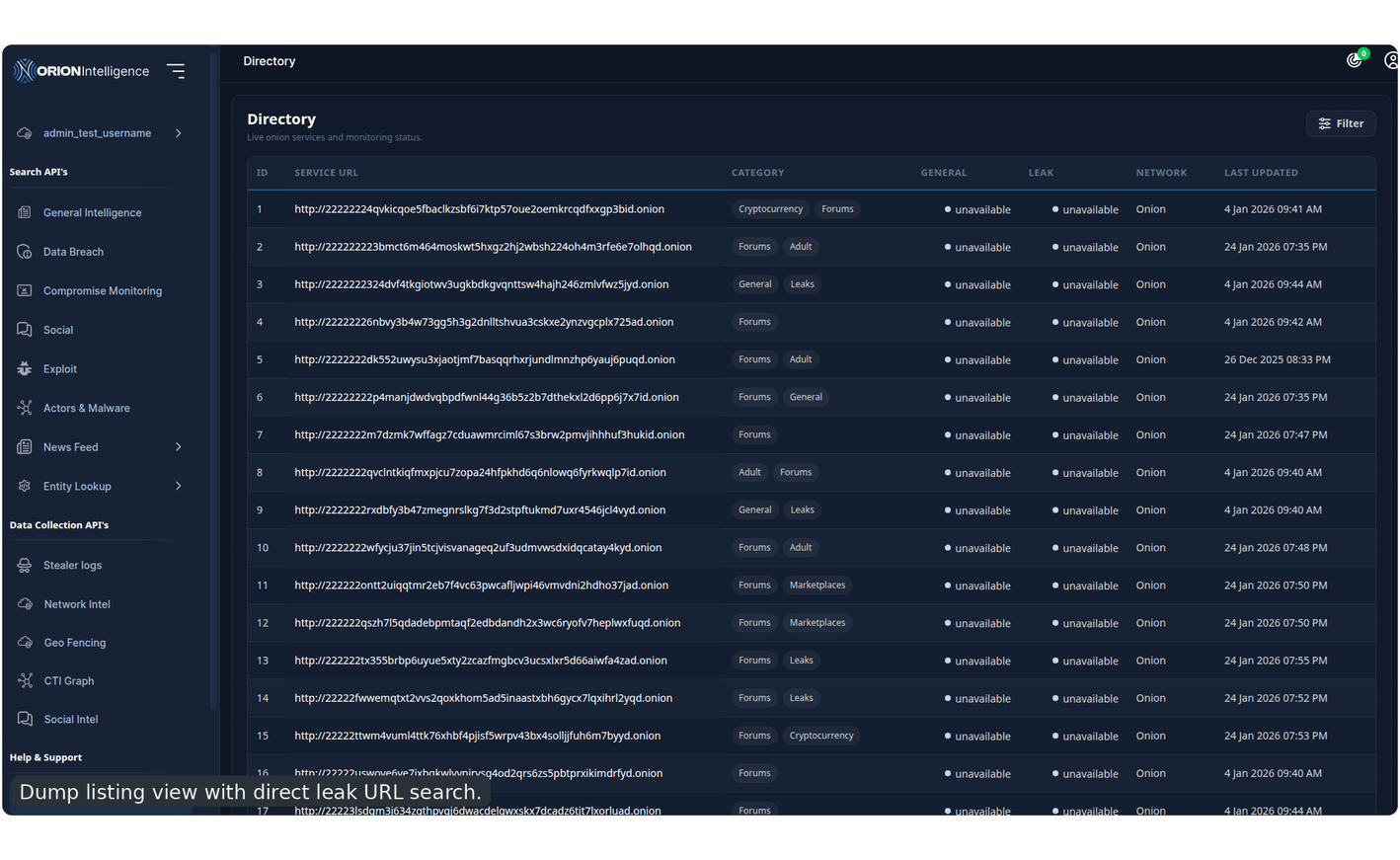
Dump listing view with direct leak URL search.#
Stealer Logs#
Stealer Logs is a dedicated credential and IOC investigation workflow for infostealer-derived data.
Search Modes#
The stealer-log search bar supports two operating modes:
BasicAdvanced
Basic Mode#
Basic mode lets users search by a selected tag. Available tags include:
AllDomainEmailCredit CardIP
Validation is applied to tag-specific inputs where needed.
Advanced Filter Builder#
Advanced mode exposes a row-based query builder that supports:
WHEREANDOR
Each row combines:
an operator
a data tag
a value
This is the preferred mode for precise hunting across large stealer datasets.
Result Metrics#
The Stealer Logs results page surfaces quick metrics such as:
search elapsed time
total results
asset count
aggregated count
Supporting Actions#
The toolbar can include:
password scheme view
domain or subdomain helper
result download
The password-scheme helper is useful when you want to inspect likely password formats or schema patterns. The domain helper provides a fast pivot into related host or subdomain exploration without leaving the stealer-log workflow.
Result Review#
The results area is designed for:
large record volumes
structured credential review
pagination
ranked result handling
Common use case
Use Stealer Logs when you already have a domain, email, or IP and need to confirm whether it appears in infostealer-derived material.
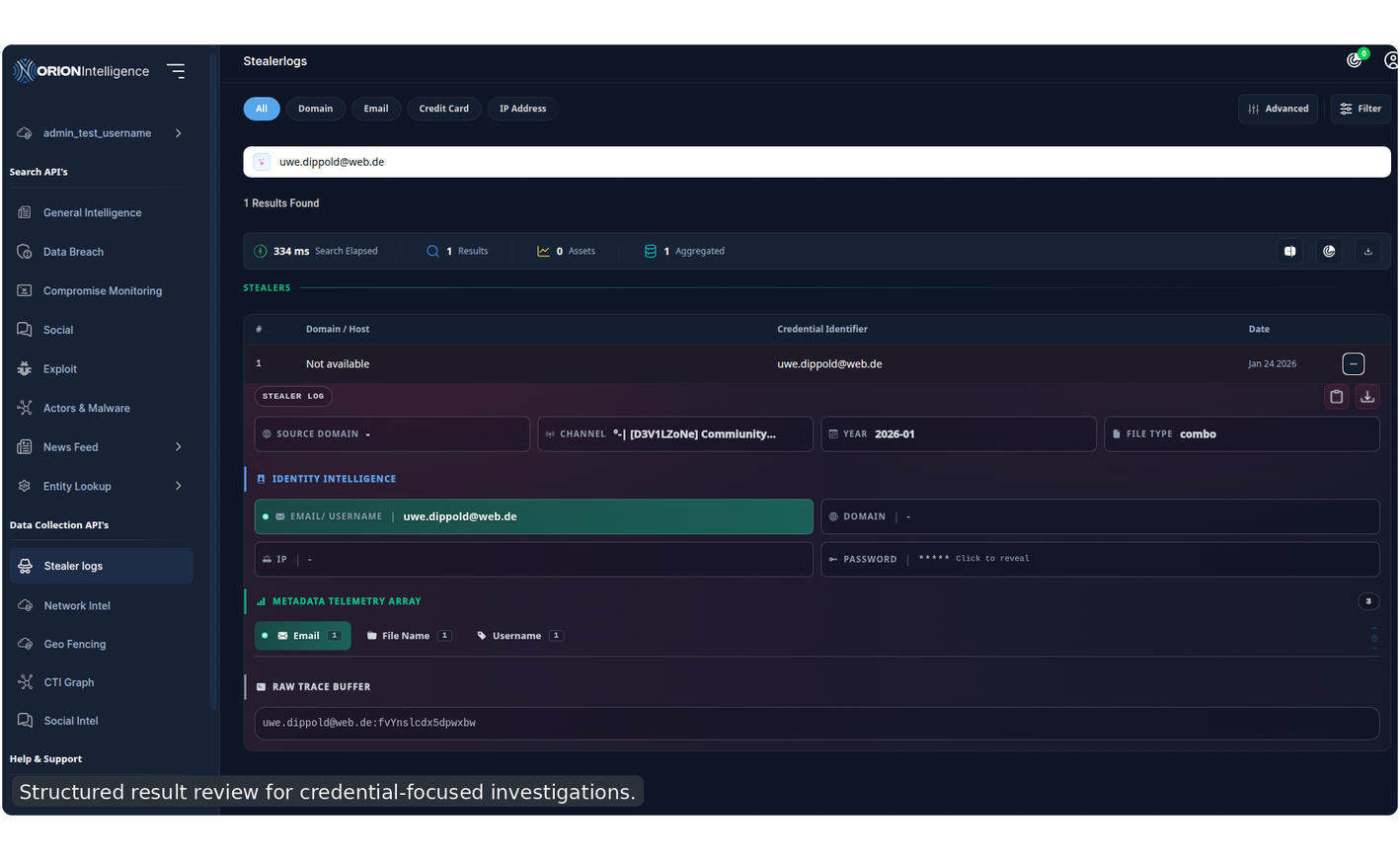
Structured result review for credential-focused investigations.#
Live Lookup and Scan Modules#
Entity API#
Entity API is used for targeted live lookups rather than passive indexed browsing.
Available lookup types:
Email BreachSocial ScannerWanted ListNational IdentityPlaystore ScannerSoftware ScannerFile ScannerCrypto Scanner
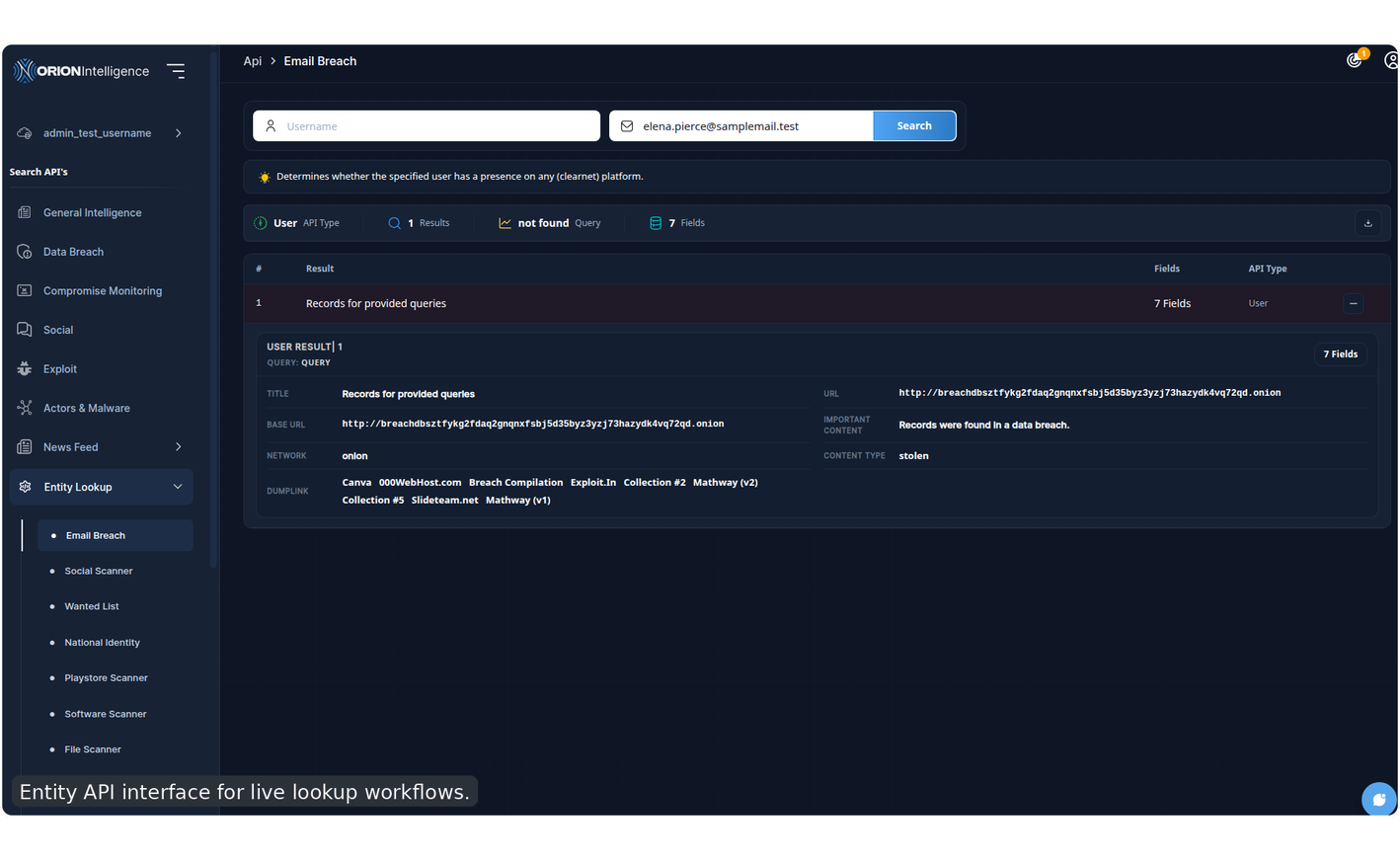
Entity API interface for live lookup workflows.#
Common Entity API Use Cases#
breach validation for a single email
identity enrichment
app and software lookups
file analysis
crypto-address context
File Scanner#
File Scanner is the upload-based analysis area inside Entity API.
Main Modes#
The workflow supports two related use cases:
file IOC extraction
APK analysis
Supported Behavior#
The File Scanner workflow includes:
file-type validation
size validation
upload and processing progress
grouped IOC output
export and print for supported scan types
IOC Extraction Output#
For file IOC extraction, Orion groups indicators into categories such as URLs, packages, permissions, tampering markers, and other extracted values based on the uploaded content.
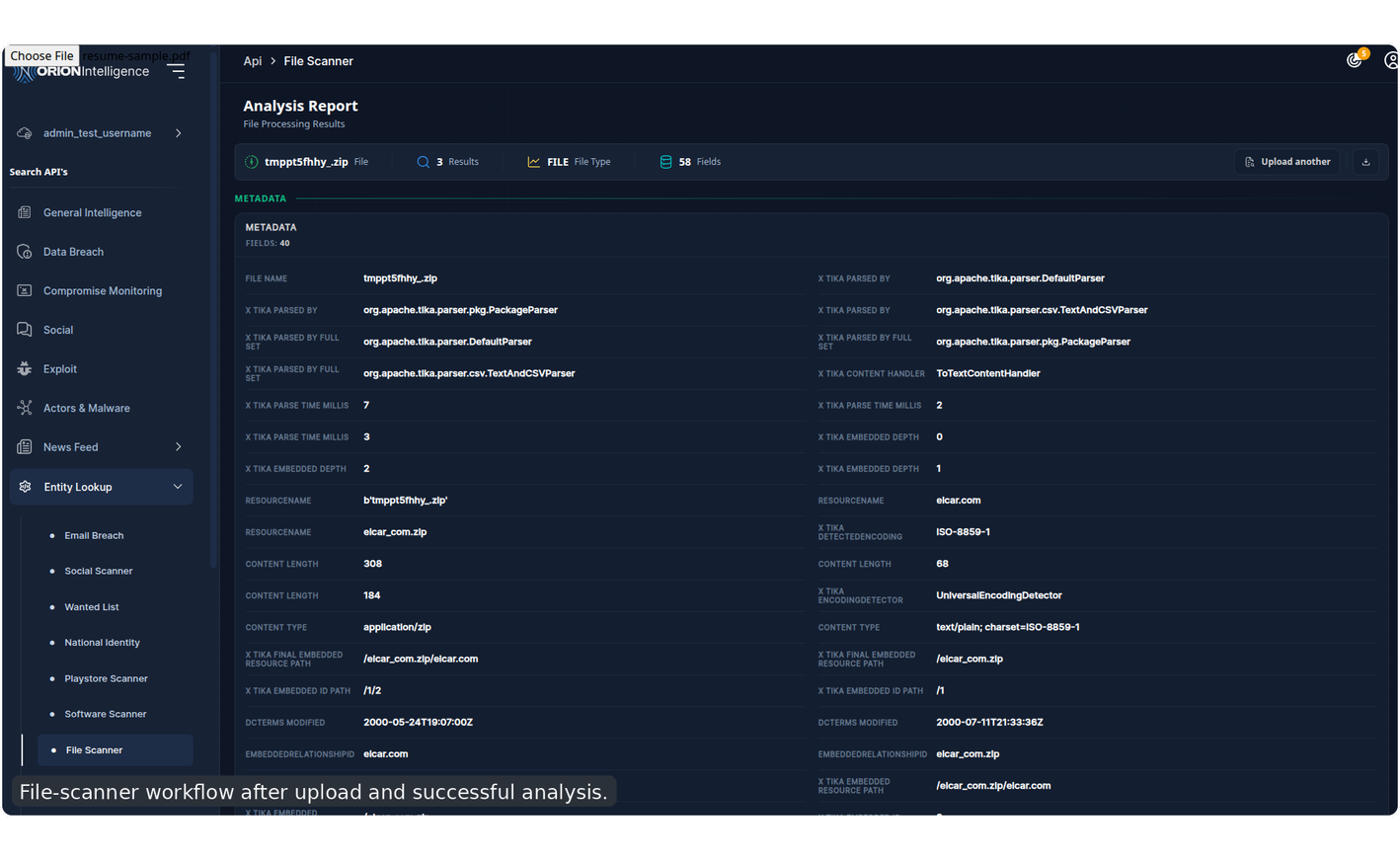
File-scanner workflow after upload and successful analysis.#
Web Scans#
Web Scans is the live scanning area for web-facing targets.
Available Scan Types#
Basic ScanPort ScanRepository ScanSEO ScanAPK Scan
Standard Workflow#
The standard web-scan flow is:
enter a target domain or repository-style URL
run the scan
wait for loading-step progress
review the generated report
Report Structure#
The resulting report commonly includes:
a security grade
host and port
TLS status
scan metadata such as
Scanned OnandScanned Bycategorized findings
evidence or proof blocks
download and print actions
Findings and Error States#
Finding sections also show severity and confidence labels, so the report can be used for quick triage as well as export.
Scan failures are handled with retry guidance and error messaging.
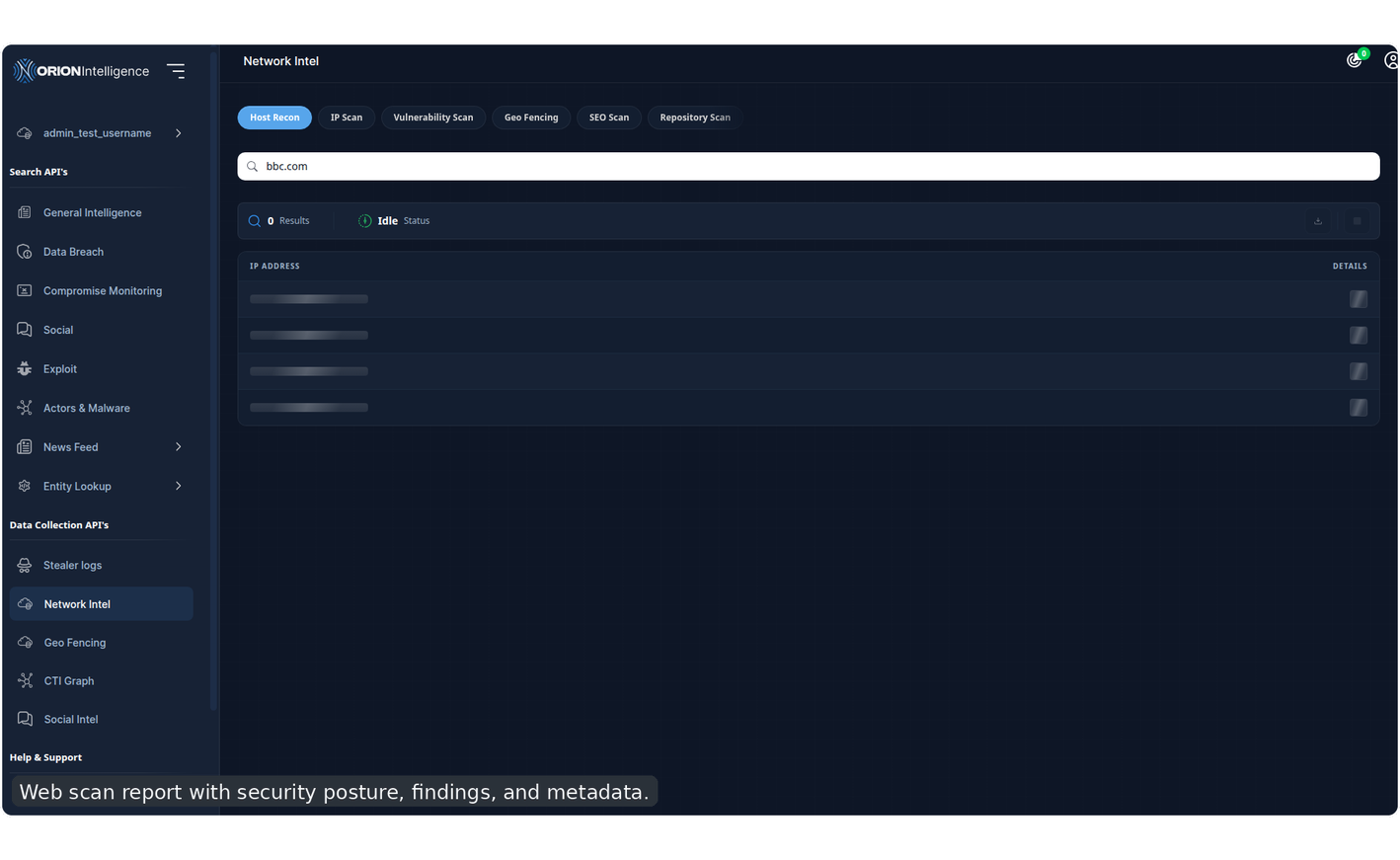
Web scan report with security posture, findings, and metadata.#

APK scan workflow after file upload, analysis, and report generation.#
Network Intel#
Network Intel provides live recon workflows for domains and IPs.
Tabs:
Host ReconIP ScanVulnerability Scan
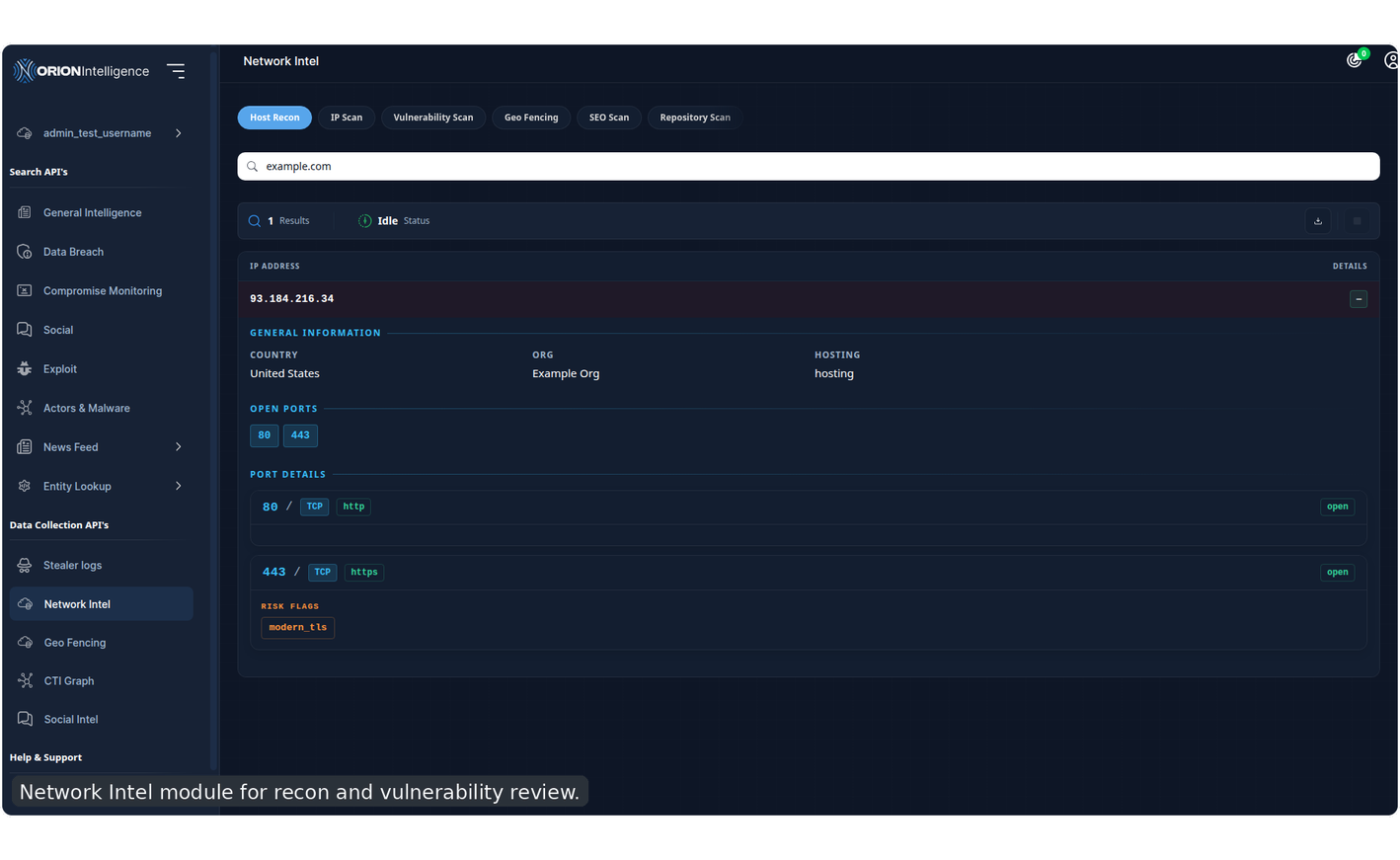
Network Intel module for recon and vulnerability review.#
Host Recon#
Host Recon is used to resolve a domain into infrastructure and network information. It commonly surfaces DNS-style and IP-related context for the queried host.
IP Scan#
IP Scan focuses on a specific IP and can expose service or infrastructure context derived from the target address.
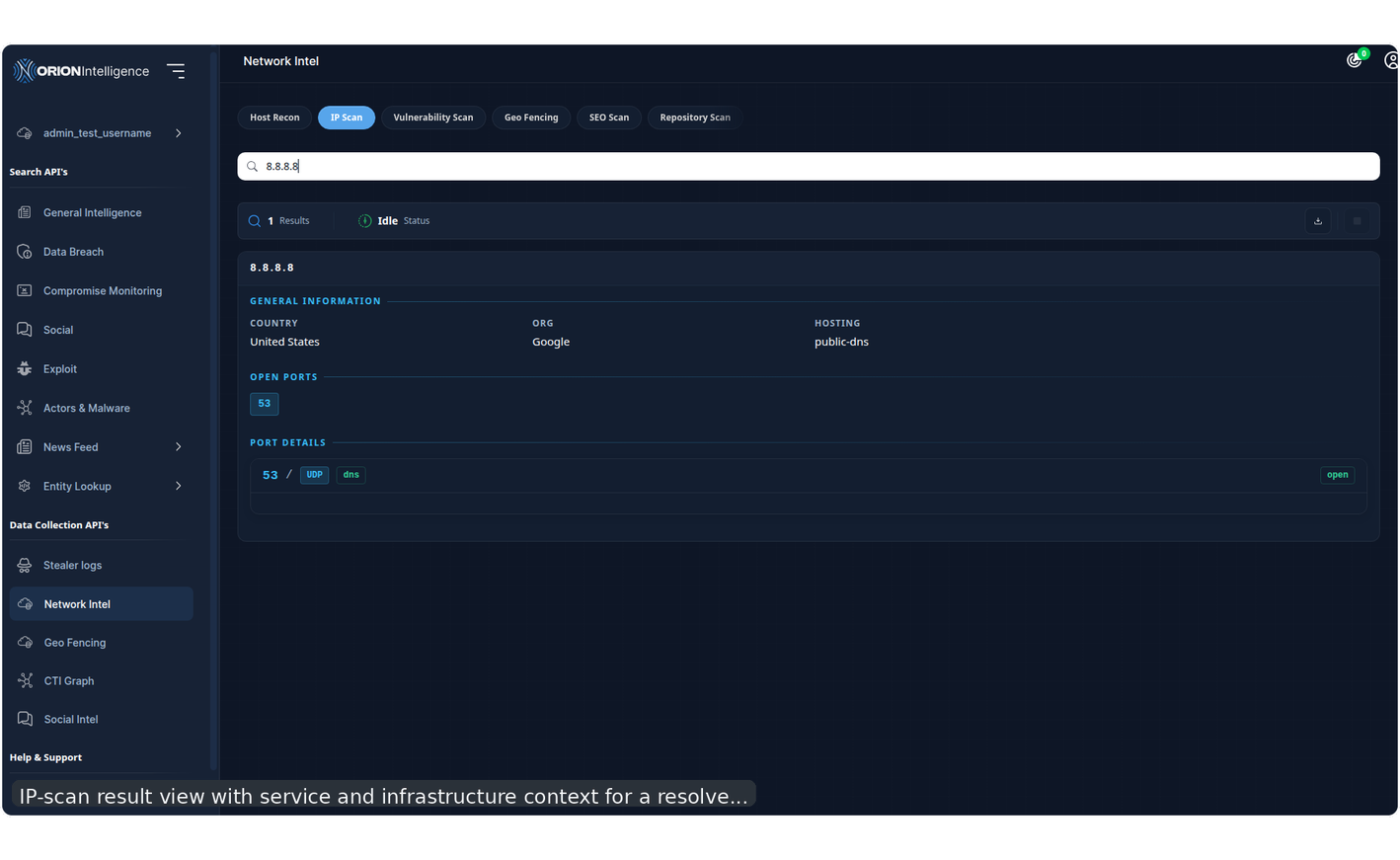
IP-scan result view with service and infrastructure context for a resolved address.#
Vulnerability Scan#
Vulnerability Scan reviews security issues for a supplied target and includes:
progress feedback
elapsed time
downloadable report output
cancel support during scanning
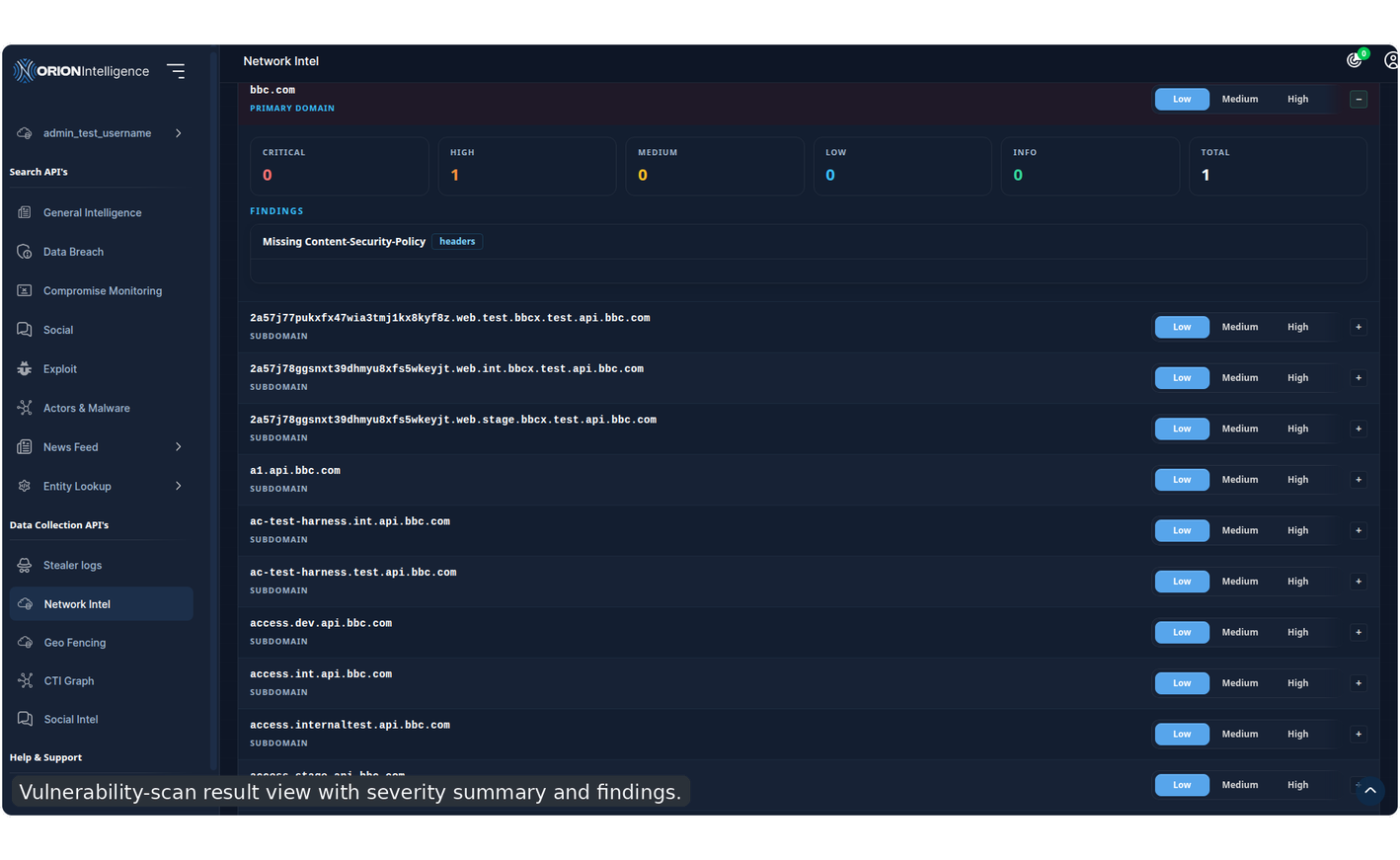
Vulnerability-scan result view with severity summary and findings.#
Common Toolbar Features#
The Network Intel toolbar can include:
query input
status indicators
result count
elapsed time
download report
cancel current run
optional geo search support for relevant views
Geo support is especially relevant when working from host-oriented results and wanting to pivot from a location or coordinates into nearby IP discovery.
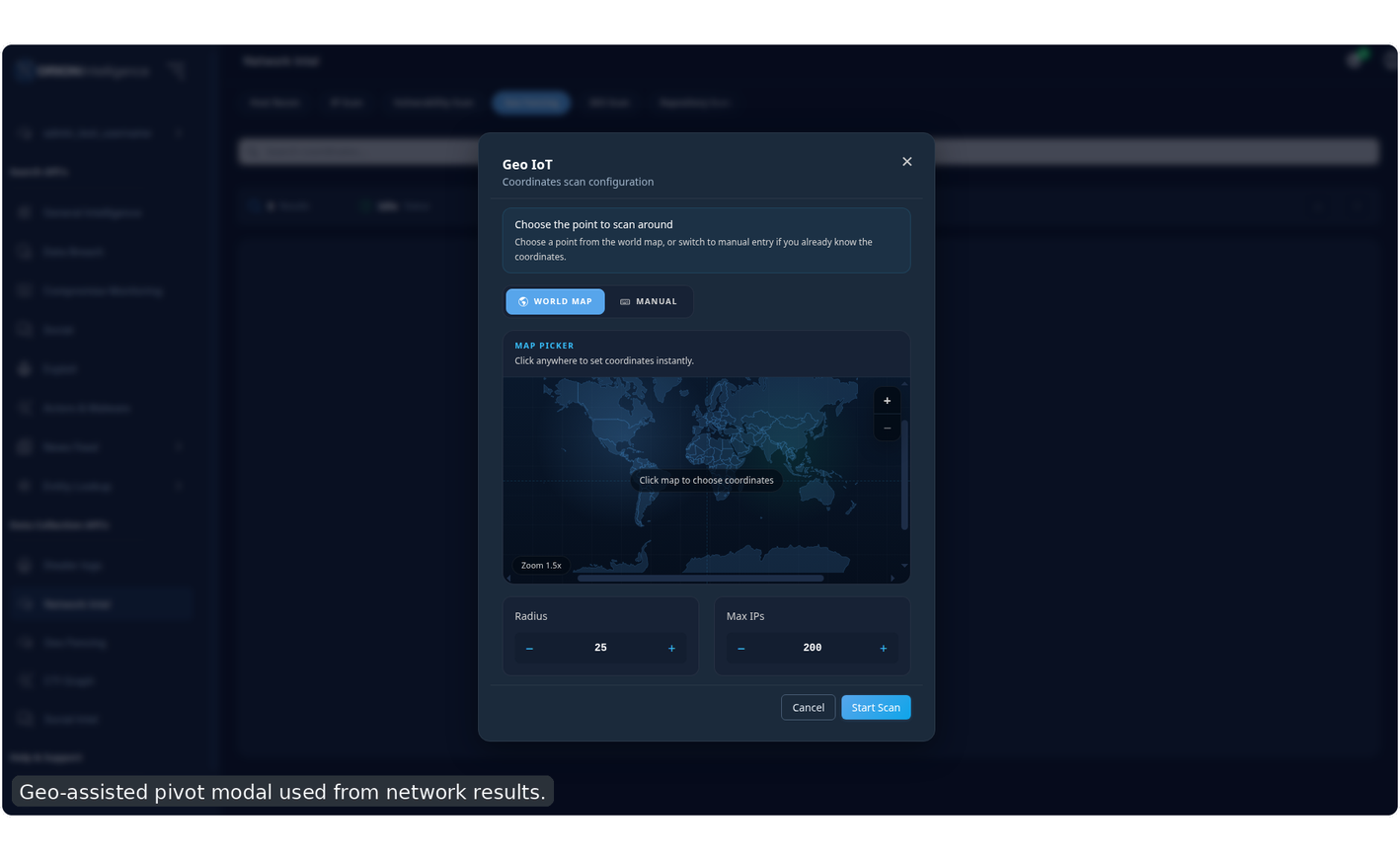
Geo-assisted pivot modal used from network results.#
Satellite Intel#
Satellite Intel is Orion’s geo-fencing map workspace for infrastructure, facilities, transportation tracking, and satellite imagery review. It combines a Leaflet map, indexed map entities, nearby facility discovery, live aircraft and ship overlays, and comparison imagery in one operational view.
Satellite Intel can be opened from the sidebar as Satellite Intel. It is also embedded inside the consolidated results Geo Fencing tab, where the top toolbar can switch between Satellite Map and Threat Lens.
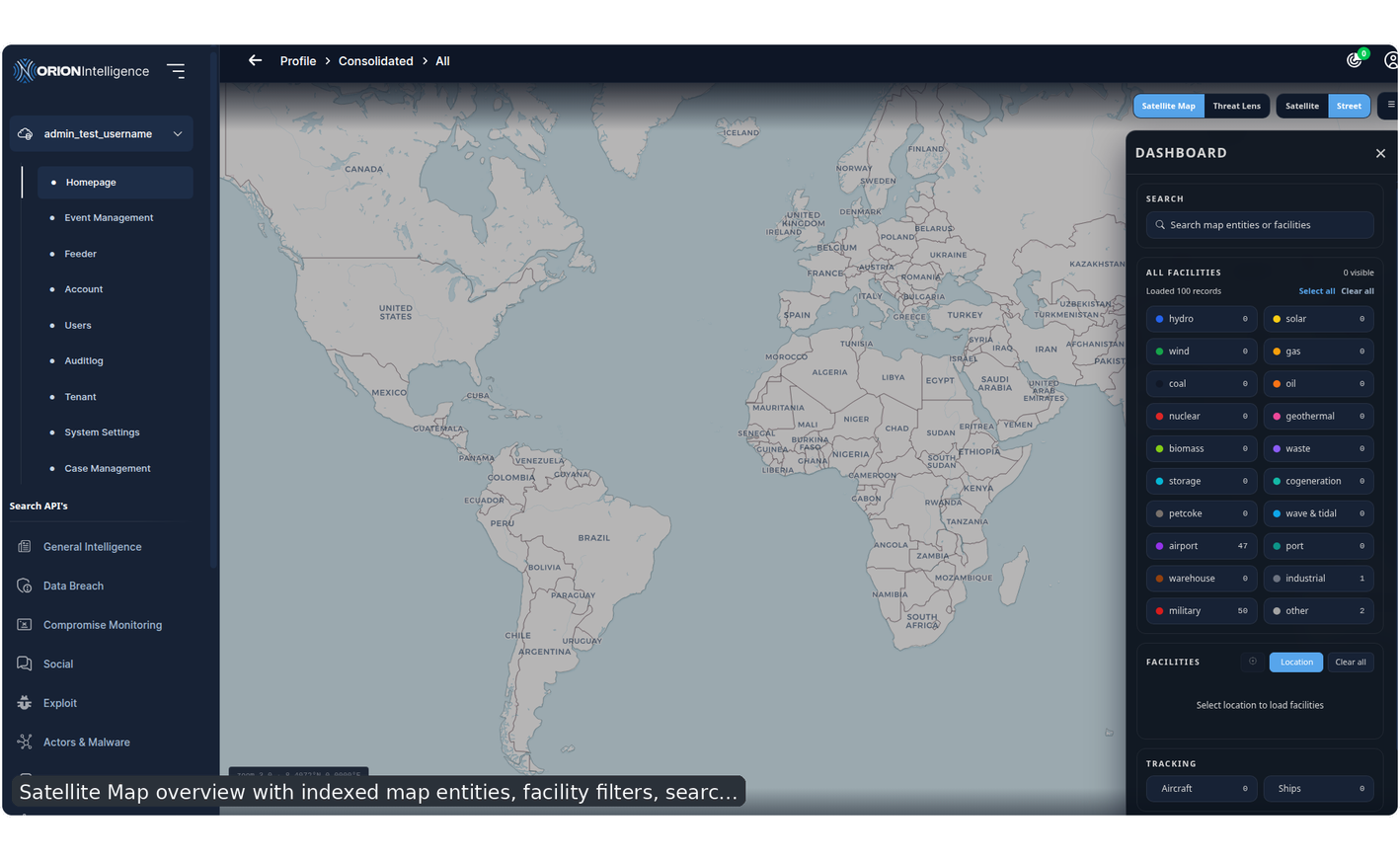
Satellite Map overview with indexed map entities, facility filters, search, tracking controls, selection state, and the map renderer.#
Access and Licensing#
The sidebar entry is available to admins and users with the osint_advanced module. If the module is unavailable, the sidebar entry remains gated by the subscription prompt.
The standalone route is /dashboard/satellite-intel. The embedded consolidated route opens the same component inside /dashboard/profile/consolidated/all?tab=Geo%20Fencing.
The embedded route exposes the Satellite Map and Threat Lens toggle. The map view keeps its own panel menu, layer switcher, facility dashboard, imagery-analysis panel, location modal, and tracking overlays.
Map Renderer and Layers#
The map renderer uses Leaflet. The Street layer uses the Carto Voyager tile set, while the Satellite layer uses ArcGIS World Imagery.
Map behavior includes:
world-bounds limiting so the map does not wrap horizontally
dynamic minimum zoom based on the rendered container
map movement events that update the active viewport
feature focusing from search results
selected-location rendering after a geocode or coordinate lookup
marker sizing refresh after zoom changes
sidebars for aircraft and ship details
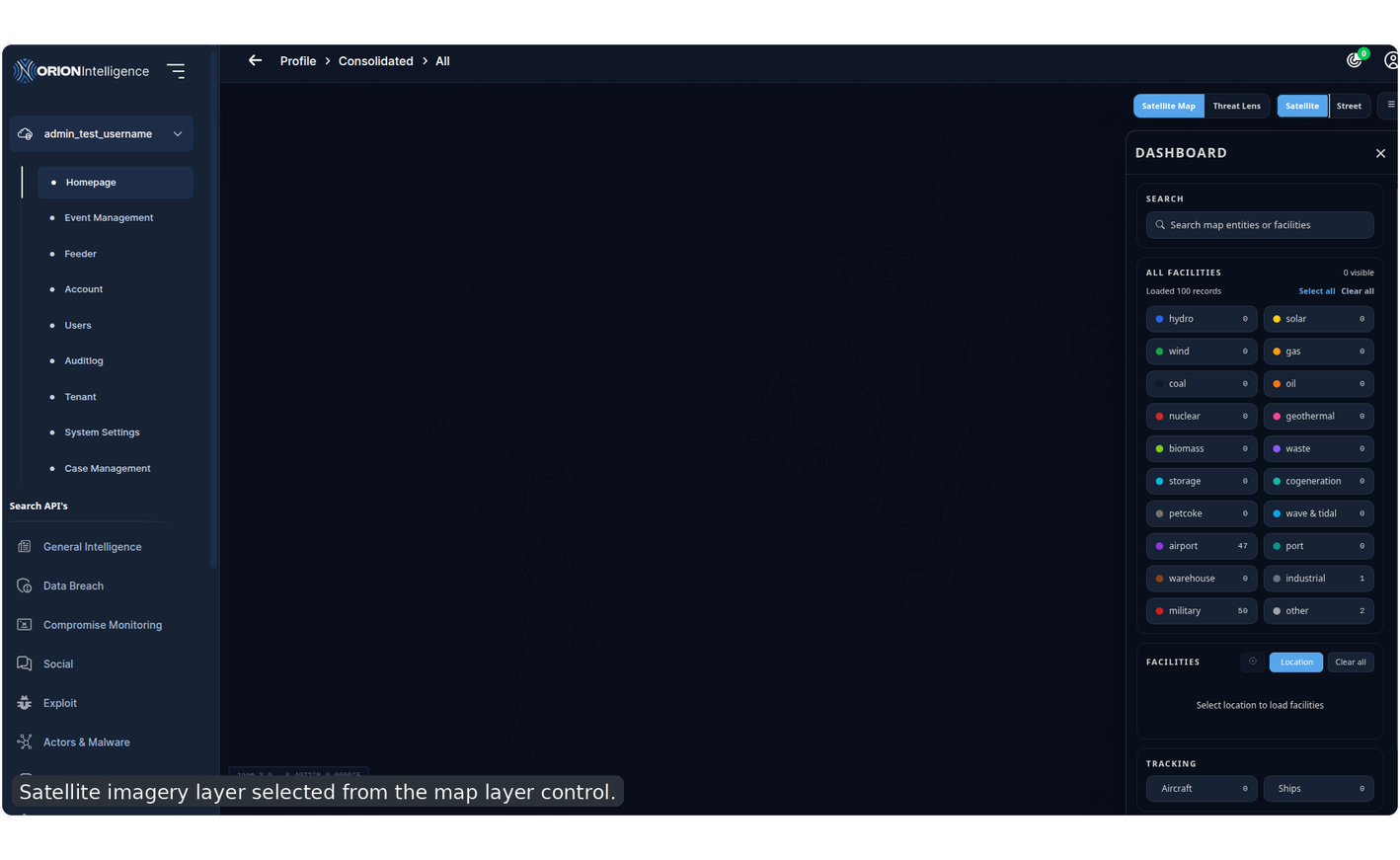
Satellite imagery layer selected from the map layer control.#
Indexed Map Entities#
On load, the dashboard requests indexed map entities from /api/search/map-entities/stream. The response is streamed in newline-delimited chunks and converted into map features with name, type, source, coordinates, optional capacity, and an internal feature id.
The dashboard can show power and infrastructure facility categories, including:
hydro
solar
wind
gas
coal
oil
nuclear
geothermal
biomass
waste
storage
cogeneration
petcoke
wave and tidal
airport
port
warehouse
industrial
military
other
The All Facilities panel shows loaded and visible counts. Users can select all categories, clear all categories, or toggle individual categories to control which indexed points render on the map.
Search and Selection#
The dashboard search box filters loaded map entities and nearby facilities. Selecting a result focuses the map on that feature and updates the Selection panel.
The selection panel can show:
facility or entity name
normalized type
source, such as
WRIorOSMcapacity in megawatts when available
coordinates in latitude and longitude form

Satellite Map entity search with a selected facility highlighted in the dashboard and map state.#
Location Search and Nearby Facilities#
The Location button opens the shared geocode modal. Users can search for a place, enter coordinates, adjust the map coverage delta, and apply the location to the Satellite Map.
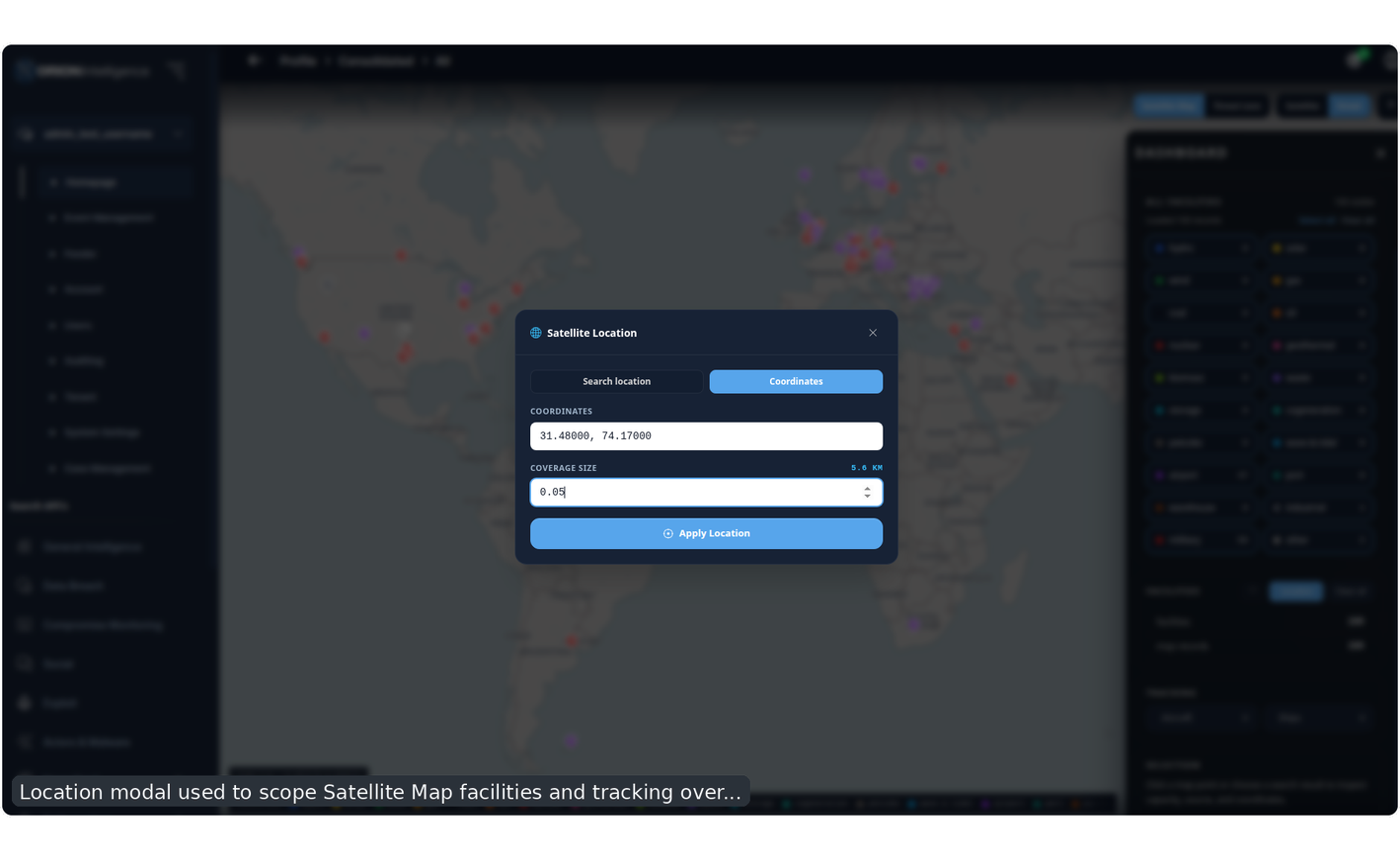
Location modal used to scope Satellite Map facilities and tracking overlays.#
After a location is applied, Satellite Intel:
focuses the map on the selected coordinates
records the active viewport
loads nearby facilities from
/api/satellite/facilitiesrefreshes enabled aircraft and ship tracking against the scoped viewport
enables the location-target control so the user can return to the selected location
Nearby facilities are normalized into the same map-feature shape used by indexed entities. Point, line, polygon, and multipolygon geometries are converted into renderable coordinates. Facility kinds are normalized into Orion map categories such as airport, port, warehouse, industrial, military, solar, wind, hydro, coal, gas, oil, storage, and other.
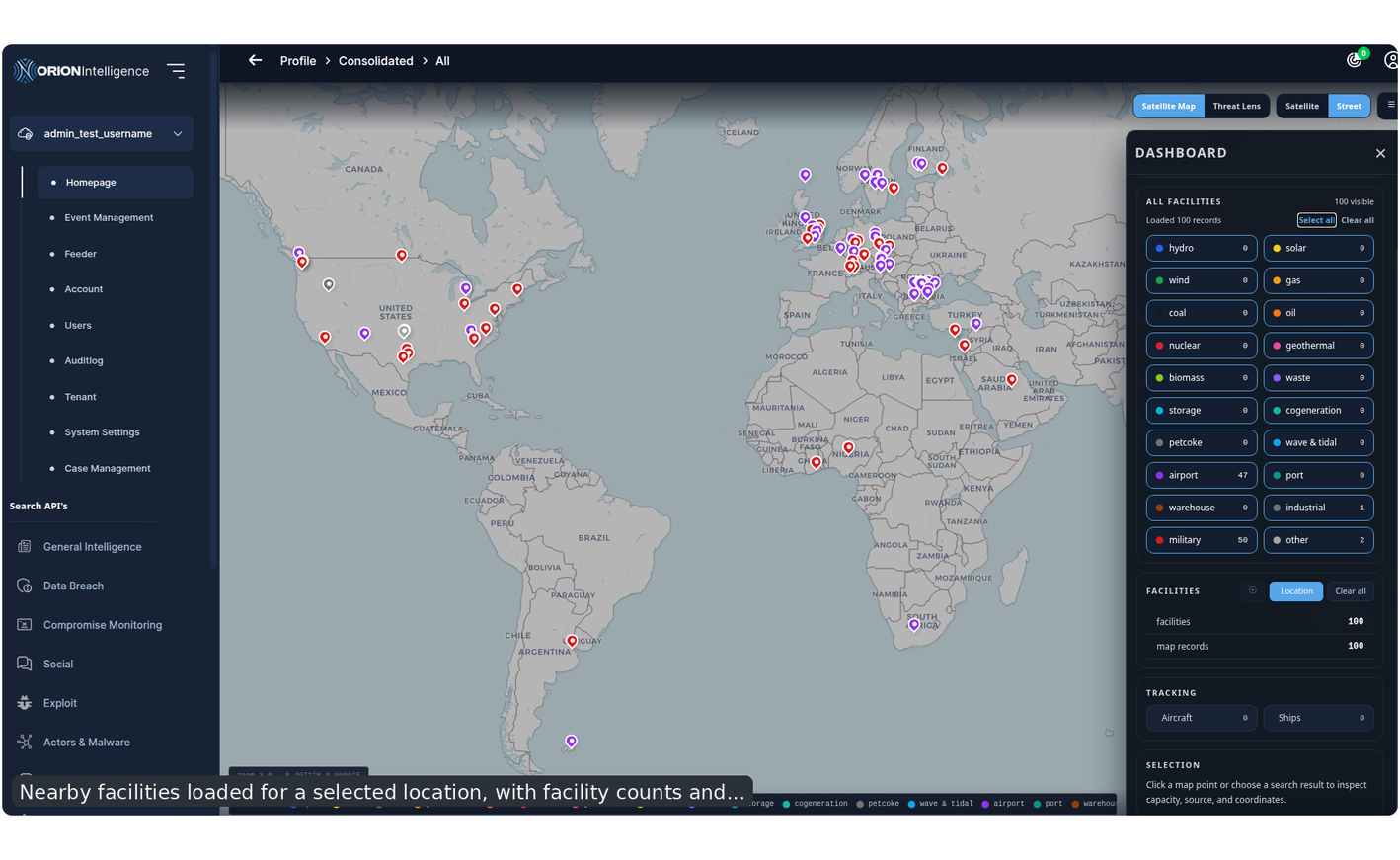
Nearby facilities loaded for a selected location, with facility counts and category breakdowns.#
Aircraft and Ship Tracking#
The Tracking panel controls live transportation overlays.
Aircraft tracking posts the active bounds to /api/satellite/livetrack/aircraft. The request uses lat_min, lat_max, lon_min, and lon_max, and can include OpenSky credentials when configured.
Ship tracking posts the active bounds to /api/satellite/livetrack/ships. Bounds are clamped to valid latitude and longitude ranges, and the request can include an AISStream API key when configured.
Tracking behavior includes:
separate toggles for
AircraftandShipsloading indicators per tracking source
visible counts in the tracking buttons
matching aircraft and ship counts in the facilities summary
marker rendering on the map
detail sidebars when a tracking marker is selected
aircraft detail lookup by ICAO through
/api/satellite/livetrack/aircraft/icaoaircraft track lookup through
/api/satellite/livetrack/aircraft/trackship detail lookup by MMSI through
/api/satellite/livetrack/ships/mmsiviewport refreshes for ships after the map moves
If a tracking feed is pending or busy, the polling helper keeps waiting. If a feed returns an error, the dashboard shows the tracking-specific error while preserving the rest of the map context.
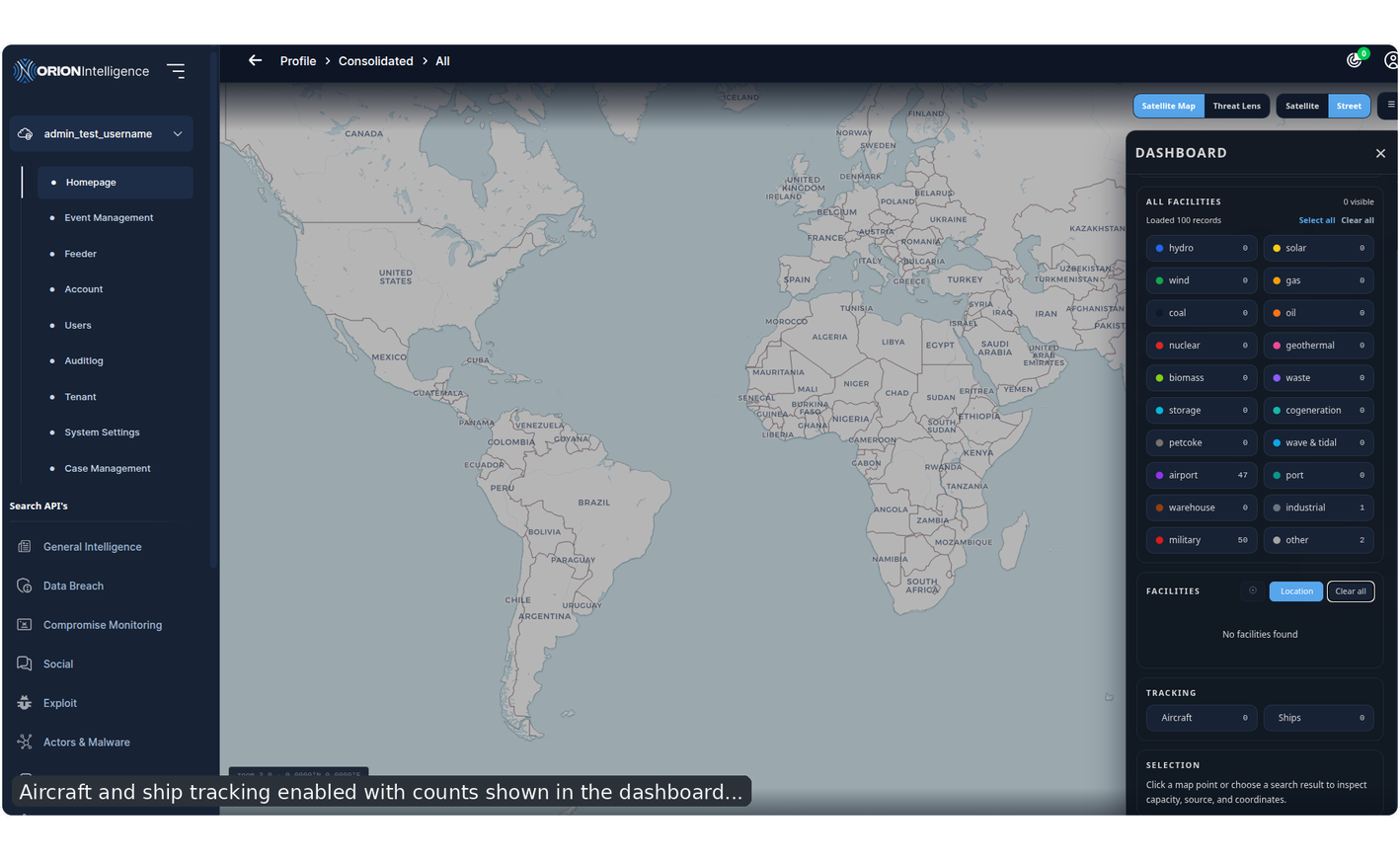
Aircraft and ship tracking enabled with counts shown in the dashboard panels.#
Imagery Analysis#
The panel menu opens Imagery Analysis. This view is used for satellite image comparison and anomaly review at a selected location.
The imagery workflow supports:
selecting or reusing a location
choosing an image type from the advanced controls
choosing a timeline date
resetting the date to the default
loading a comparison set
opening generated images in a lightbox
When Load comparison is clicked, the view runs a combined comparison flow. The comparison request posts to /api/satellite/compare. If no explicit month is selected, the implementation can also request a year-ago image from /api/satellite/sentinel/image. Anomaly analysis posts to /api/satellite/anomaly.
The result panel can show:
number of comparison images loaded
image labels for each returned month
anomaly alert level
NDVI delta score
scan coordinates
month count for the anomaly scan
empty-image and failed-request states
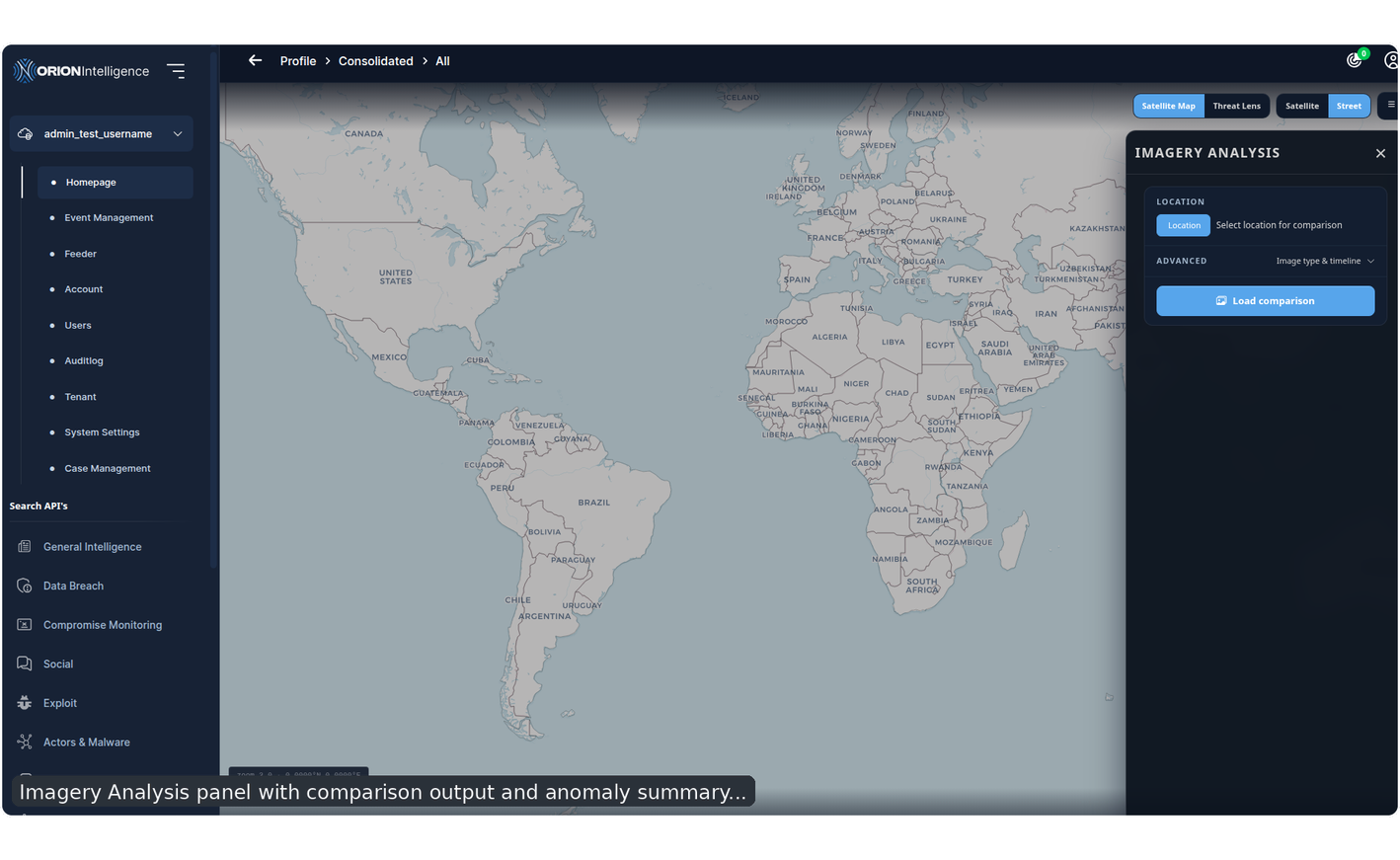
Imagery Analysis panel with comparison output and anomaly summary for the selected map location.#
Empty and Error States#
Satellite Intel keeps map and dashboard state visible while individual data sources load or fail.
Common states include:
the main loading overlay while large map or entity requests are in progress
Select location to load facilitiesbefore nearby facility lookupLoading facilities...while a facility request is runningNo facilities foundwhen a scoped lookup returns no renderable recordsrequest-failed messaging in Imagery Analysis
aircraft and ship feed warnings beside the affected tracking control
Clearing the selected location resets the focused feature, selected feature, nearby facilities, tracking data, and location overlay while keeping the base indexed map entities available.
Geo Fencing Threat Lens#
Threat Lens is the geo-fencing threat-intelligence workspace. It turns consolidated threat records into a country-oriented map, overlays category relationships as arcs, and runs an IP exposure scan for the active map scope.
Threat Lens can be opened directly from the dashboard sidebar as Threat Lens. It is also available inside Satellite Intel as the Threat Lens tab, where it shares the geo-fencing map workspace without showing the standalone filter button.
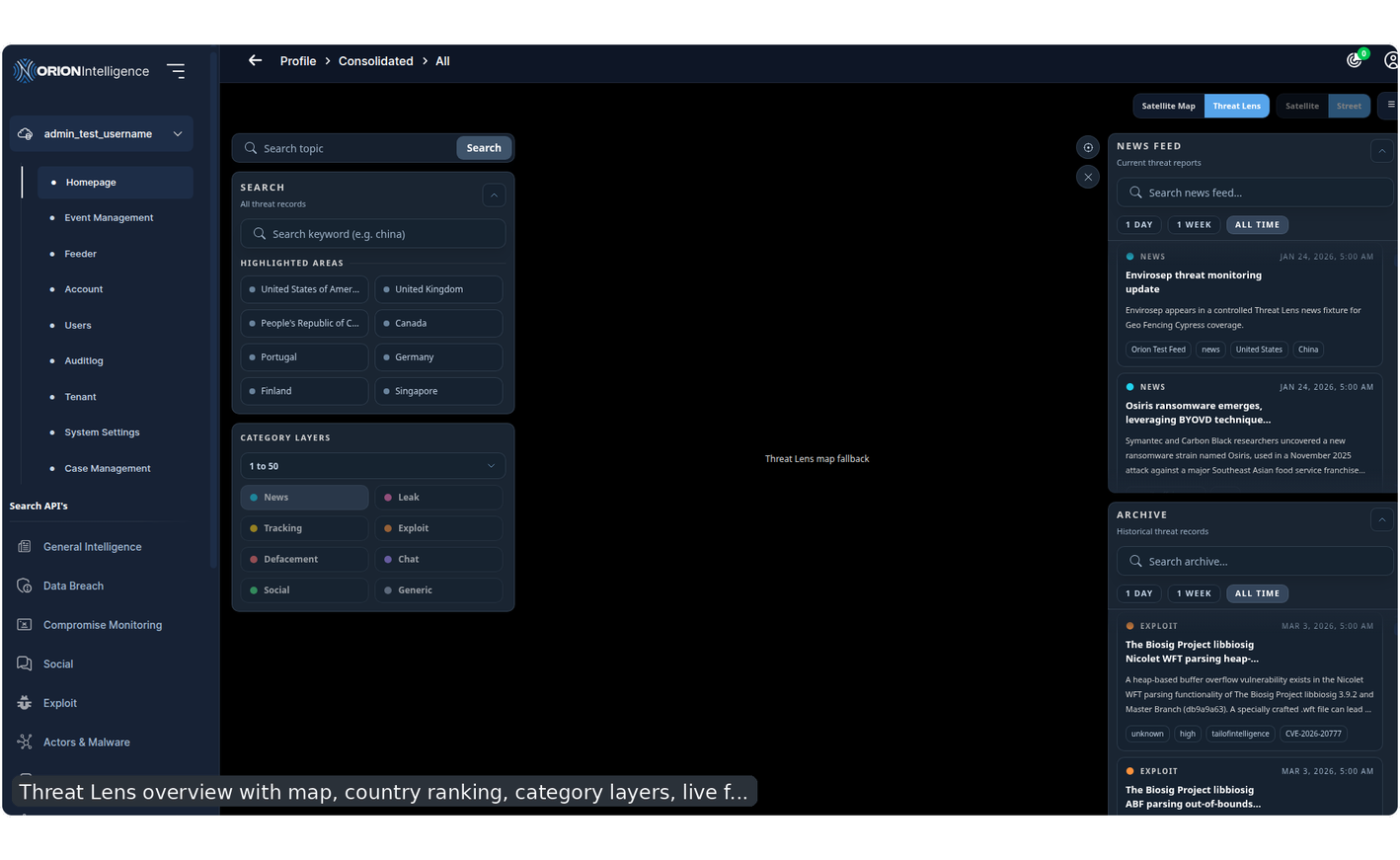
Threat Lens overview with map, country ranking, category layers, live feed, archive, and IP scan status.#
Access and Licensing#
The sidebar entry is available to admins and users with the osint_advanced module. When the module is not available, the sidebar item remains visible but gated by the subscription prompt.
The direct workspace route is /dashboard/threat-lens. The embedded geo-fencing route keeps the same Threat Lens implementation but opens it from the Satellite Intel tab switcher.
Data Request and Filtering#
Threat Lens requests consolidated data from /api/threat/lens. The request is built from the shared consolidated-search parameter model and the currently selected dashboard filters.
Before the request is sent, empty values, default values, empty arrays, and all selections are removed. The keyword field q and page field are kept so that an empty search can still load the complete Threat Lens dataset.
The standalone filter drawer uses the Threat Lens filter model:
network type
date range
content type
platform
platform result count
Changing filters refreshes the Threat Lens search. In the embedded Satellite Intel tab, the parent geo-fencing shell controls the surrounding map toolbar and opens the same filter behavior from its side panel.
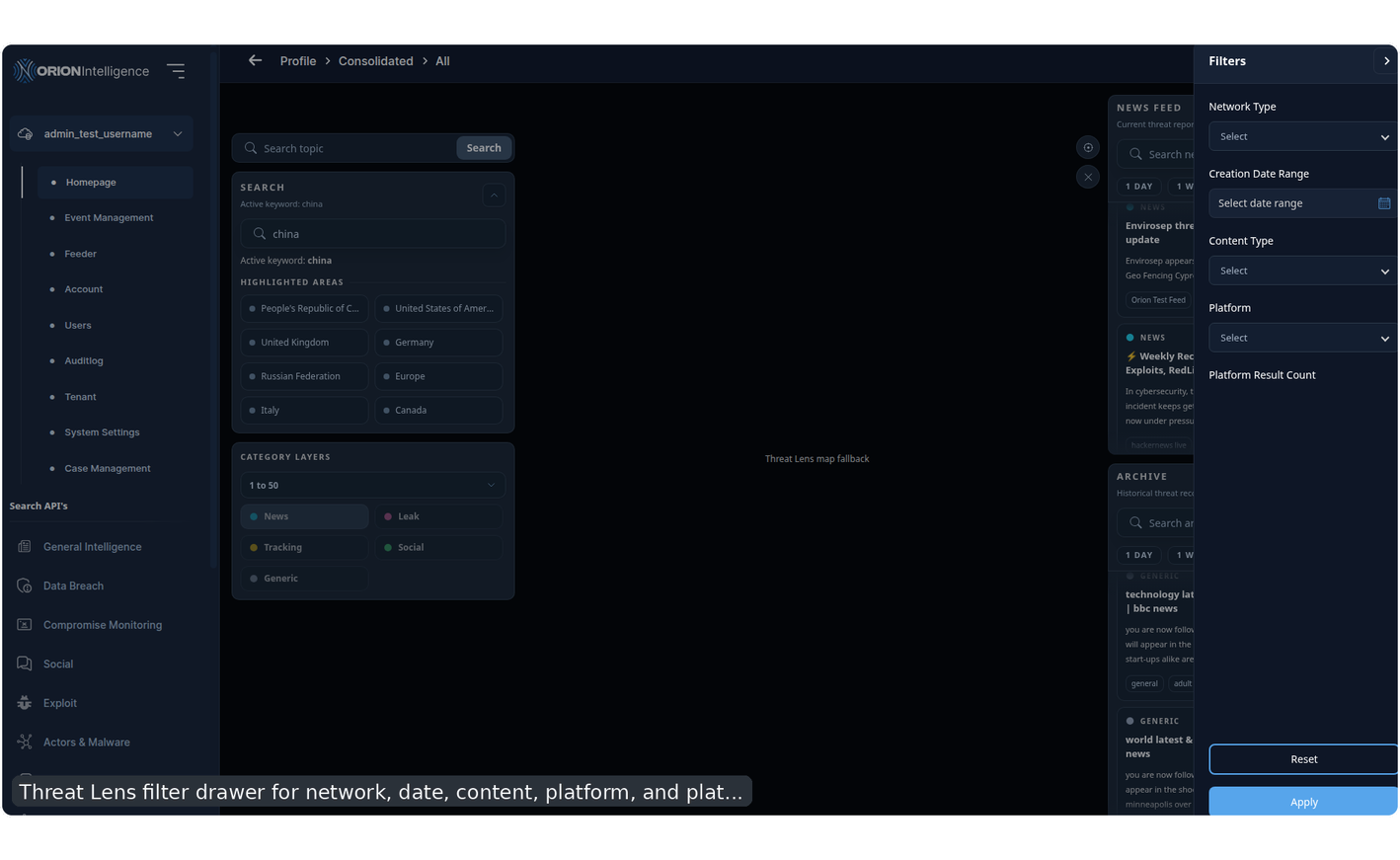
Threat Lens filter drawer for network, date, content, platform, and platform-count filtering.#
Consolidated Category Coverage#
The implementation reads these consolidated result categories:
LeakTrackingNewsExploitDefacementChatSocialGeneric
Each category has its own map color. Result records are deduplicated by hash, document id, id, URL, title, and creation date. If those fields are missing, the raw document body is used as the fallback identity.
Country labels are extracted from the available country and location fields, including m_country, m_country_name, m_location, country, and location. Comma, semicolon, and pipe-separated values are split into individual countries. Two and three letter region codes are normalized through browser region display names when possible.
The map data builder then produces:
total result count
ranked country counts
per-category country counts
document country groups used for arc generation
feed items sorted by timestamp
Search Panel#
The search panel supports free-text keyword searches and country pivots.
Search actions:
type a keyword and press
Entertype a keyword and click
Searchclick a top highlighted country
When the keyword matches a country known by the map layer, Threat Lens converts the search into a country-filtered request. In that case it sends an entity filter for m_country, enables strict matching, disables full search, and focuses the country on the map. For other keywords, the value is sent as q.
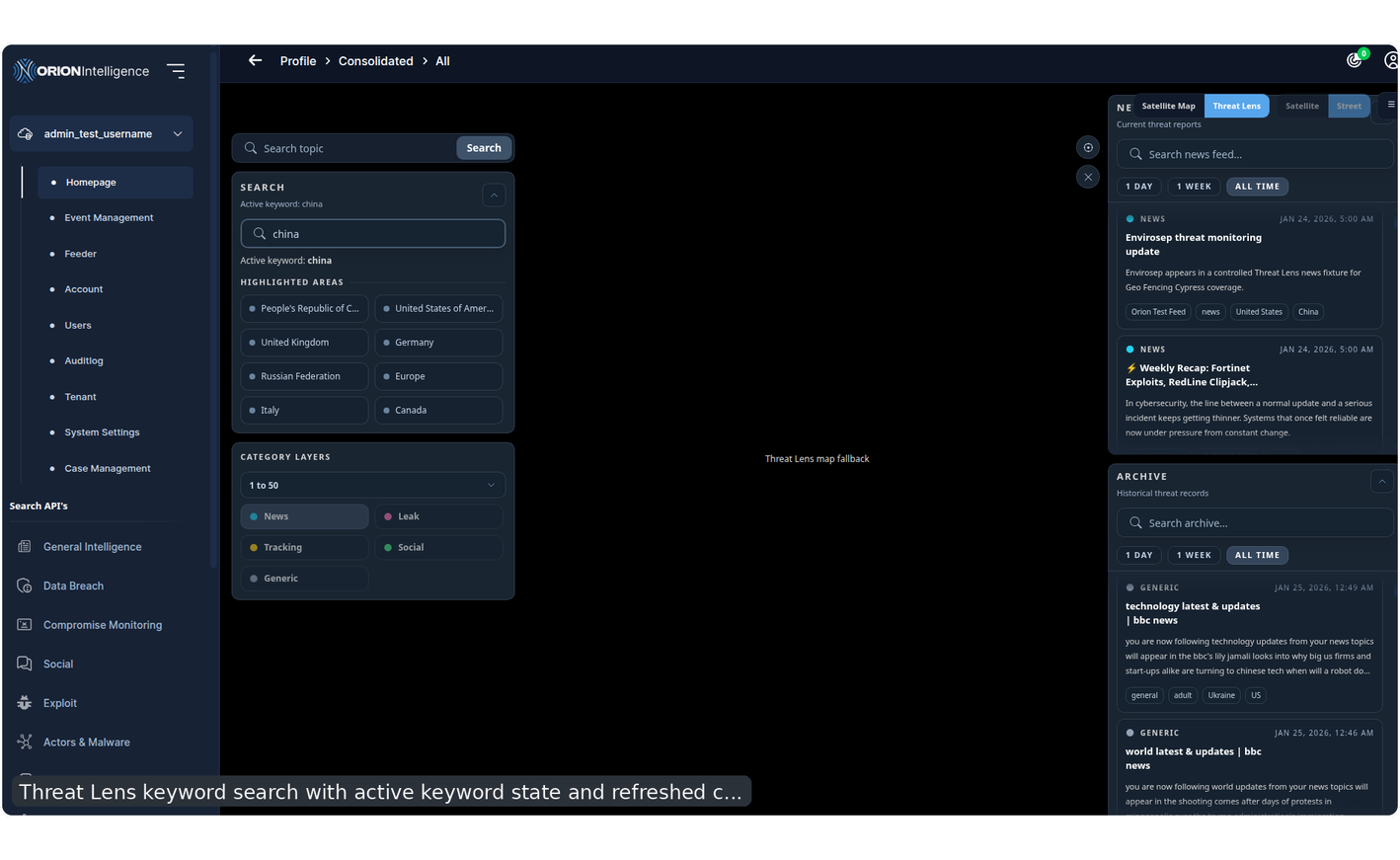
Threat Lens keyword search with active keyword state and refreshed country/category context.#
Map, Countries, and Arcs#
The map renderer uses ArcGIS SceneView with a global dark basemap. It loads a country feature layer, highlight styling, tooltip handling, arc graphics layers, and IP marker layers.
The country layer provides the selectable geographic surface. Hovering a country shows the country name, total count, and category breakdown. Clicking a country selects it, focuses the map on the country geometry, updates the summary panel, and starts a country-scoped IP exposure scan when boundary data is available.
Threat arcs are generated from records that mention more than one country. The renderer builds animated connections between country pairs, groups them by category color, and rotates visible arcs in batches of up to five. When a country search is active, the map shows only arc connections linked to the selected country.
The renderer also watches zoom and interaction state:
close zoom switches to a street-oriented night basemap
map movement pauses arc animation while interacting
completed navigation can request a new viewport IP scan
resize handling keeps the scene stable inside dashboard layouts
Automated documentation and test runs use a Cypress fallback map. The fallback emits the same map-ready event without loading ArcGIS, which keeps screenshot generation deterministic while preserving the real component flow.
Summary Panel#
The summary panel reports the active Threat Lens state:
selected country, when one is selected
current status message
visible arc count
per-category selected-country breakdown
IP scan status, scope, range, and marker count
Both the search panel and summary panel can be collapsed to clear map space.
News Feed and Archive#
Threat Lens converts result documents into feed cards. Each card can include title, summary, source link, date, category label, category color, and up to four highlights such as platform, risk, channel, attacker, IOC, CVE, or content type.
There are two feed panels:
News Feedshows onlyNewscategory recordsArchiveshows leak, tracking, exploit, defacement, chat, social, and generic records
Feed controls:
collapse or expand each feed
local text search inside the loaded feed records
range filtering for
1 Day,1 Week, andAll Timeauto-scroll while the pointer is away
temporary pause during hover, wheel, or touch interaction
safe link opening for HTTP and HTTPS source URLs
The feed range buttons filter data already loaded into the browser. The side filter date range fetches new data from the backend.
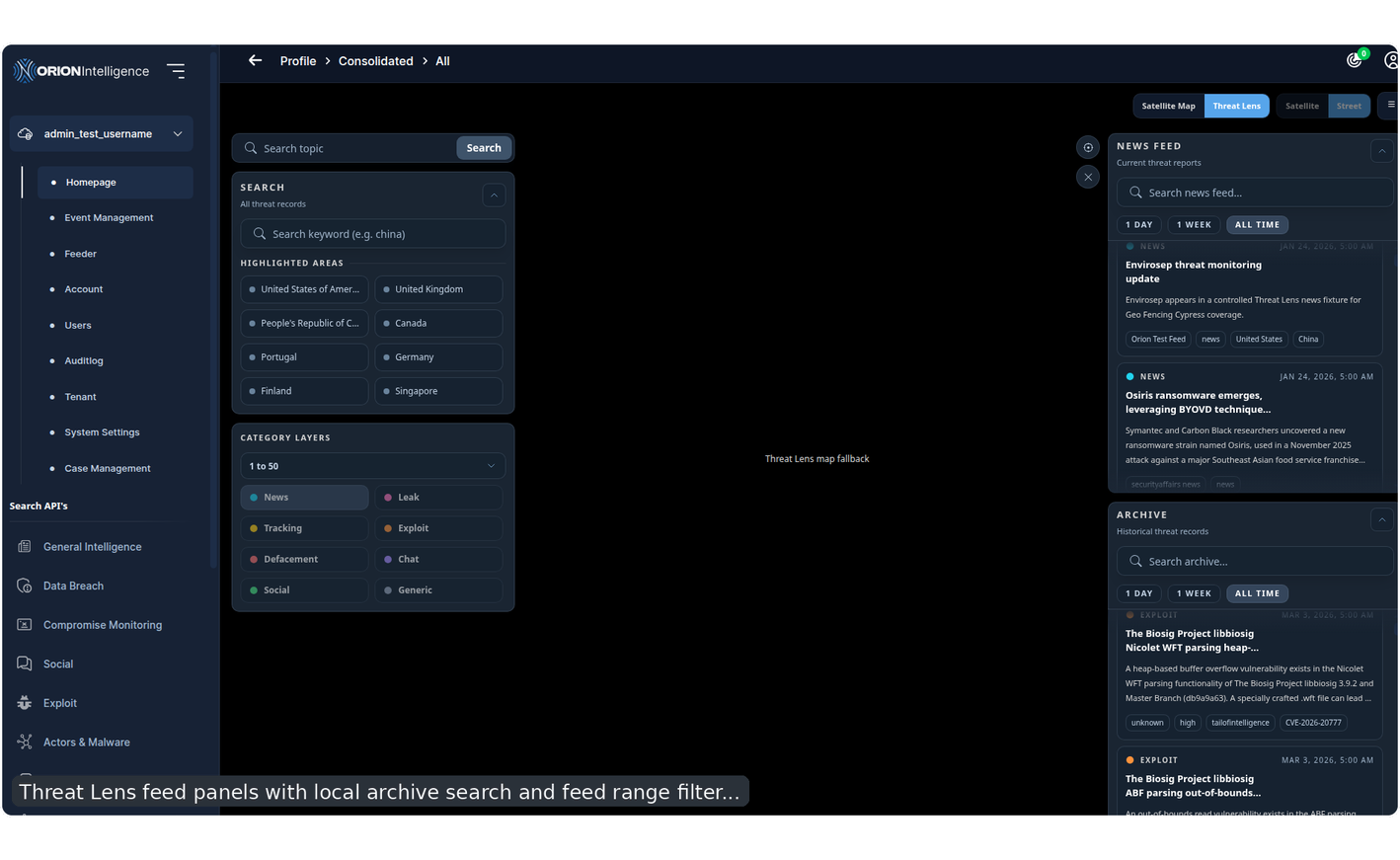
Threat Lens feed panels with local archive search and feed range filtering.#
IP Exposure Scan Overlay#
Threat Lens automatically uses the Network Intel geo scanner to look for exposed IP-backed camera or IoT records near the active map scope.
Default behavior:
initial coordinates are
20, 0default radius is
12,000 kmdefault max IP count is
200the summary label is
Global view
Viewport and country behavior:
map movement can request a viewport-based scan
country selection changes the scope to the selected country
country boundary data is passed to marker rendering when available
repeated scans with the same scope, center, and radius are deduplicated
The scan posts coordinates, radius, and max-IP count through the Network Intel geo-camera scan flow. Completed results are normalized from returned IP arrays or camera arrays, limited to renderable records, and displayed as map markers. Selecting an IP marker opens the Threat Lens IP detail popup.
The IP scan panel shows:
running, ready, complete, or error state
marker count
scope label
radius label
progress/status text
previous markers kept when a later scan returns no renderable records
Empty and Error States#
If the Threat Lens request fails, the map is cleared and the status message names /api/threat/lens as the failed source. If records load but no country metadata is present, the workspace reports the loaded record count and explains that no country highlights were found.
If records contain countries but no multi-country co-occurrence, the country ranking still appears while the arc count remains zero.
If an IP exposure scan fails, the IP scan panel changes to the error state and preserves the map context.
Graph Investigation Modules#
CTI Graph#
CTI Graph is the relationship-mapping module for cyber threat intelligence pivots.
It opens in its own tabbed workspace and supports multiple sessions.
Key concepts:
ClusternodesDocumentnodesPropertynodesgrouped nodes
directional connections
Core CTI Features#
session tabs
sidebar filters
graph and list views
node search and highlighting
physics toggle
expand or collapse controls
right-side listings panel
import and export support
report export
The listings panel provides a document-oriented summary of the current graph state, while the legend explains node and edge types.
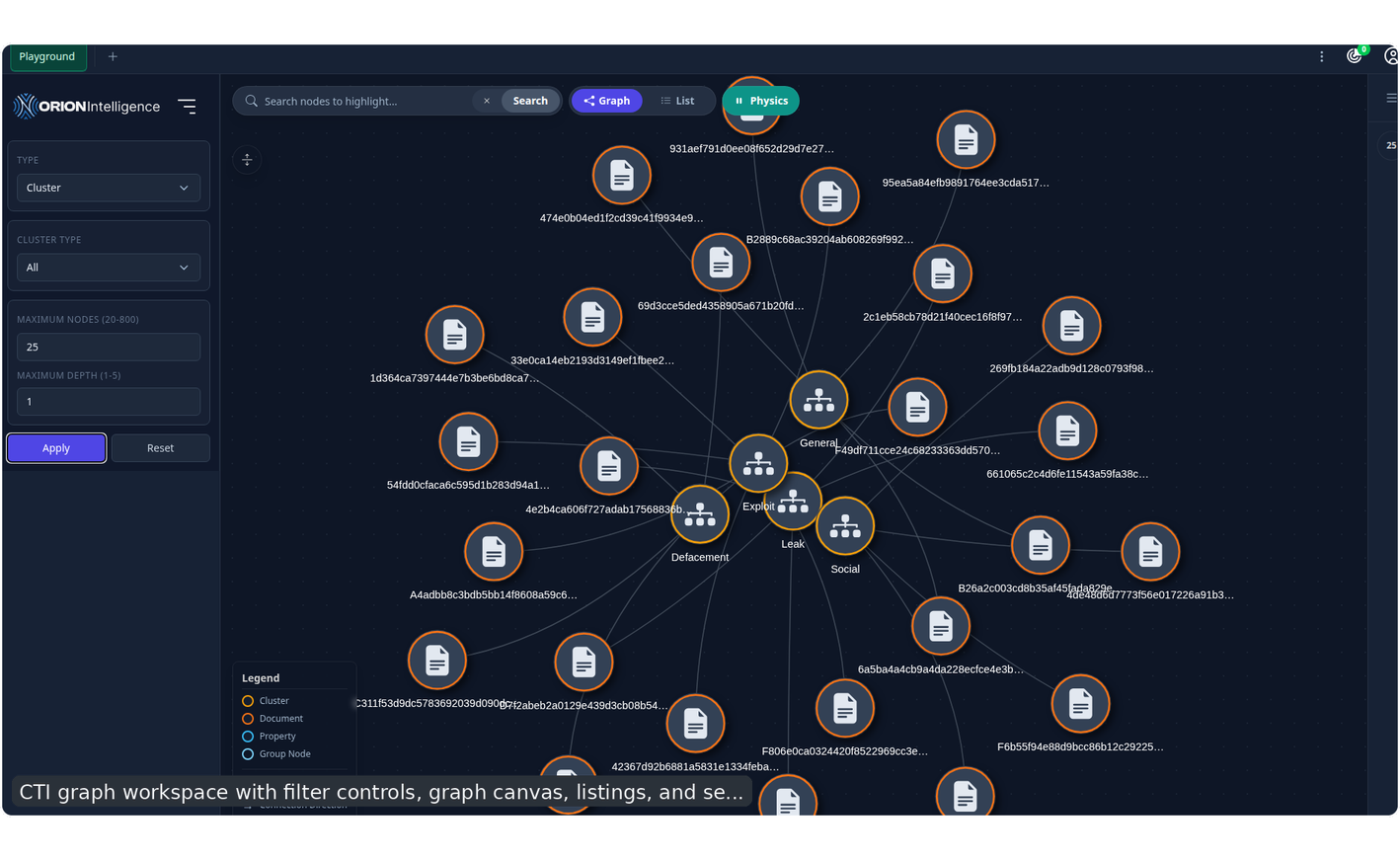
CTI graph workspace with filter controls, graph canvas, listings, and session actions.#
The tested CTI workflow also confirms the following operator-visible actions:
switching filter type to
Clusterapplying graph filters
searching and highlighting matching nodes
switching between graph and list views
collapsing and reopening the listings panel
toggling physics simulation
creating, renaming, importing, exporting, and closing sessions
exporting report options such as JSON and graph PDF
opening canvas context-menu actions
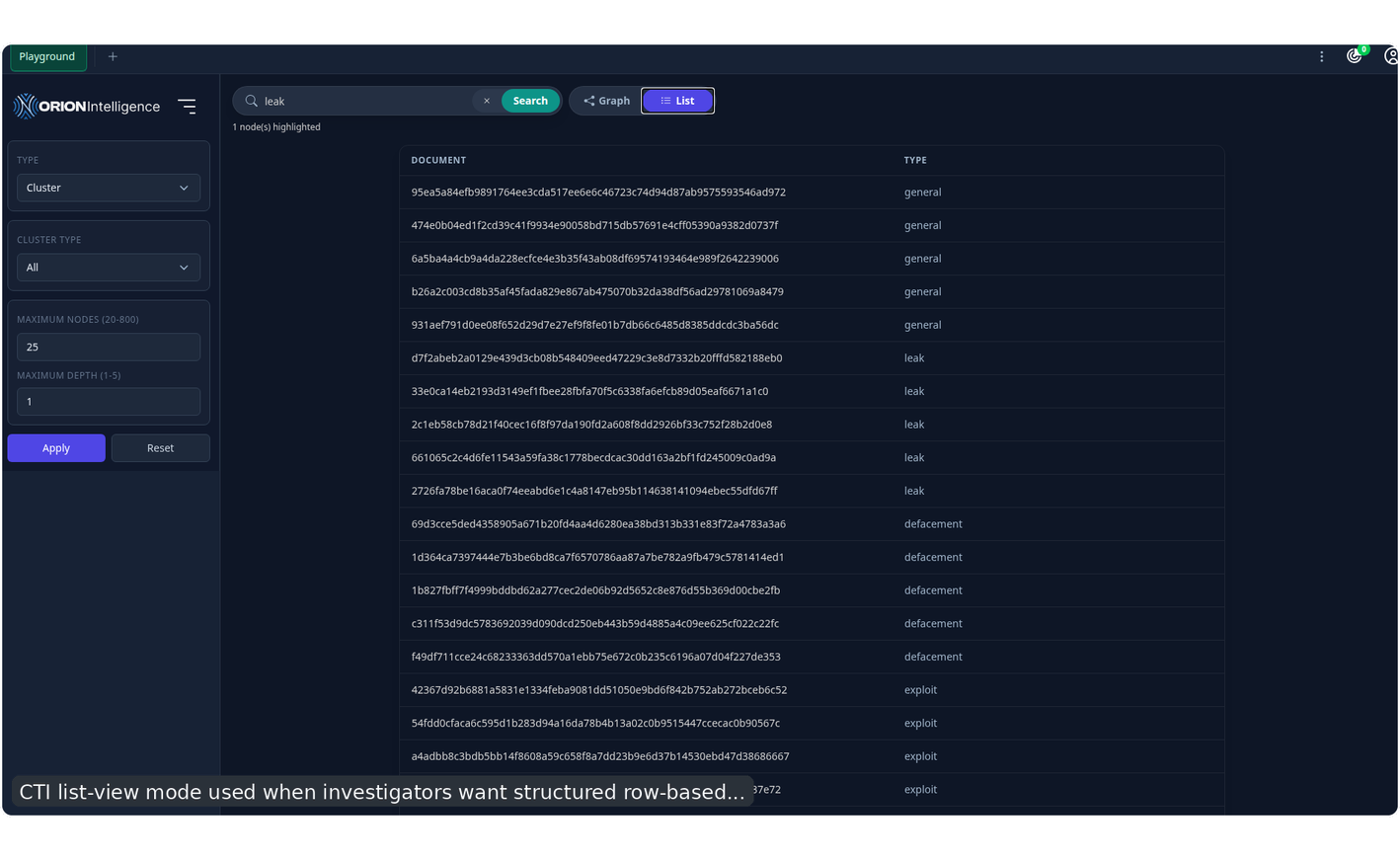
CTI list-view mode used when investigators want structured row-based review instead of the graph canvas.#
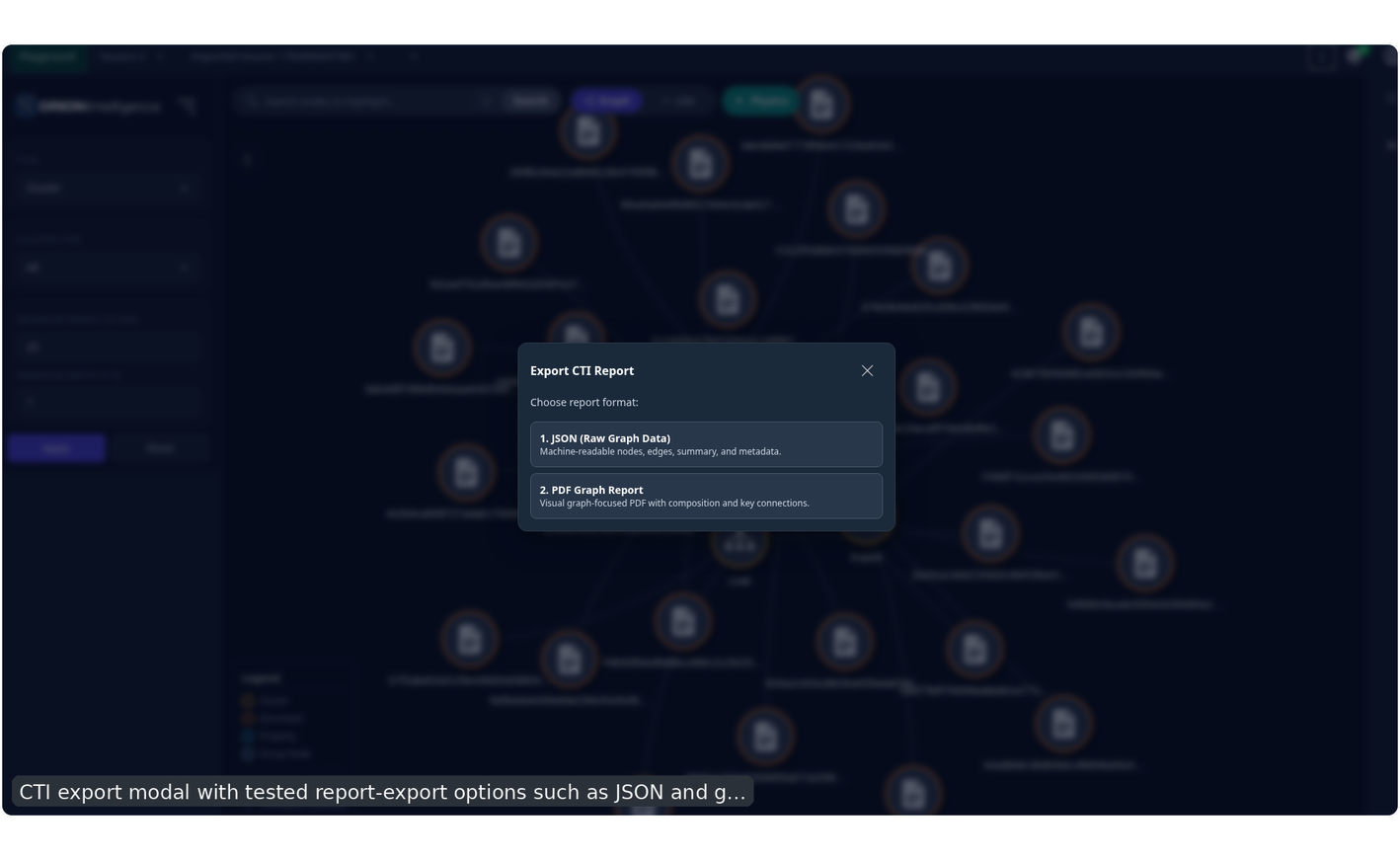
CTI export modal with tested report-export options such as JSON and graph PDF.#
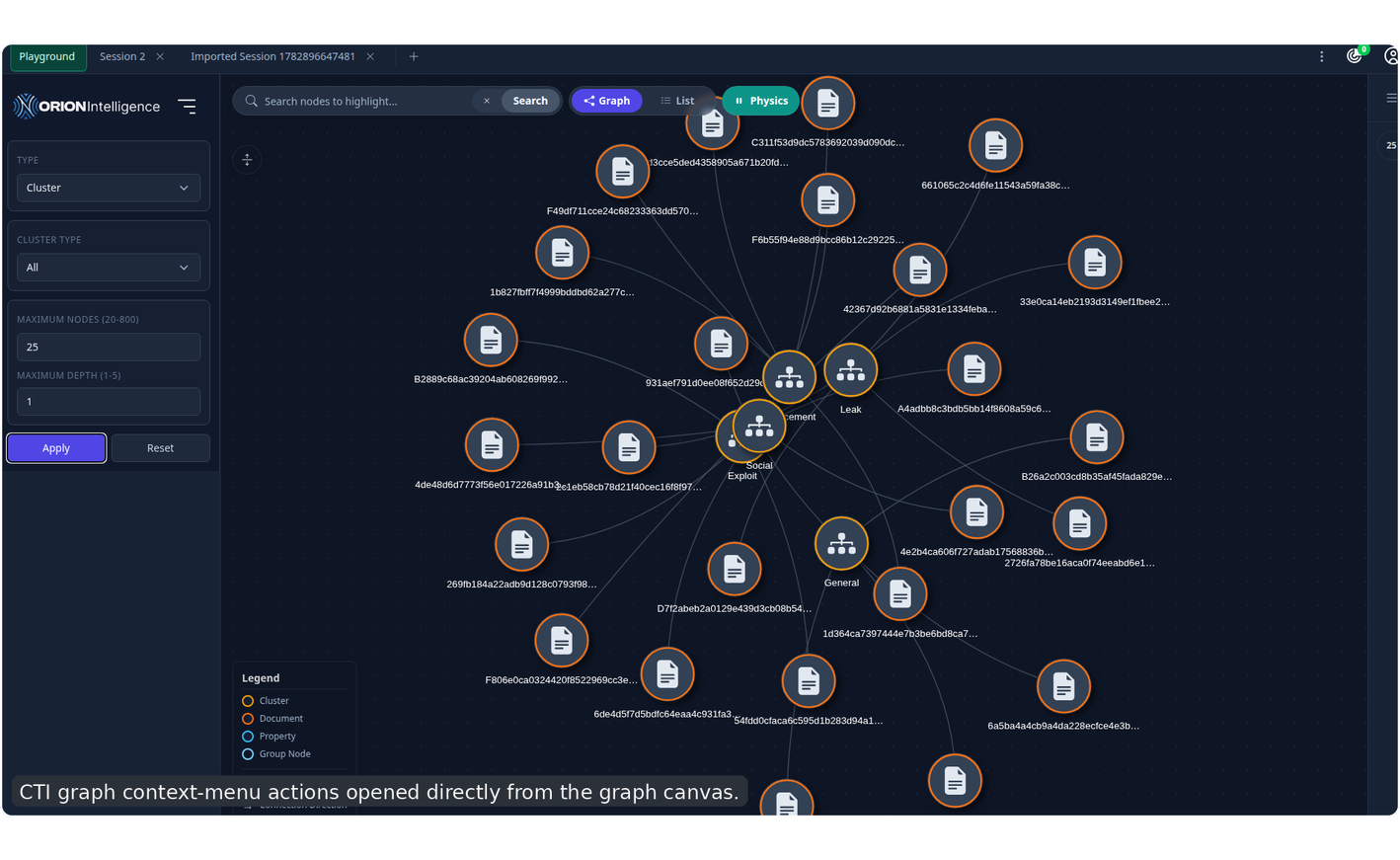
CTI graph context-menu actions opened directly from the graph canvas.#
Social Intel#
Social Intel is a graph-based username and profile mapping workspace.
It is designed for operators who need to move from a single username, image, or related profile into a richer relationship map of platforms, related accounts, and extracted profile evidence.
Core Entry Points#
Social Intel supports several starting paths:
direct username scanning
image-based profile discovery
manual custom-entity entry
API-backed entity submission from the add-entity modal
reopening previously created scan jobs from the left home menu
This makes Social Intel useful for both:
known-profile investigations
unknown-profile discovery from an uploaded image
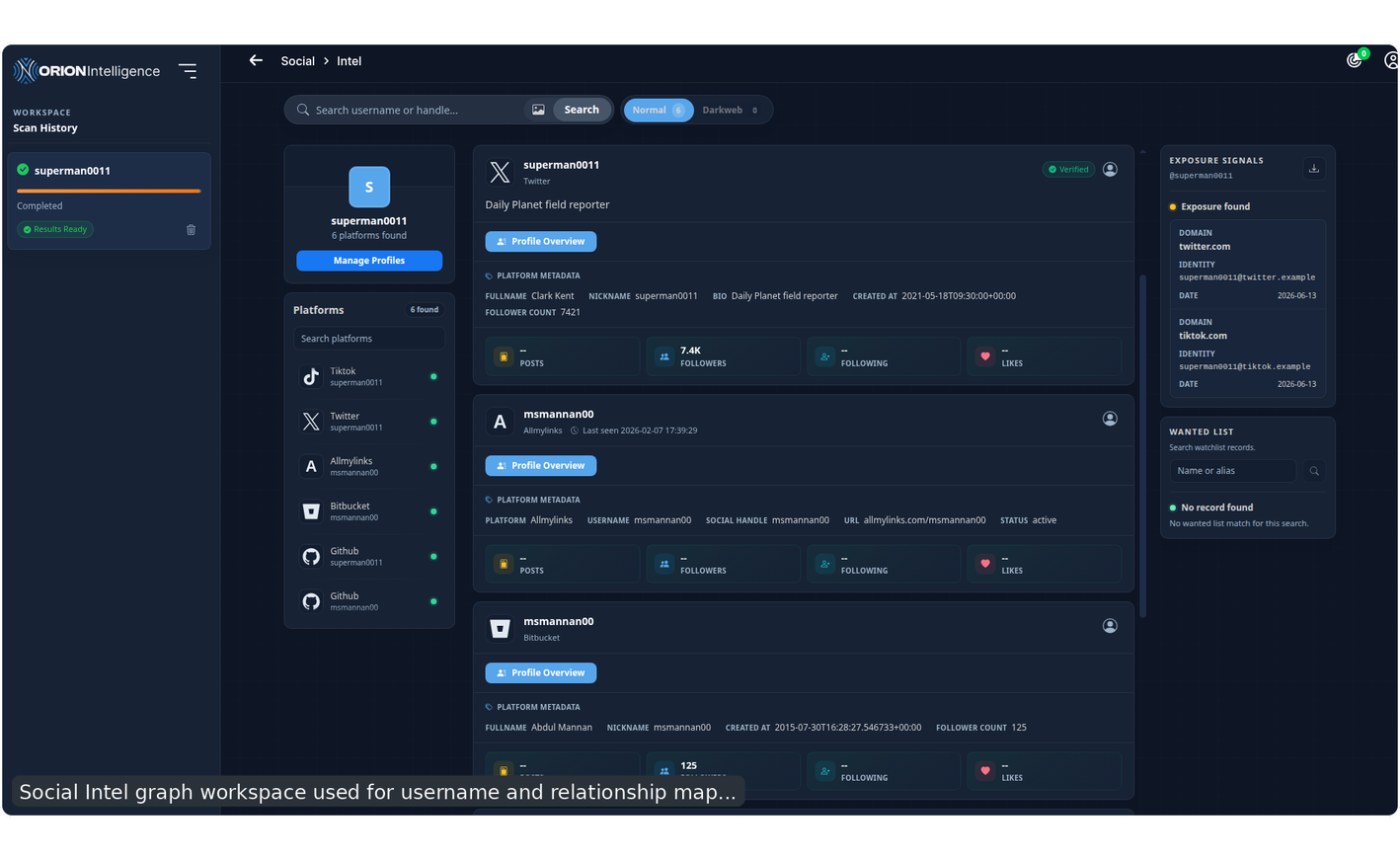
Social Intel graph workspace used for username and relationship mapping.#
Graph and List Views#
The graph view is intended for structural relationship analysis. The list view is intended for profile-by-profile inspection and management.
Common view actions include:
switching between graph and list views
searching within the graph toolbar
clearing graph search input
enabling or disabling graph physics where available
opening relationship popups directly from graph nodes
opening list rows to review platform-specific detail
Use graph view when you want to understand how entities connect. Use list view when you want a more structured review of profiles, links, summaries, and platform records.
Session Management#
Social Intel supports multiple sessions in the same way the CTI workspace supports multiple investigative tabs.
Covered session actions include:
creating a new session
renaming a session
exporting a social report from the current session
Sessions are useful when you want to separate different investigations, keep one graph focused on one target, or compare multiple usernames without overwriting the previous workspace.
Add-Entity Workflow#
The add-entity modal supports more than one submission mode.
Available tested behavior includes:
opening an entity type such as
Phoneusing an API query mode
validating that the submit button stays disabled until a valid input is present
switching from API mode to manual mode
entering a manual value
submitting the new entity into the social workspace
This matters because Social Intel is not limited to scraped social accounts. It can also be used to place analyst-defined entities into the investigative graph.
Image-Based Profile Discovery#
The image-based workflow is one of the more advanced Social Intel paths.
It supports:
uploading an image
waiting for image-recon processing
opening the manage-profiles modal
filtering candidate platforms
reviewing discovered usernames
opening direct profile links for discovered accounts
fetching the selected profile into the workspace
reopening completed profile jobs from the left home menu
selecting multiple discovered profiles and updating the graph with them
Use this workflow when a screenshot, avatar, or reused profile image is the starting point instead of a known handle.
Manage Profiles Modal#
The manage-profiles modal is the main control surface for discovered or queued profile candidates.
From this modal, users can:
filter platforms
search usernames
review discovered profile links
fetch profile data
select all fetched profiles
update the graph with the selected profiles
cancel without applying changes
This modal is central to the Social Intel workflow and should be treated as part of the main graph system, not as a secondary helper.
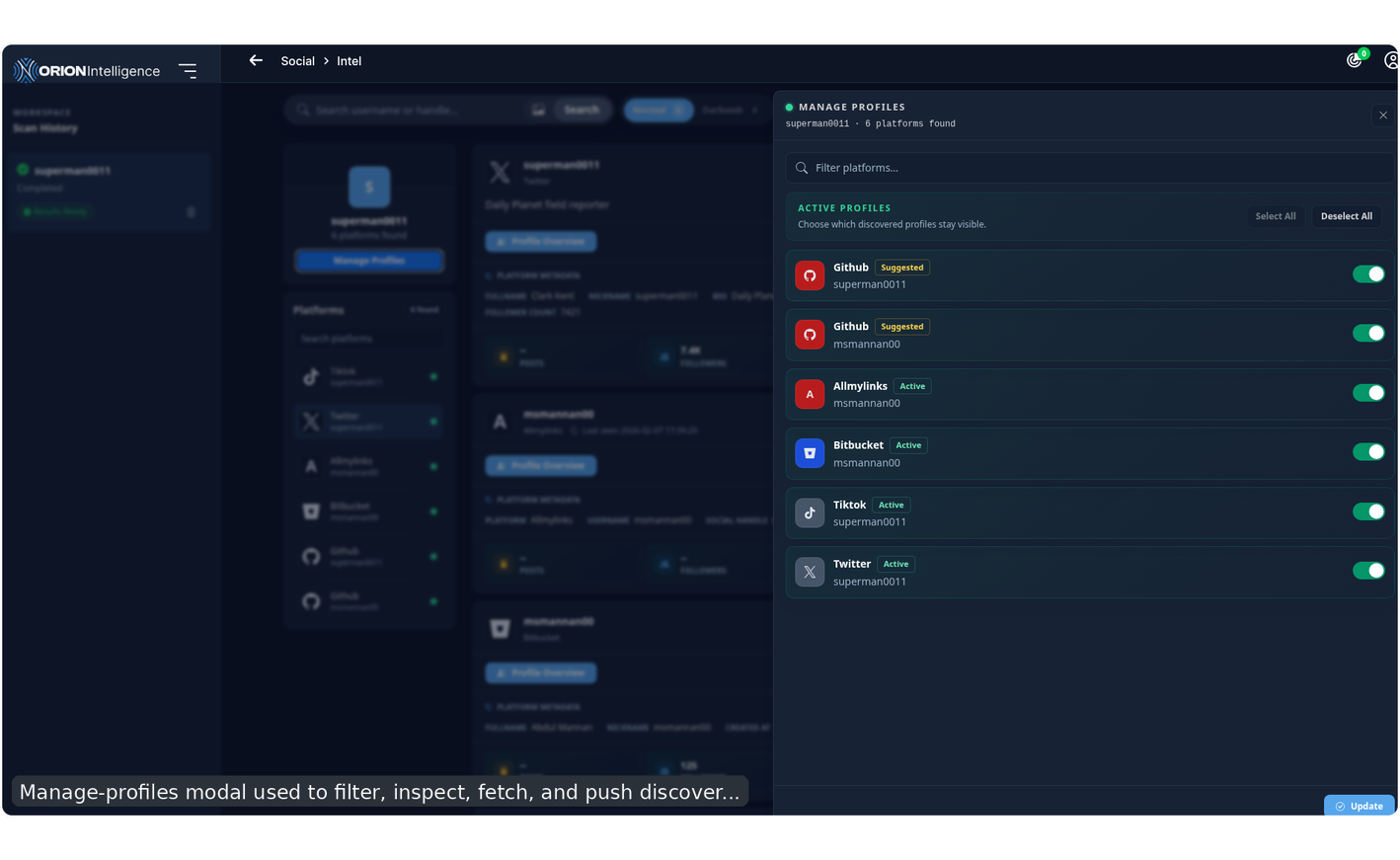
Manage-profiles modal used to filter, inspect, fetch, and push discovered accounts into the graph.#
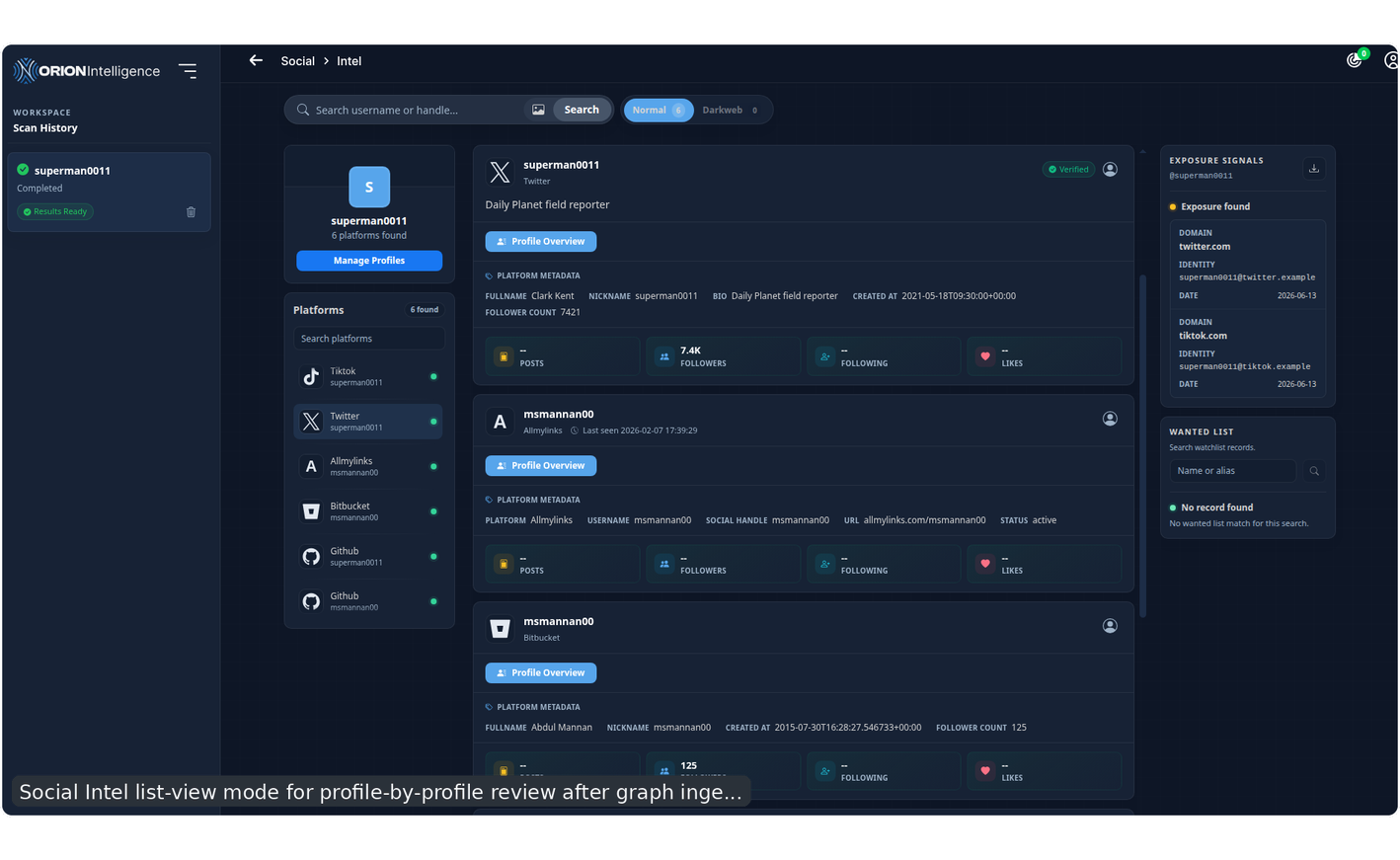
Social Intel list-view mode for profile-by-profile review after graph ingestion.#
Summary Popup and Metadata Search#
The summary popup provides deeper profile inspection beyond the main graph or list node.
Supported summary actions include:
opening the summary popup from a list entry
reviewing all detected platforms for the selected subject
opening
Profile Metadata Resultsentering metadata search tokens
validating no-token error states
running metadata searches with terms such as leaked email or other keywords
reviewing returned external links
pivoting into a selected platform from within the popup
reopening external profile links
This popup is where profile-level enrichment becomes operationally useful. It combines raw profile context with searchable metadata and quick pivots.
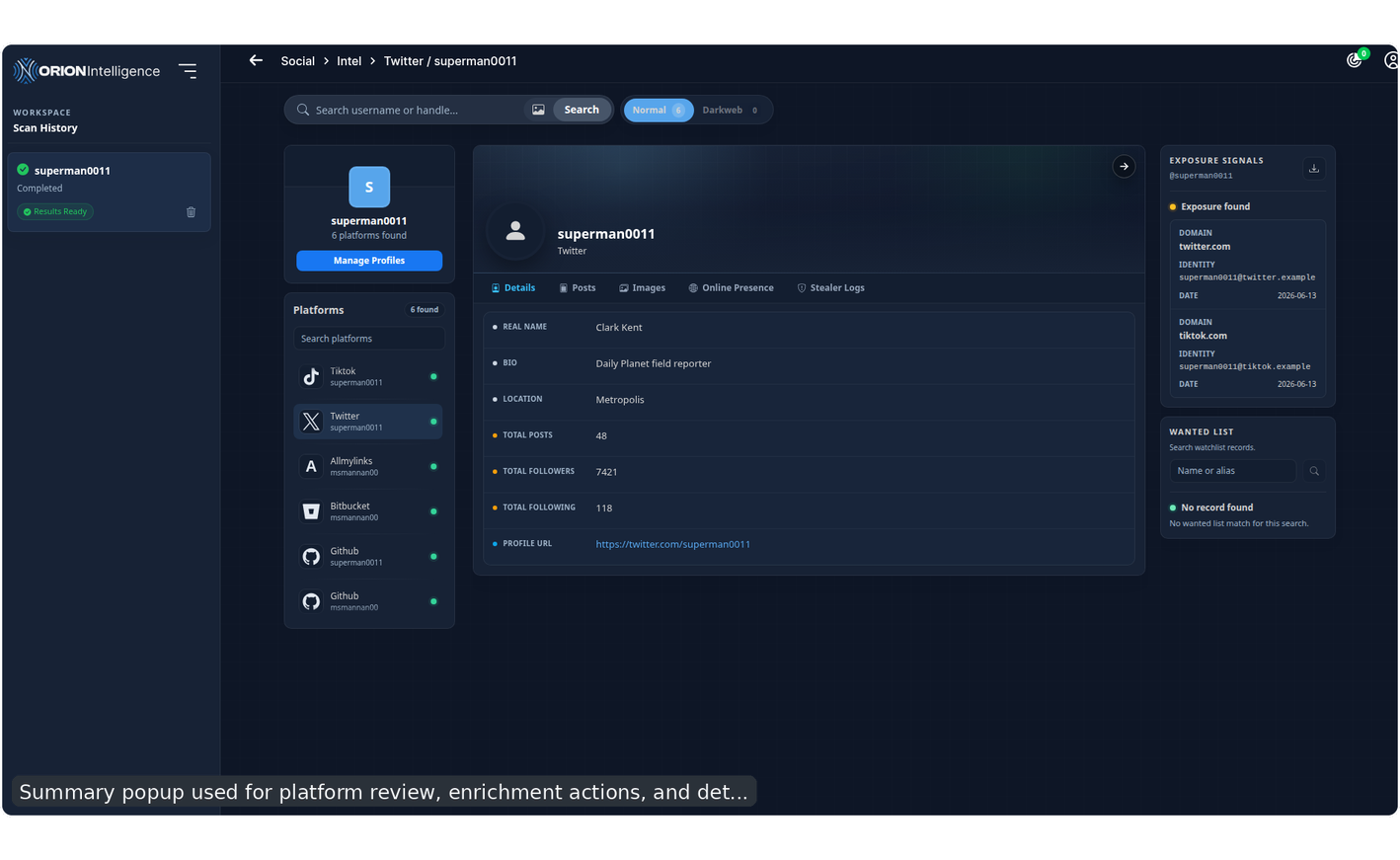
Summary popup used for platform review, enrichment actions, and detailed subject inspection.#
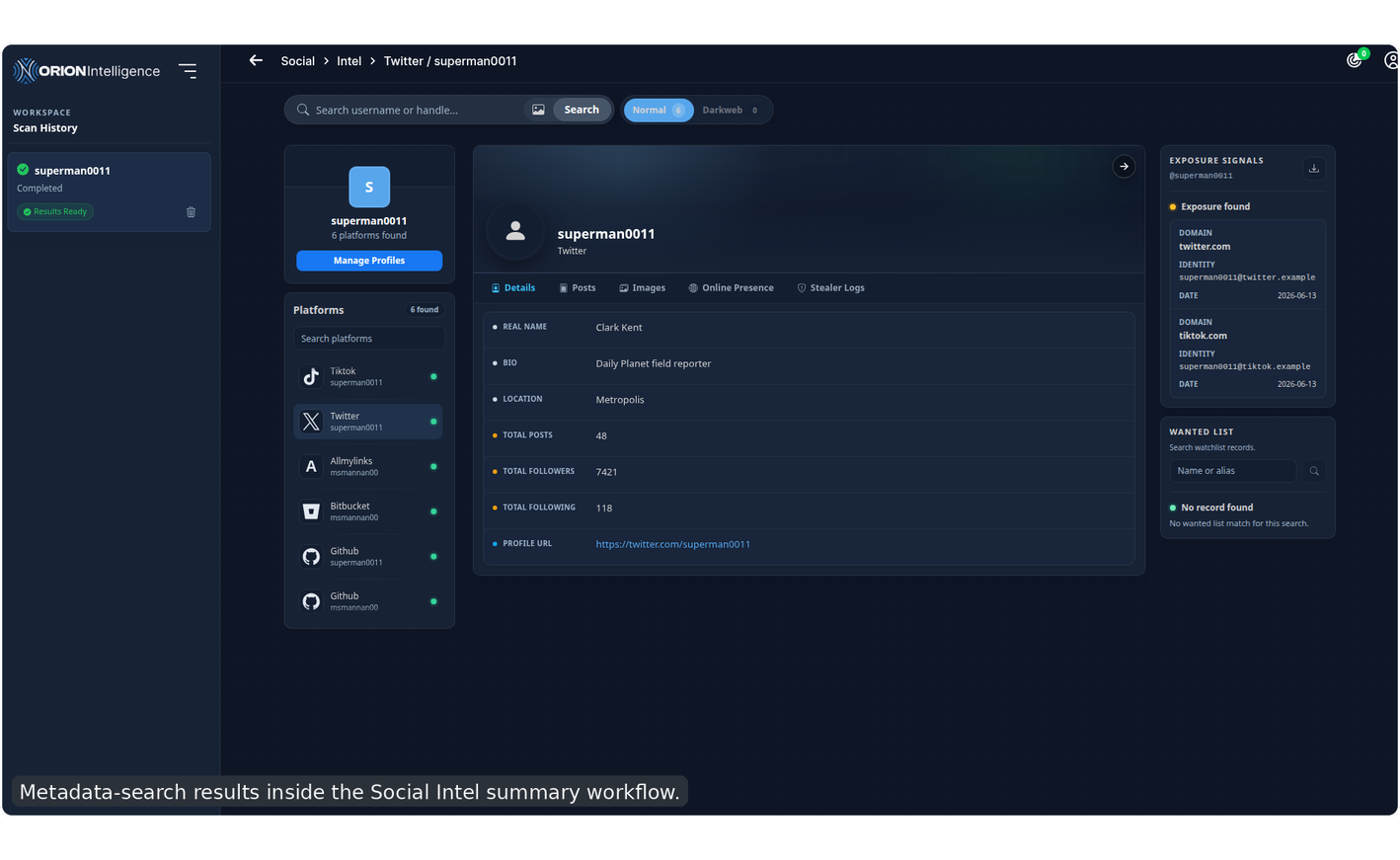
Metadata-search results inside the Social Intel summary workflow.#
Followers, Following, and Connections#
The followers/following workflow is more than a read-only count view.
Covered actions include:
opening the followers-and-following popup
switching among
Followers,Following, andConnectionsfiltering discovered related accounts
fetching more followers from inside the popup
selecting discovered related accounts
confirming selection to import those accounts back into the main workflow
reopening created follow-based jobs from the left home menu
selecting all imported results and updating the graph
In practice, this means Social Intel can expand an investigation outward from one profile into a broader relationship set rather than staying limited to the original target.

Followers/following popup used to filter, inspect, and import related accounts.#
Images, Followers, and Re-Scan Controls#
Within the summary popup, the suite covers several enrichment actions:
Fetch FollowersFetch FollowingFetch ImagesRe-scan profile
These actions make the popup a live enrichment console rather than only a static summary.
Relationship Popups#
Social Intel also supports relationship-specific popups from graph nodes.
These popups can expose:
related-account information
external account links
quick-close controls
This makes it possible to inspect a connection without leaving the graph canvas.
What the Legend Represents#
The legend distinguishes visual object types such as:
user profiles
platforms
platform groups
custom entities
relationship or connection types
Understanding the legend is important when the graph becomes dense. It tells the user whether they are looking at:
a discovered profile
a platform wrapper
a manually added entity
or a relationship generated by enrichment
Result and Report Workflows#
Most indexed modules eventually lead into a report page. Report pages are one of the most important parts of the product because they consolidate the searchable record, its metadata, and pivot actions.
Report Toolbar#
The shared report header can expose:
download
export report
translation
AI summary
share
open source URL
open CTI graph
The exact buttons depend on the record and deployment configuration.
When available, this toolbar is the fastest way to export, translate, summarize, share, or pivot the current record into graph analysis.
Result Insights Side Panel#
In consolidated workflows, Orion also provides a dedicated insights panel beside the main result stream. This side panel can expose:
keyword insights
general coverage summaries
threat-actor search helpers
unique URL lists
expandable extracted-data sections
This panel is intended for quick triage and narrowing before opening individual reports.
In practice, it helps answer three questions quickly:
what themes dominate this result set
whether actor- or URL-based pivots are available
which extracted sections are worth opening in full reports
Result insights side panel with URL and extracted-data pivots.#
General Report Page#
The general report view commonly includes:
title
description or important content
web reference
source URL
published date
network
last-checked date
content-type tags
freshness status
Some report layouts also expose quick links, downloadable record output, or direct pivot actions to graph and sharing tools from the same header.
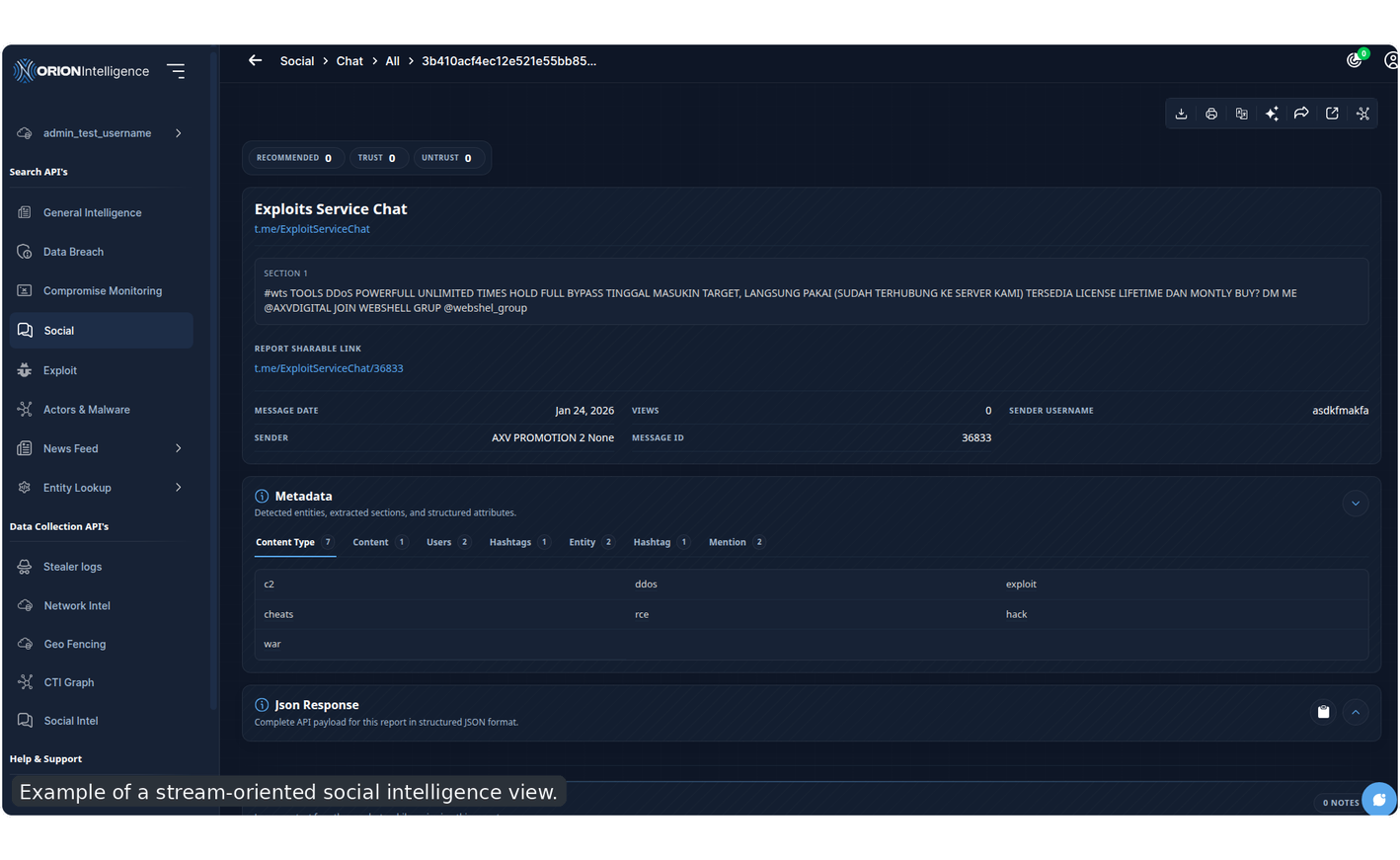
Typical report layout with content and structured context.#
Metadata Panel#
The metadata panel is expandable and lets users browse extracted values by category. Common tabs include:
content
section
organization
entity or person
other extracted attributes
This is the main place to inspect structured extraction results from the record.
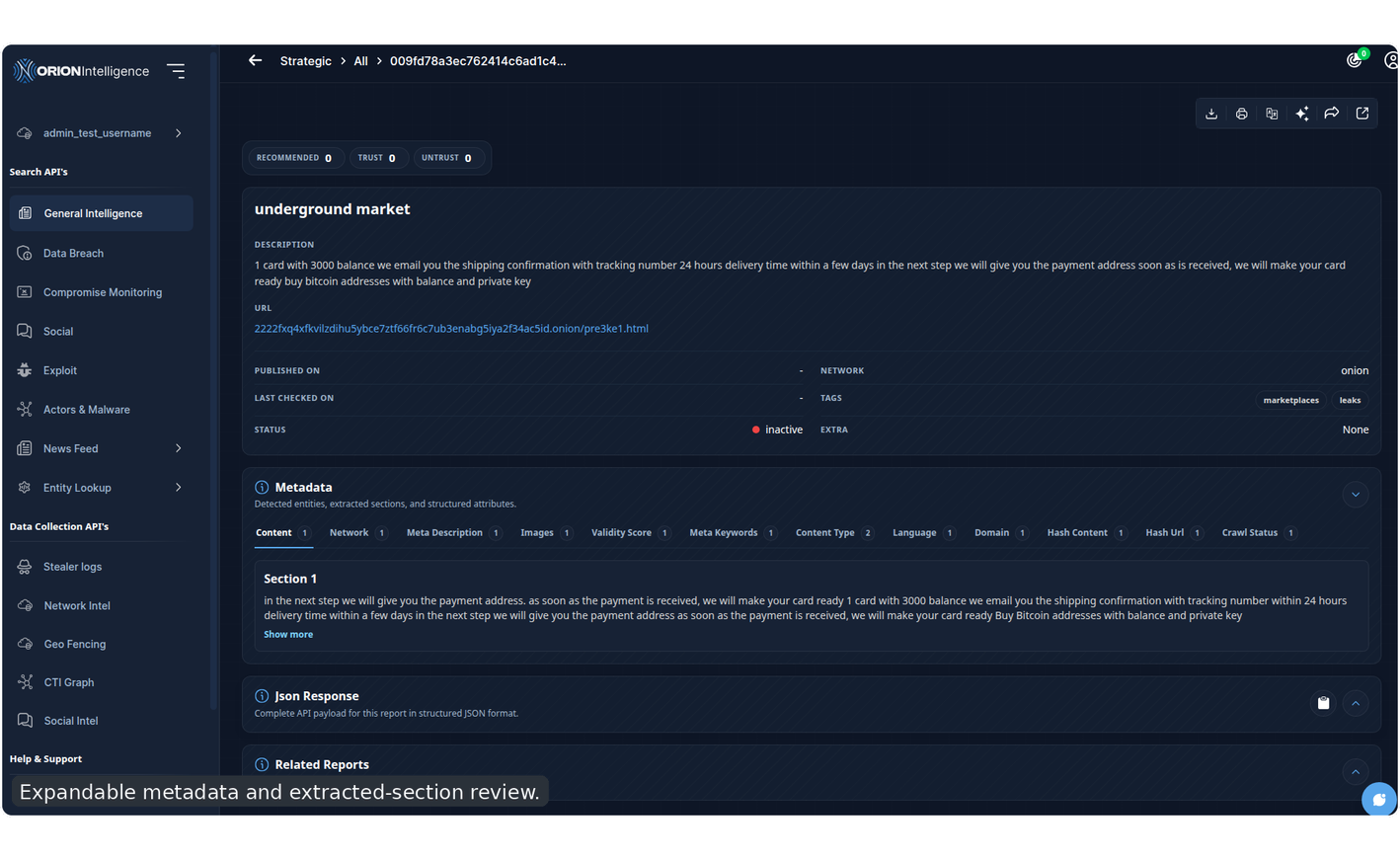
Expandable metadata and extracted-section review.#
Screenshot and JSON Sections#
For relevant breach records, the report may also include:
screenshot preview
JSON record viewer
report mapping
The JSON viewer is useful for raw structured inspection, while report mapping helps users navigate relationships and related record context.
JSON inspection view for raw structured report data.#
AI Chat and Summary#
If AI is enabled, users may also see:
AI summary generation
chat over the report content
For chat-style and social-style records, report pages can also include:
channel or source title
source URL
report sharable link
sender details
message identifiers
views, likes, shares, comments, tags, or retweets
expandable metadata blocks
JSON inspection
This makes the report page suitable for both analyst review and downstream sharing.
The tested chatbot flow specifically confirms:
opening the chat widget from a report
entering a prompt
sending a message
rendering a visible message thread in the chat area
Defacement Report Page#
The defacement report is a streamlined variant focused on target and attacker context. It includes:
target URL
saved date
defacer or IOC type
team
source breach reference
IP
location
metadata panel
JSON viewer
Links, Support, and External Navigation#
Directory#
The Directory page presents monitored live services and related records in a browsing-oriented layout. It differs from the normal search-result workflow by focusing on monitored entries and operational visibility rather than keyword-first investigation.
Common behaviors include:
page-level filtering
paginated or progressively loaded directory entries
monitoring-status style browsing
service and reference review across monitored live entries
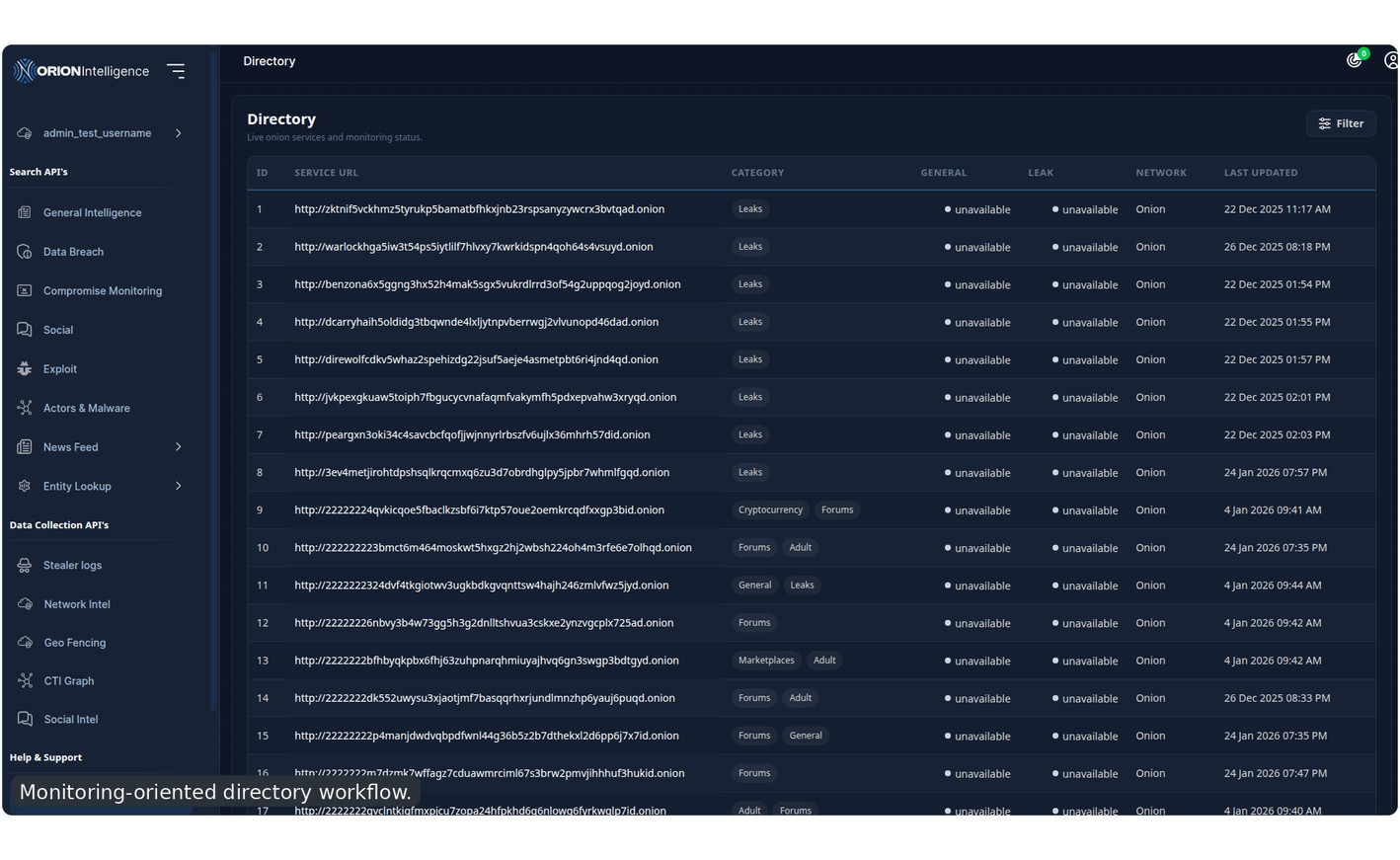
Monitoring-oriented directory workflow.#
Links#
The Links sidebar item acts as the user-facing entry into the directory-style workflow above.
Onion Link#
If configured, Onion Link opens the deployment’s onion address in a separate tab.
Whistle Blowing#
If enabled, Whistle Blowing opens an external anonymous reporting portal. This is outside the main indexed investigation workflow.
Documentation#
The Documentation entry opens the published documentation site in a new tab.
Profile, Tenant, and Alert Workflows#
The user profile area at the top of the sidebar contains user-specific and tenant-specific pages.
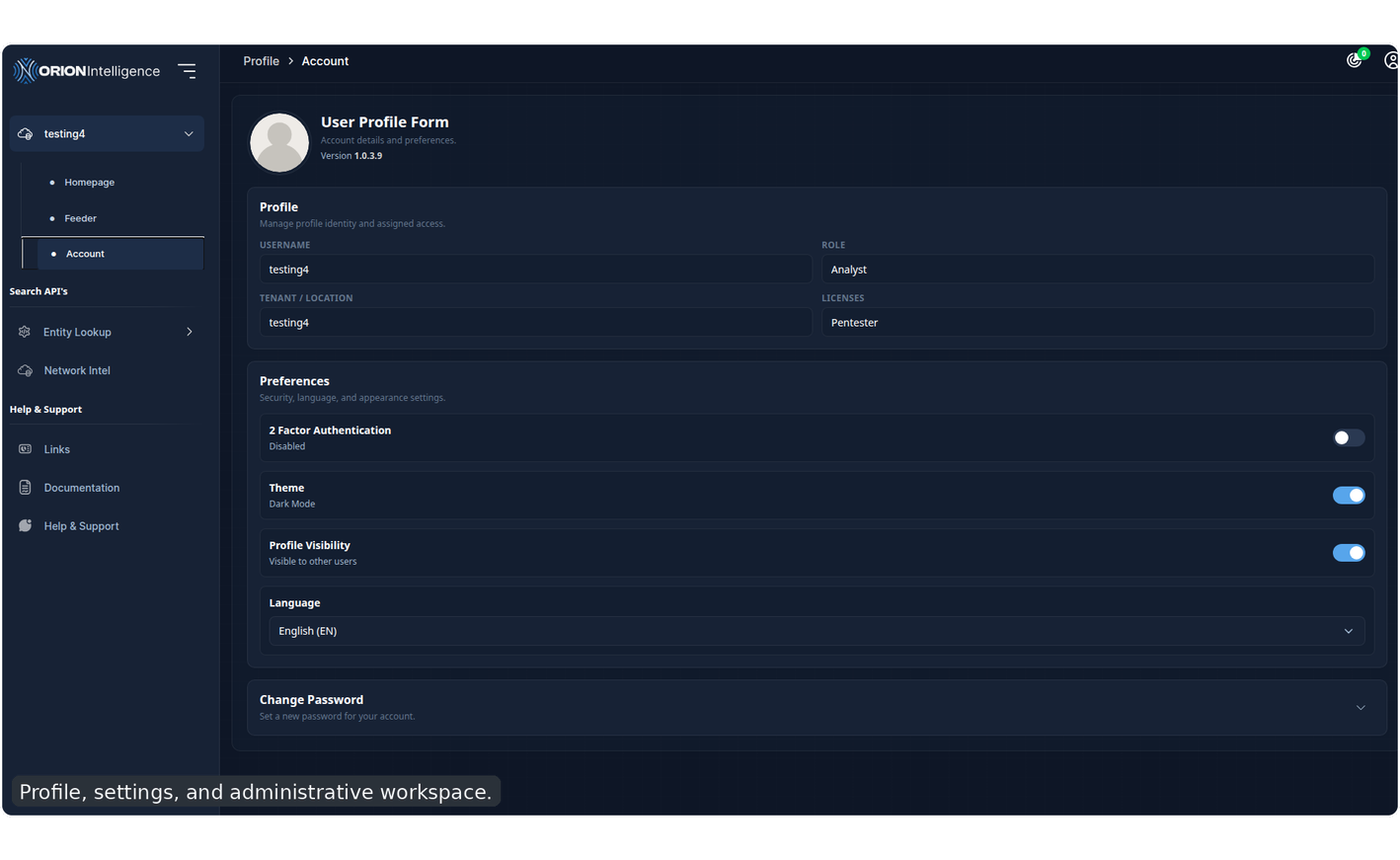
Profile, settings, and administrative workspace.#
Account Settings#
The account page allows the current user to review and manage:
profile image
username
role
tenant or location display
assigned licenses
two-factor authentication
theme preference
The page also shows the currently running platform version. It is focused on the current user rather than the tenant as a whole.
The tested account workflow also includes:
avatar upload
theme toggle and persistence
enabling
2FAlogging out and reaching the two-factor challenge screen on next login
viewing the QR image and OTP input state for 2FA setup/verification
Current-user profile and account settings form.#
Tenant Homepage#
For tenant users, the profile homepage may function as a tenant intelligence and alert workspace instead of a simple profile landing page.
Depending on license and role, this page can include:
homepage search
alert export
scan-all or flush-all actions
risk summary cards
category alert cards
monitored IOC counts
In some deployments, this page behaves differently by role:
maintainers or higher-license users may receive the full alert-and-action workspace
analysts may see a simpler search-first homepage variant
some users may see an insights-only fallback instead of tenant alert controls
The summary area commonly displays:
critical alerts
high-risk alerts
medium-risk alerts
low-risk alerts
Category cards provide quick access to alert-specific drill-down reports.
The profile area also supports alert-focused routes such as:
alerts/<type>for category-specific alert reportsaddcustomalertfor creating custom alert definitions where enabled
Manage IOCs#
The IOC management page allows tenants to maintain the set of monitored values used in searches and alerting.
Capabilities include:
IOC category search
horizontal category browsing
adding IOC values
removing IOC values
clearing all IOC values
This page is especially important for tenant-driven monitoring workflows.
The tested tenant IOC workflow includes:
opening the IOC page from the tenant profile area
switching across IOC category tabs
adding values in multiple categories
adding monitored email values for downstream alerting
returning to the tenant homepage and triggering follow-up scanning actions
Statistics#
The Statistics page in the profile area reuses the insight-oriented summary experience for users who want a visual overview without returning to the main homepage.
Profile Consolidated View#
The profile area also contains a consolidated-search route. Functionally, it behaves like the main consolidated workspace but sits within profile and tenant-oriented workflows.
Case Management#
Case Management is the investigation workspace for turning alerts, findings, and analyst leads into tracked cases. It is available from the profile area when the user has the required case-management access.
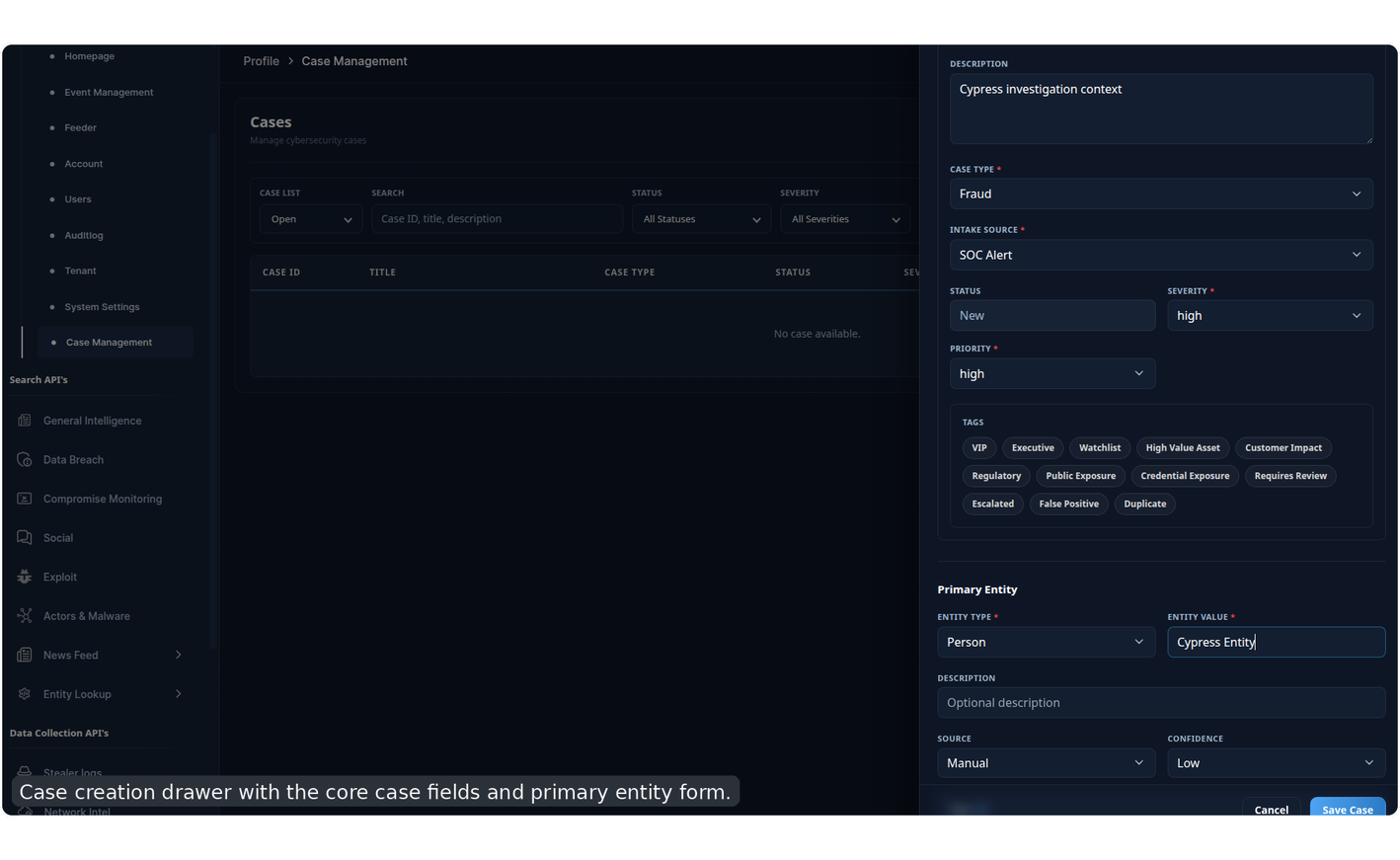
Case creation drawer with the core case fields and primary entity form.#
When adding a case, users define:
case title and investigation description
case type and intake source
status, severity, and priority
tags for triage and reporting
primary entity, such as a person, organization, email, domain, IP, URL, account, credential, or infrastructure indicator
The case details page keeps the case record organized into independent sections. Each section has its own add or edit action, and side drawers are used for focused data entry.
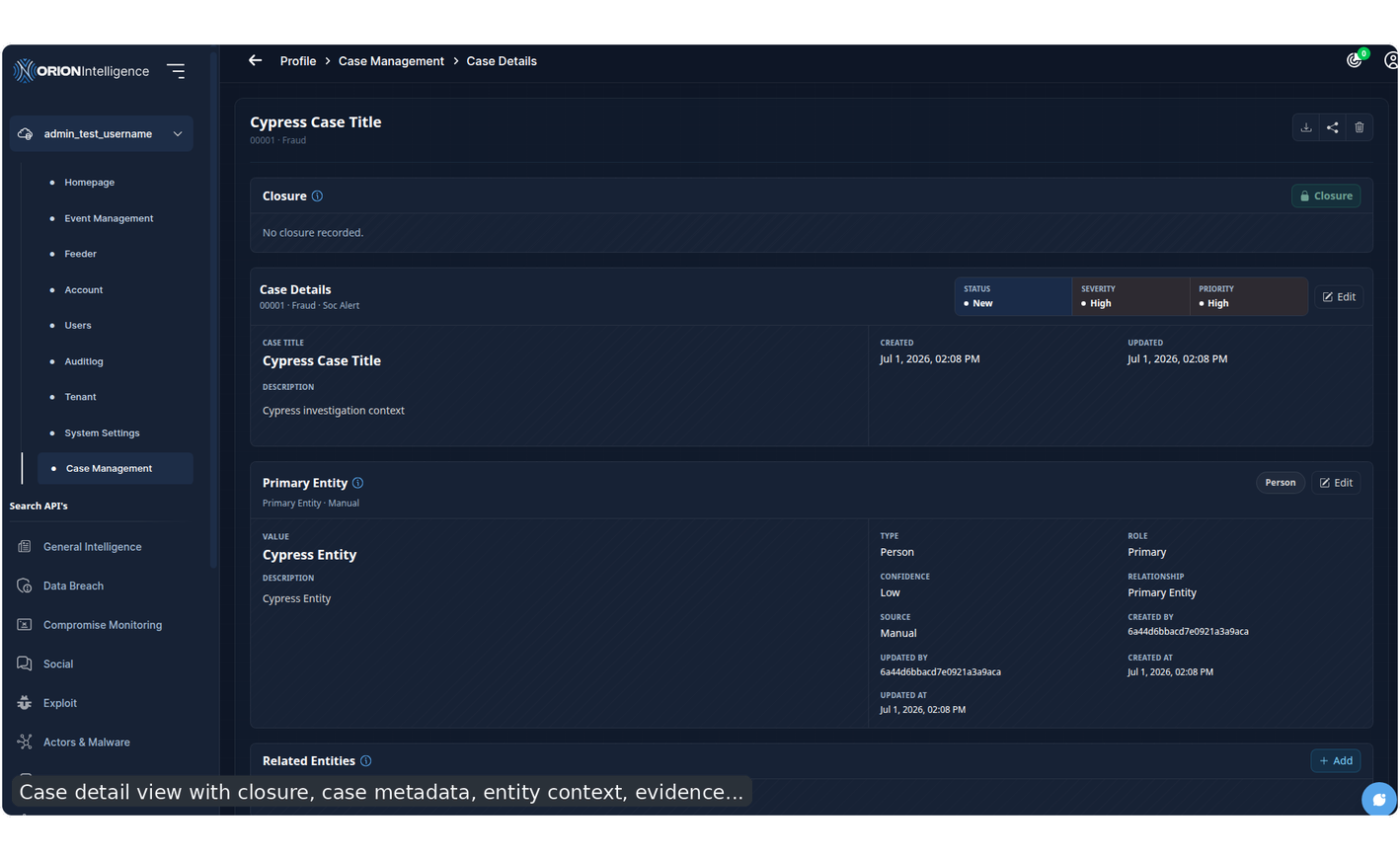
Case detail view with closure, case metadata, entity context, evidence, and analyst workflow sections.#
The main case details section shows the title, description, case ID, type, intake source, status, severity, priority, tags, assigned analysts, PDF export, and share-link actions.
Primary Entity stores the main subject of the investigation. Related Entities are additional people, domains, accounts, assets, indicators, sources, or actors connected to the case.
Artifacts store evidence and supporting material. Common artifact types include screenshots, uploaded files, URL captures, raw alerts, log excerpts, email headers, chat transcripts, reports, and generic evidence. Artifact cards show the title, type, source, captured date, description, URL, and file actions such as view, download, and delete when a file is attached.
Tasks track follow-up work for analysts. A task can hold status, priority, assignee, due date, description, and links to relevant entities or artifacts.
Linked Cases connect the current case to other case records. Links can mark duplicates, parent or child cases, follow-ups, escalations, shared actors, shared victims, shared infrastructure, or general related cases.
Comments provide the analyst discussion thread for the case. Use comments for review notes, handoff context, evidence interpretation, or follow-up decisions. Comment authors can be opened through the user sidebar where supported.
Closure records the final outcome. It includes the closure reason, summary, resolution notes, who closed the case, and the close time. Closing a case is the point where the investigation outcome becomes part of the case report and exported PDF.
Tenant Settings#
Tenant Settings stores tenant-level identity and contact information.
Depending on permissions, users can:
upload a tenant image
review assigned licenses
review license count
review assigned user quota
edit phone
edit country
edit city or state
Some fields remain read-only depending on role. The page also acts as a tenant overview by summarizing the tenant name, status-style badges, location, assigned quota, and current license list.
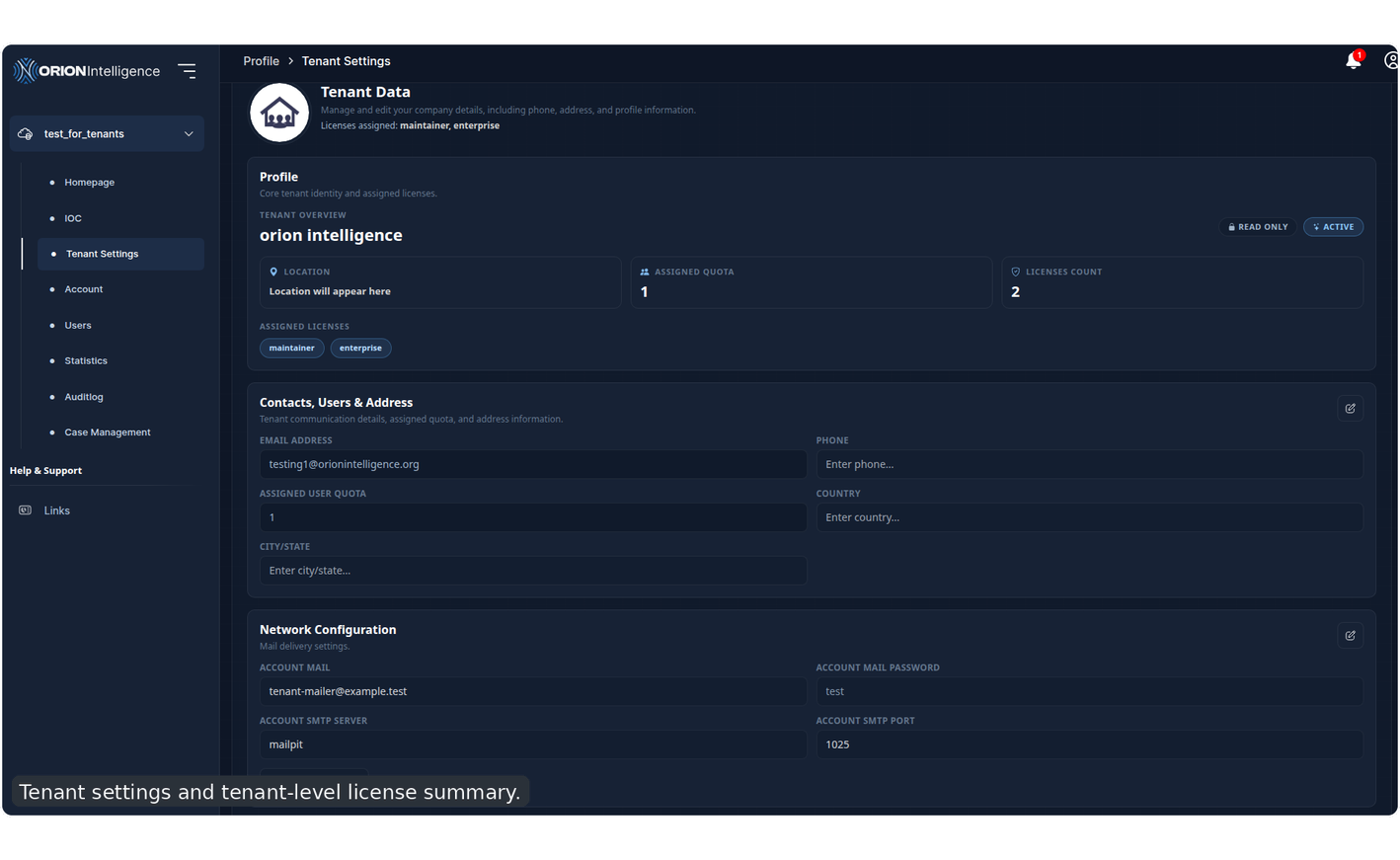
Tenant settings and tenant-level license summary.#
User and Tenant Administration#
Tenant Users#
The Users view is the main tenant user-management page.
It supports:
viewing users in a table or mobile card layout
adding a user
expanding a user row for details
changing status
editing assigned licenses
deleting a user
Displayed information commonly includes:
username
email
role
status
subscription
licenses
The page also respects quota-based restrictions.
The broader tested user-management lifecycle also covers:
creating multiple users with different roles and license mixes
verifying role- and license-based sidebar visibility after login
triggering subscription or paywall behavior for limited-license users
showing near-expiry trial state messaging where applicable
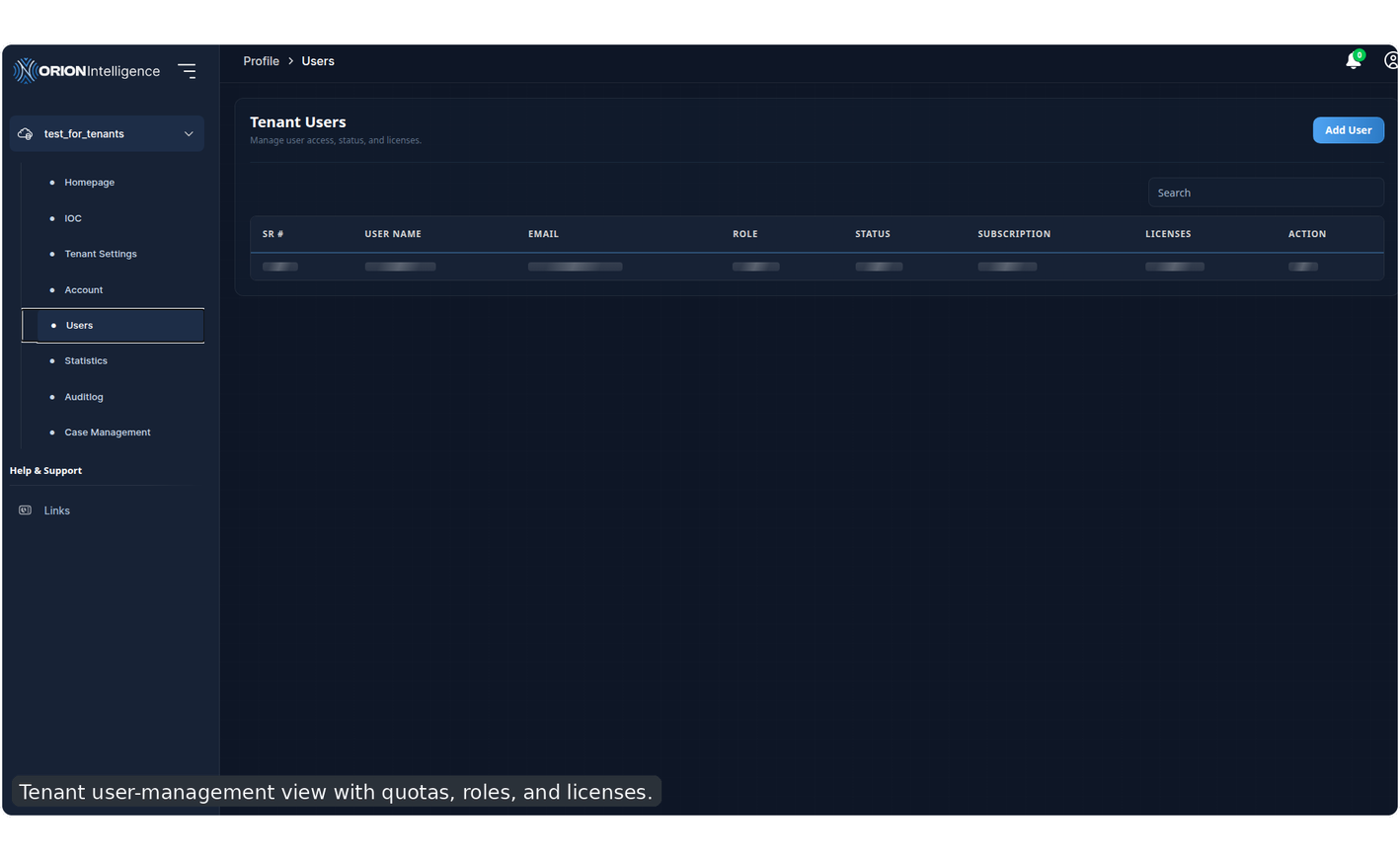
Tenant user-management view with quotas, roles, and licenses.#
Tenant Administration#
The Tenants view is used by higher-privilege roles to manage tenant records across the platform.
It supports:
reviewing tenant information
expanding a tenant for detail and editing
changing verification state
changing quota
changing status
updating tenant licenses
Displayed fields include:
company name
country
subscription
verification state
user quota
status
license assignments
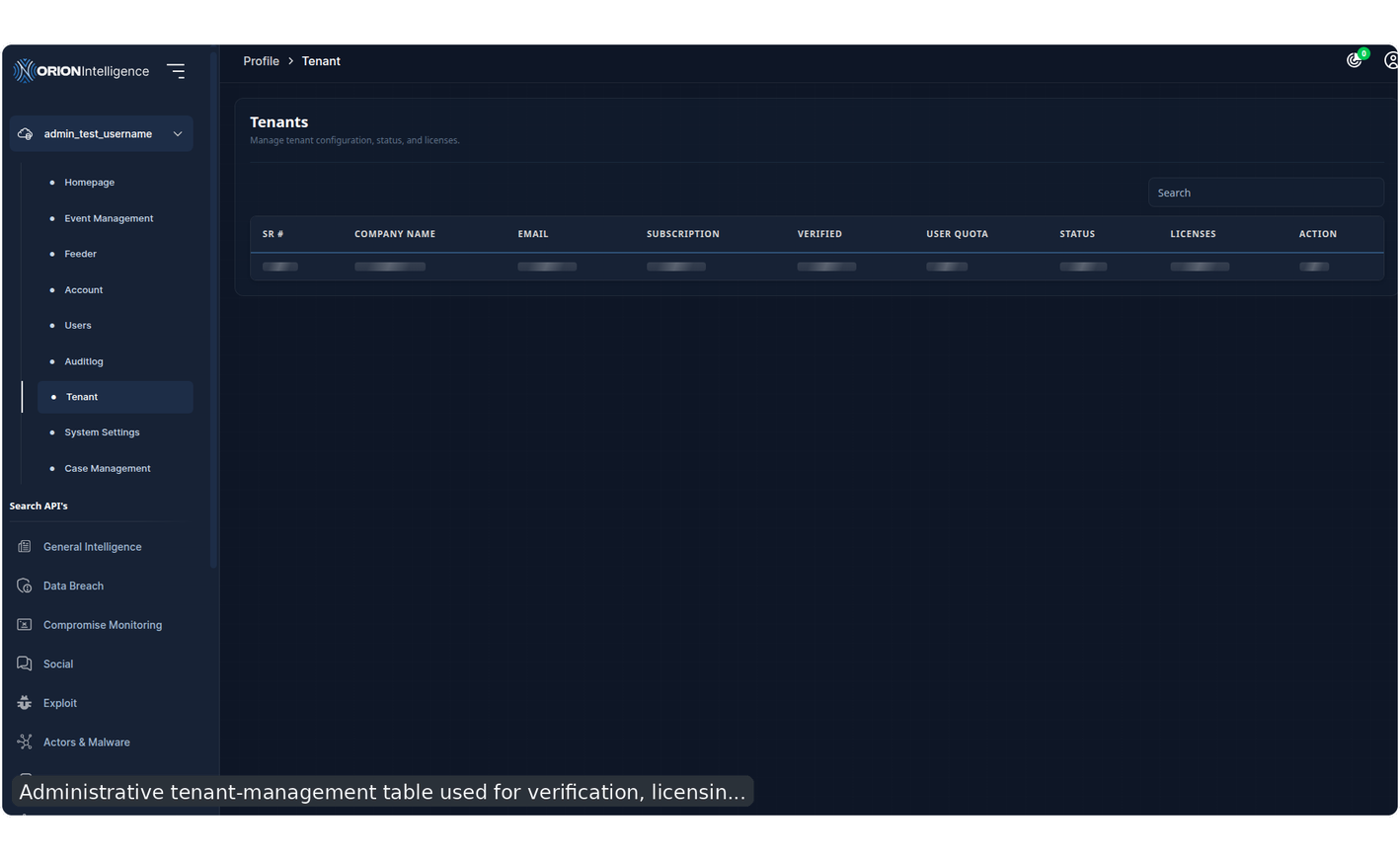
Administrative tenant-management table used for verification, licensing, and quota updates.#
Audit Logs#
Audit Logs provide a searchable activity trail across user and tenant actions.
Audit data shown
The audit log list typically shows a timestamp, actor, tenant, and event description for each recorded entry.
The audit-log page supports:
export
filtering
pagination
desktop and mobile layouts
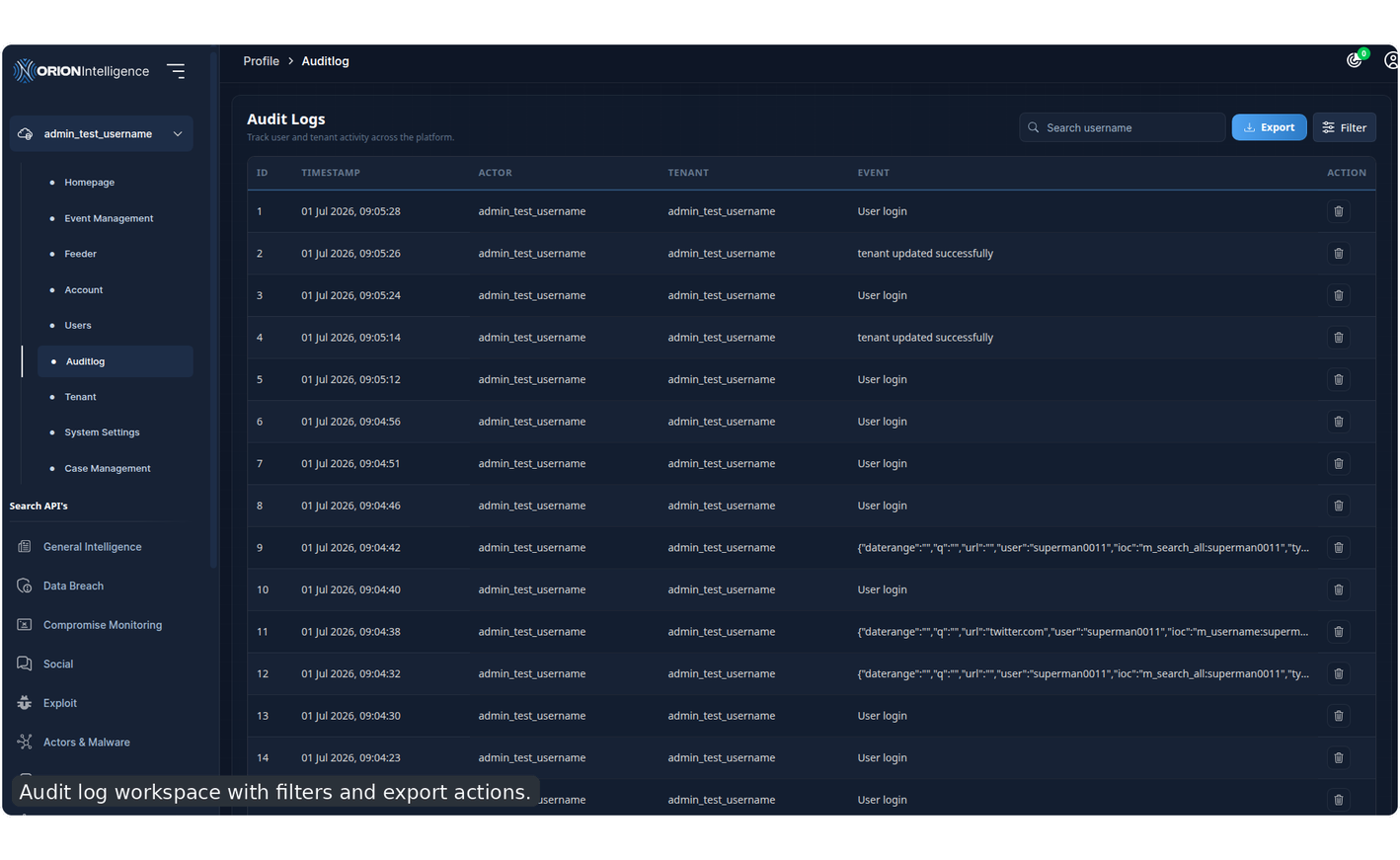
Audit log workspace with filters and export actions.#
System Administration#
System Settings#
System Settings is the primary platform-level configuration page.
It includes two main groups:
asset and branding configuration
application and service configuration
Asset Management#
Administrators can manage brand and UI images such as:
primary logo
wide light logo
wide dark logo
authentication dashboard icon
Configuration#
Editable platform settings can include:
application name
language
onion address
data-source URL
adversaries URL
pricing URL
documentation visibility
whistle-blowing visibility
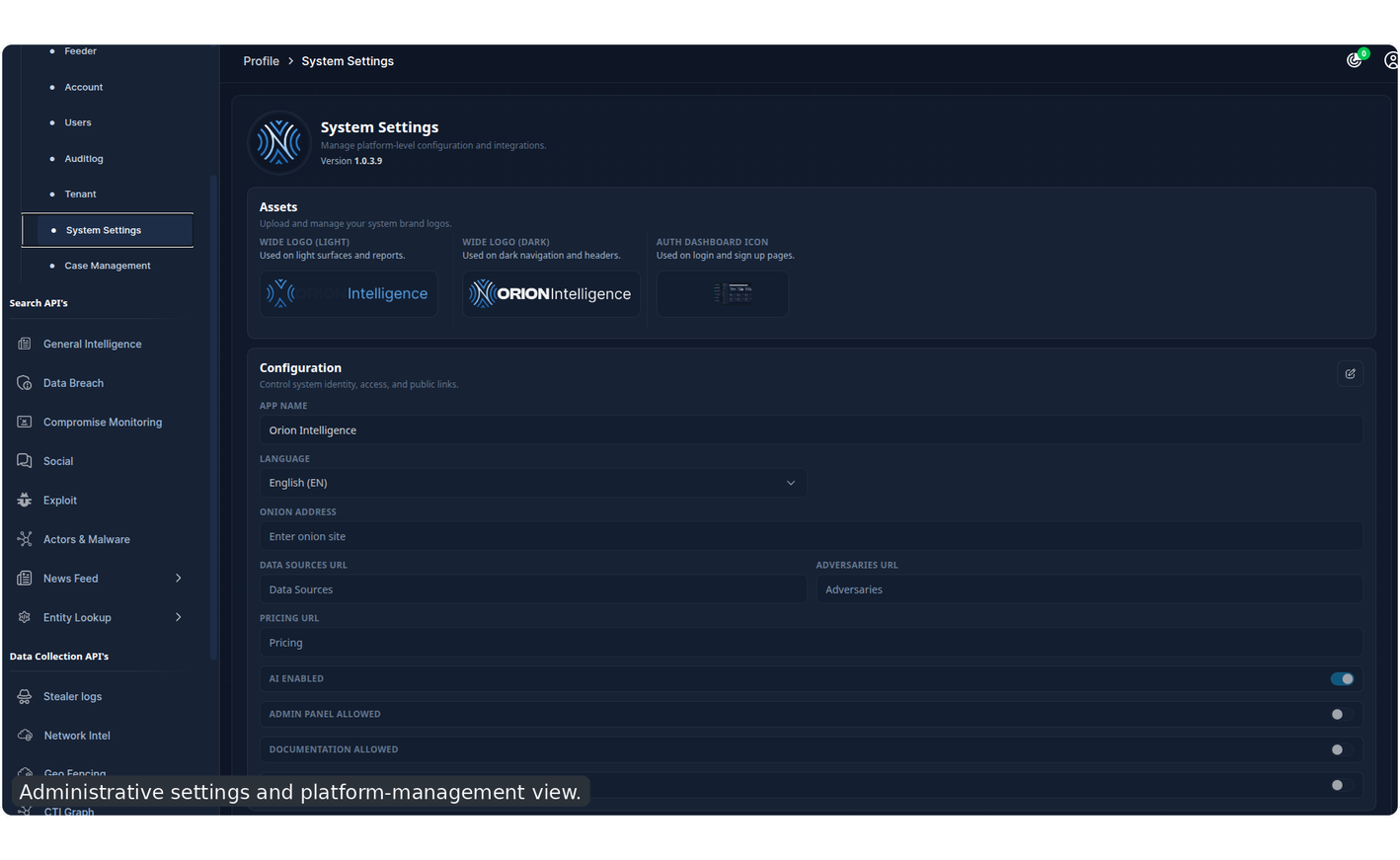
Administrative settings and platform-management view.#
Detailed UI Coverage Appendix#
This appendix documents the exact user-visible behaviors covered by the automated Cypress suite. It is intended to close the gap between a feature overview and the concrete interactions that an operator, tenant user, or administrator can perform in the current product.
Authentication and Session Lifecycle#
The tested authentication lifecycle includes:
loading the login page from the root route
signing in as an administrator
opening the profile menu and signing out
requesting a password-reset email
opening a tokenized reset-password route
validating that the new password cannot match the old password
applying a new password successfully
signing in again with the updated password
encountering a two-factor prompt after enabling
2FAviewing the 2FA QR image and OTP input state
Homepage, Heatmap, and Support Interactions#
The homepage is validated as more than a search landing page. The automated flow covers:
world heatmap rendering
tooltip visibility on country hover
tooltip hide behavior on pointer leave
opening a country-level report from the map
closing the country report with the close button
closing the same report by clicking the overlay
internal branch behavior when heatmap data or world data changes
The support workflow is also covered directly from the profile menu:
opening the help and support modal
filling email, subject, and message fields
submitting the support request
Search Behavior and Result Expectations#
The test suite validates that indexed modules are not only searchable but also return stable, inspectable result structures.
Covered search behavior includes:
general keyword searching
module-specific searching
result opening from cards and table rows
returning from a report to the original listing
opening reports in both modal-style and page-style layouts
validating first-result content against fixtures in key modules
The search-result verification suite explicitly checks stable first-result expectations for:
General IntelligenceData BreachDefacementSocialExploitFeed
This means the manual should treat these modules as search-first experiences with expected, stable result-card or row-based layouts, not as experimental views.
Indexed Module and Tab Coverage#
The suite covers more module variations than the earlier manual described explicitly.
General Intelligence coverage includes:
AllGeneralForumsNewsStolenDrugsHackingMarketplacesCryptocurrencyLeaks
Data Breach coverage includes:
AllDatabasesTracking
Defacement coverage includes:
AllHackedPhishingDatabases
Social coverage includes:
AllTelegramTwitterMastodonPastebinForumReddit
Exploit coverage includes:
AllCVEToolsZeroDay
Feed coverage includes:
News
Stealer Logs coverage includes:
IOCS
Dump coverage includes:
Listing
Report Opening, JSON Review, and Chat Workflows#
Report handling is one of the most deeply exercised areas of the suite.
Covered behaviors include:
opening the first available report from multiple modules
verifying that a report can open as a route or modal, depending on module layout
opening JSON-backed report viewers
closing modal reports with escape
opening chat from a report
sending a chat message
verifying that a chat response area renders messages
The manual should therefore treat chat and JSON review as first-class report features, not optional side notes.
Search Tools and Advanced Filters#
The suite covers two layers of filtering:
toolbar-level search tools
sidebar filter drawers
Toolbar-level coverage includes:
toggling
Advanceopening
Toolschanging result sort order
switching search behavior between semantic, OR, AND, and full-query modes
clearing entity-filter selections
Sidebar-filter coverage includes:
network filtering
safe-search filtering
content-type filtering
date-range filtering
reset
apply
auto-apply and manual-apply variations
The tests also verify these filters across multiple modules, including:
General IntelligenceData BreachDefacementSocialExploitFeed
Advanced resilient filter validation also scans report detail and metadata after filtering, which means filtering is expected to affect downstream report inspection, not just the list page.
For users, that means the filtering model should be understood as end-to-end rather than cosmetic. The tested behavior confirms:
search-tool mode changes affect the actual returned result set
sort order changes are preserved into refreshed searches
side filters can be applied repeatedly across different modules
date filters support both matching and intentionally empty result windows
filtered state is expected to remain meaningful when opening report detail and metadata panels
Pagination, Load More, and Result Expansion#
The suite validates navigation through large result sets rather than assuming a single-page result view.
Covered pagination and expansion behaviors include:
next-page navigation in
General Intelligencenext-page navigation in
Data Breachnext-page navigation in
Defacementnext-page navigation in
Socialnext-page navigation in
Exploitnext-page navigation in
Feeddirectory pagination
directory page-number navigation
directory lazy expansion by scrolling to the bottom
stealer-log row expansion
IOC row expansion in consolidated tables
consolidated
See MoreandSee Lesstoggles where present
This matters operationally because the interface is tested as a browsing workspace, not only a single-query landing page. Users should expect:
multi-page navigation in indexed modules
progressive loading where directory-style surfaces support it
expandable rows and cards in result-heavy modules
persistence of the browsing context while moving in and out of details
Stealer Logs: Full Tested Behaviors#
In addition to the broader description above, the stealer-log suite covers:
tag-based basic searching
advanced row-based condition building
validation of empty or invalid search states
result download initiation
password-scheme modal opening
password-length and character-class filtering
helper-driven pivots from results
expansion of matched credential rows
review of email and telemetry fields inside expanded rows
This means Stealer Logs should be understood as a full hunting workspace with both simple and compound-query modes.
Consolidated: Full Tested Behaviors#
The consolidated area is one of the deepest tested surfaces in the application.
Covered behaviors include:
opening
Deep Searchopening
IOCsusing the profile-scoped consolidated route
searching from the homepage into consolidated
reviewing defacement-style threat cards inside deep search
expanding and collapsing grouped threat cards
inspecting keyword and coverage insight sections
expanding all insight sections
searching inside the threat-actor insight panel
testing no-match behavior inside insight search
opening report details from consolidated results and returning
filtering consolidated results by network
validating that filtered result cards reflect the chosen network
opening the domain-scanner modal
running subdomain scans
running IP lookup when available
running wayback-style scans when available
closing the domain-scanner modal
opening IOC tables for stealer and threat entries
expanding the first several IOC rows
switching IOC search terms and validating both non-empty and empty states
downloading IOC results
applying password-scheme filters from the consolidated IOC context
applying date filters that produce both non-empty and empty results
The consolidated right-side insight panel should therefore be considered part of the documented workflow, not an ancillary convenience.
CTI Graph: Full Tested Behaviors#
The CTI suite covers substantially more than opening the graph.
Covered CTI behaviors include:
switching graph filter type to
Clusterapplying CTI filters
searching the graph toolbar
validating highlighted results
opening export-report modals
switching between graph and list views
collapsing and expanding the listings panel
toggling physics simulation
creating a new CTI session
renaming a CTI session
exporting the current session through the
Export Current Sessionactionimporting a session from JSON
closing a session tab
selecting export format options such as JSON and graph PDF
opening a context menu from the graph canvas
There is also component-level branch coverage for:
graph-change handling
empty category handling
rotated category sets
report retrieval by country
Those internal branches are not a normal operator workflow, but they confirm the presence of fallback and re-render logic in the current UI.
Entity API and Scan Modules: Full Tested Behaviors#
The test suite covers every documented live lookup route currently present in the main product:
Email BreachSocial ScannerWanted ListNational IdentityPlaystore ScannerSoftware ScannerFile ScannerCrypto Scanner
It also covers the web-scan routes:
Basic ScanPort ScanRepository ScanSEO ScanAPK Scan
Specific validated actions include:
submitting text lookups
submitting file uploads
showing success badges
downloading reports
printing reports
resetting file-upload flows with
Analyze Another Filere-uploading and re-running the same scanner after reset
The tested scan and lookup journeys are therefore more specific than a single generic “scan” action. They include:
email-driven breach validation
social handle lookups
wanted-person lookups
national identity checks
Playstore package lookups
software-name searches
file-upload IOC extraction
cryptocurrency address or hash lookups
web-target scans for basic, port, repository, SEO, and APK workflows
Network Intel: Full Tested Behaviors#
The Network Intel suite covers:
host recon search
IP scan search
vulnerability scan search
detail row expansion and collapse
downloading reports from each main network-intel tab
export-trigger validation
The Geo IoT modal is also covered end to end, including:
opening the modal
closing with the close control
closing with the cancel control
switching between map mode and manual mode
zooming in and out on the map
editing coordinates manually
editing radius
editing max-IP count
switching back to map mode
starting a geo scan
reusing the selected coordinates as the active network-intel query
Satellite Map: Full Tested Behaviors#
The Satellite Map documentation flow covers the embedded Geo Fencing map workspace inside consolidated results.
Covered behaviors include:
loading the Satellite Map through the authenticated dashboard shell
requesting indexed map entities from
/api/search/map-entities/streamrendering the Leaflet map before screenshots are captured
selecting all loaded map-entity categories
showing loaded and visible entity counts
switching from the street map layer to the satellite imagery layer
searching loaded map entities from the dashboard panel
selecting a search result and updating the selection panel
opening the geocode location modal
applying coordinates from the location modal
requesting nearby facilities from
/api/satellite/facilitiesshowing nearby facility counts and type breakdowns
enabling aircraft tracking through
/api/satellite/livetrack/aircraftenabling ship tracking through
/api/satellite/livetrack/shipsshowing aircraft and ship counts in the tracking and facilities panels
opening the panel menu
switching to
Imagery Analysisloading comparison imagery from the satellite imagery flow
requesting anomaly analysis from
/api/satellite/anomalyrendering comparison and anomaly output before capture
Threat Lens: Full Tested Behaviors#
The Threat Lens documentation flow covers the standalone /dashboard/threat-lens workspace.
Covered behaviors include:
loading the Threat Lens page through the authenticated dashboard shell
rendering the documentation-safe map fallback during Cypress runs
requesting consolidated data from
/api/threat/lensranking top highlighted countries from consolidated country metadata
rendering category-layer rows for leak, tracking, news, exploit, defacement, chat, social, and generic records
rendering live news feed records
rendering archive feed records
running the default IP exposure scan through the Network Intel geo scanner
showing IP scan scope, radius, status, and marker count
searching Threat Lens with a keyword
showing the active keyword state
applying local archive-feed search
switching feed range filters
opening and capturing the Threat Lens filter drawer
Directory: Full Tested Behaviors#
The directory workflow is covered as an operational browsing surface rather than a search-first module.
Covered behaviors include:
initial page load
table and empty-state validation
progressive loading by scrolling
pagination to page two and back to page one
filtering by network
filtering by index
filtering by content type
applying and clearing date ranges
full filter reset
Account Settings, Preferences, and Reset Journey#
The suite covers more account behavior than the current summary described.
Covered account behaviors include:
avatar upload
theme toggle
two-factor toggle
post-update persistence
returning to login after logout
viewing the 2FA challenge screen
requesting password reset from login
reading the reset email flow
submitting an invalid reused password
submitting a valid new password
logging in again with the updated password
User Management, License Visibility, and Subscription States#
The user-management suite covers both admin and non-admin behavior.
Covered behaviors include:
creating multiple users with different roles
assigning licenses during creation
logging in as those users
verifying sidebar visibility based on assigned licenses
verifying that some users see only indexed modules
verifying that some users also see breach, social, exploit, feed, dump, or scanner modules
updating account preferences as a non-admin user
triggering the stealer-logs subscription or paywall flow for a demo user
showing a near-expiry trial banner for a member user
deleting managed users until only protected system users remain
This means license-aware UI visibility and paywall/subscription behavior are part of the documented product behavior.
In practical terms, the tested product states include:
users whose sidebar is limited to core indexed modules only
users who gain additional breach, social, exploit, feed, dump, or stealer visibility through license assignment
users whose role grants scanner and entity-API access
demo or limited users who are redirected into subscription/paywall flows instead of full module access
expiring users who receive warning banners before access changes
Tenant Provisioning and Tenant Operations#
The tenant suite covers the full tenant lifecycle, including both admin-side and tenant-side workflows.
Covered provisioning and onboarding behaviors include:
tenant signup
email verification
admin review of tenants
tenant verification state changes
enterprise-license assignment
tenant onboarding wizard completion
tenant IOC initialization during onboarding
creating a tenant sub-user
editing tenant user quota
Covered tenant-home behaviors include:
tenant homepage navigation
alert export
notification sidebar opening
opening alert details from notifications
exporting alert reports from multiple alert contexts
opening category alert cards
creating a custom alert
date filtering for tenant alerts
flushing all alerts after confirmation through the
Flush Allworkflow
The tenant-alert workflow therefore includes both content review and alert-maintenance controls, not only passive monitoring.
Audit Logs and Administrative Operations#
Administrative audit coverage includes:
opening the audit-log page
exporting audit records
applying a date range that intentionally yields no rows
resetting filters to return to populated records
using the audit-log page in both tenant-management and standalone admin contexts
System Settings and Error States#
System Settings coverage includes both successful edits and validation failures.
Covered behaviors include:
opening the system settings page
entering edit mode
changing the application name
editing external URLs such as data sources, adversaries, and pricing
saving the updated configuration
attempting to upload an oversized authentication-dashboard icon
showing the
File too largevalidation error for files above1 MB
This should be documented explicitly because it is one of the tested administrative guardrails in the platform.
Chatbot and Report Conversation Flow#
The report workspace also includes a tested conversational path when the chat widget is enabled.
Covered user-visible behavior includes:
opening the chat widget from a report
typing a prompt into the report chat input
sending the message
seeing the chat thread render inside the report workspace
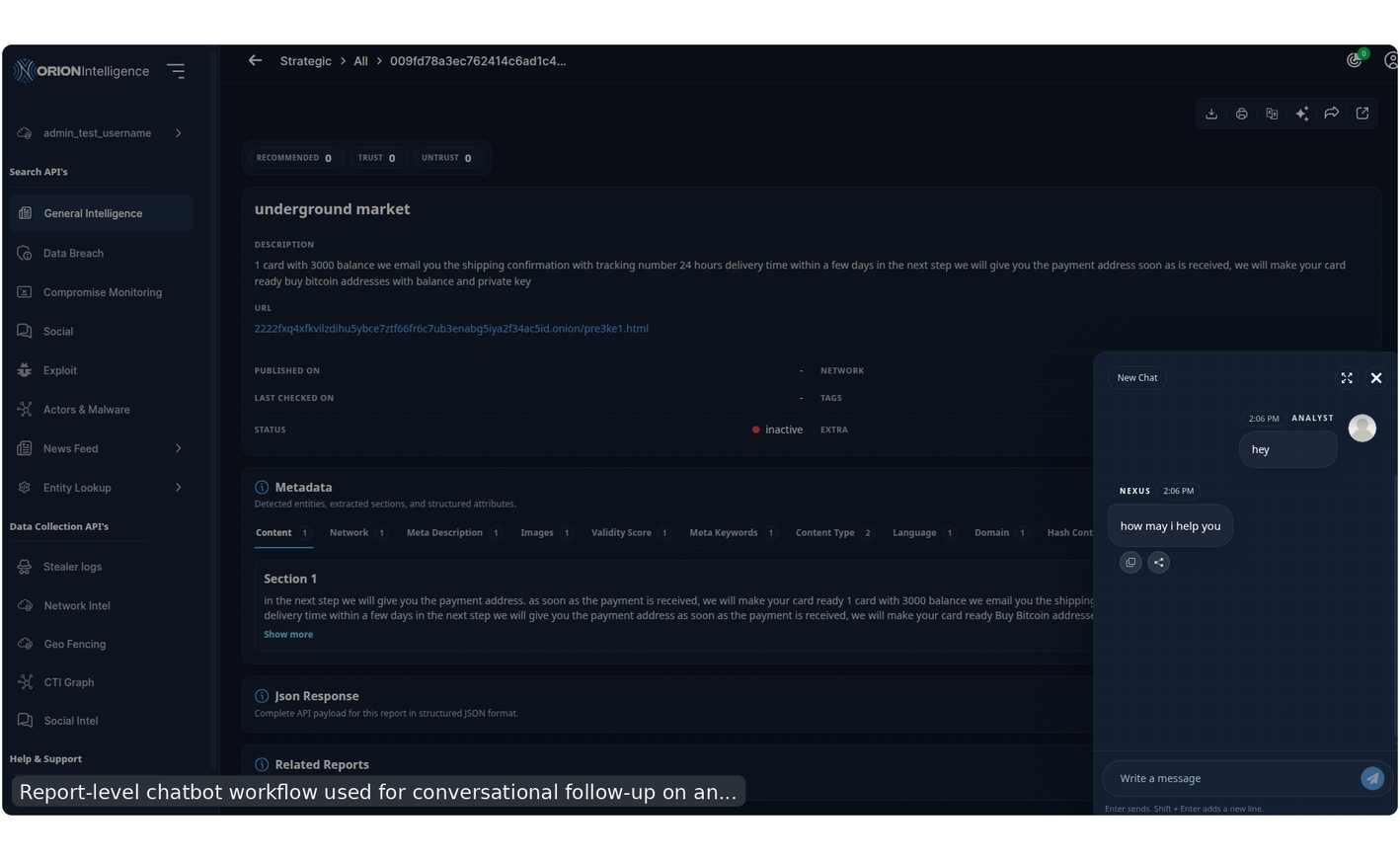
Report-level chatbot workflow used for conversational follow-up on an opened record.#
Practical Workflows#
Workflow 1: Broad Investigation#
Start in
HomepageorGeneral Intelligence.Enter a keyword or topic.
Use
Advanceand sidebar filters to narrow the results.Switch search mode if the results are too broad or too narrow.
Open a report for the most relevant record.
Review metadata and open CTI Graph if a relationship pivot is needed.
Workflow 2: Identity Exposure Check#
Open
Data BreachorEntity API.Search for an email or identity value.
Review breach details or live lookup results.
Use Stealer Logs if deeper credential evidence is required.
Workflow 3: Infrastructure Review#
Open
Network IntelorWeb Scans.Enter a domain or IP.
Run the appropriate recon or scan view.
Review the report, severity, and evidence.
Export the report if it needs to be shared externally.
Workflow 4: Profile Mapping#
Open
Social Intel.Scan a username.
Review the graph or list view.
Open profile summaries and metadata popups.
Add custom entities or manage connections if needed.
Workflow 5: Tenant Monitoring#
Configure IOC values in
Profile > IOC.Review alert summaries from the tenant homepage.
Open category alert reports for the highest-risk items.
Export alerts when sharing findings internally.
Notes and Limitations#
Feature availability
If a module described in this manual is not visible in your sidebar, the most common reasons are role restrictions, license restrictions, or deployment-level configuration toggles.
External modules
Some sidebar items open new tabs or external services rather than rendering inside the main Orion workspace. CTI Graph, Social Intel, Onion Link, Whistle Blowing, and Documentation may behave this way depending on route and deployment setup.
Recommended starting point
New users should begin with Homepage, General Intelligence, Data Breach, and Stealer Logs before moving into graph tools, tenant administration, or system administration.
Social#
The Social module aggregates intelligence from social and community platforms.
Supported views:
AllTelegramTwitterMastodonPastebinForumRedditUse this module for:
early warning and chatter monitoring
leak discovery
discussion tracking
platform-specific searches
Example of a stream-oriented social intelligence view.#